Video download guides
Practical notes for checking permissions, choosing formats, handling subtitles, and planning repeated downloads.
How to Choose Video Resolution and Download Quality
Compare 360p, 480p, 720p, 1080p, and 4K by source availability, screen, storage, bandwidth, codec, audio, and intended use.
Choose the lowest video resolution that preserves the detail required for your actual task. Confirm that the source exposes that rendition, then check codec, frame rate, audio, file size, and playback compatibility separately. A 1080p or 4K label cannot create detail absent from the source, and the highest-resolution result may be video-only.
How to Extract Audio from a Video: MP3, M4A, and Source Checks
Choose an authorized audio source, distinguish audio-only streams from conversion, compare MP3 and M4A, and avoid promising unavailable or higher-quality audio.
To extract audio from a video you own or may process, first confirm that the source contains an audio track. Prefer an available audio-only result when the source exposes one; otherwise use a trusted local converter on your authorized file. MP3 conversion changes the container or codec but cannot restore detail missing from the source, and AnyVidDL does not guarantee an MP3 result for every URL.
How to Save a Permitted Video on Android and Find the File
Save a public or authorized video on Android, choose a compatible result, find it in Files or Downloads, and troubleshoot storage, audio, and playback.
On Android, verify the public or authorized source, select an available compatible video result, download it once, then open the Files app and check Downloads. Confirm file size, duration, picture, and audio before moving or sharing it. App-managed offline media may remain inside that app and should not be treated as a normal downloadable file.
How to Save a Permitted Video on Samsung Galaxy
Download and find an authorized video on Samsung Galaxy using the browser and My Files, with storage, SD card, audio, playback, and permission checks.
On a Samsung Galaxy phone, download only a public or authorized video, then open My Files and check the Downloads category. Verify that the file is complete, plays with sound, and uses a compatible format before moving it to Videos, internal storage, or an available SD card. Protected app downloads may remain inside their original app.
A Safe Workflow for Saving Permitted TikTok Videos
Check a public TikTok video link, understand common failures, and keep creator rights and privacy boundaries visible.
In the October 5, 2026 controlled check, AnyVidDL parsed one public TikTok test URL but returned no executable video option. This result applies only to that test URL and time. Use it for content you own or have permission to save, and stop when a video is private, deleted, region-restricted, login-only, or otherwise unavailable.
How to Save an Instagram Video You Own or Have Permission to Use
A six-step Instagram Reel and video workflow covering canonical URLs, public access, permission, format, audio, saved-file checks, and stop conditions.
To save a permitted Instagram video, verify that the Reel or post is public, confirm ownership or permission, copy its canonical URL, inspect the returned media information, and validate the saved file. Stop instead of supplying credentials when the post is private, login-only, deleted, paid, or otherwise access-controlled.
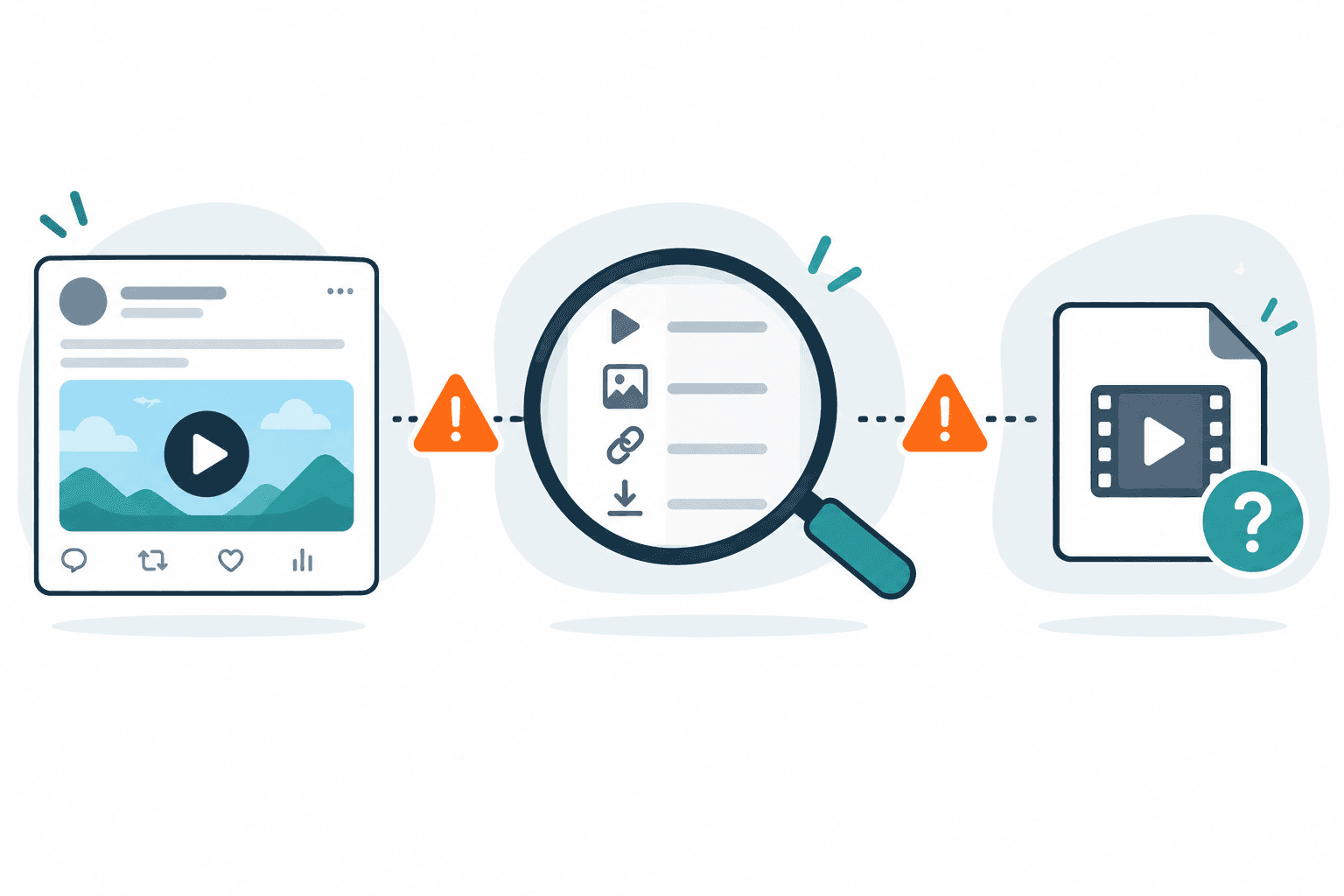
Twitter Video Download Failed or No Video Found? What to Check
Troubleshoot a failed X/Twitter download or 'no video could be found in this tweet' error by checking the exact post URL, public access, media type, and source response.
If a Twitter or X video download fails, open the exact post in a signed-out browser, confirm that it is public and still contains playable media, then copy the canonical post URL and try once more. Stop if the post is private, deleted, login-only, paid, or protected. If a file downloads but has no sound, check playback and audio separately rather than assuming the original download failure has the same cause.
Video Download Failed? Error Meanings and Next Steps
Identify unsupported URL, blocked source, timeout, extractor, file-size, transport and audio failures without confusing media detection with a completed file.
After a video download fails, identify the last completed stage and keep the visible error. Check the permitted source and returned option, retry a temporary error once later, and stop for restricted access or an unchanged unsupported result. Finding media or preparing a file does not prove that a complete playable file was saved.
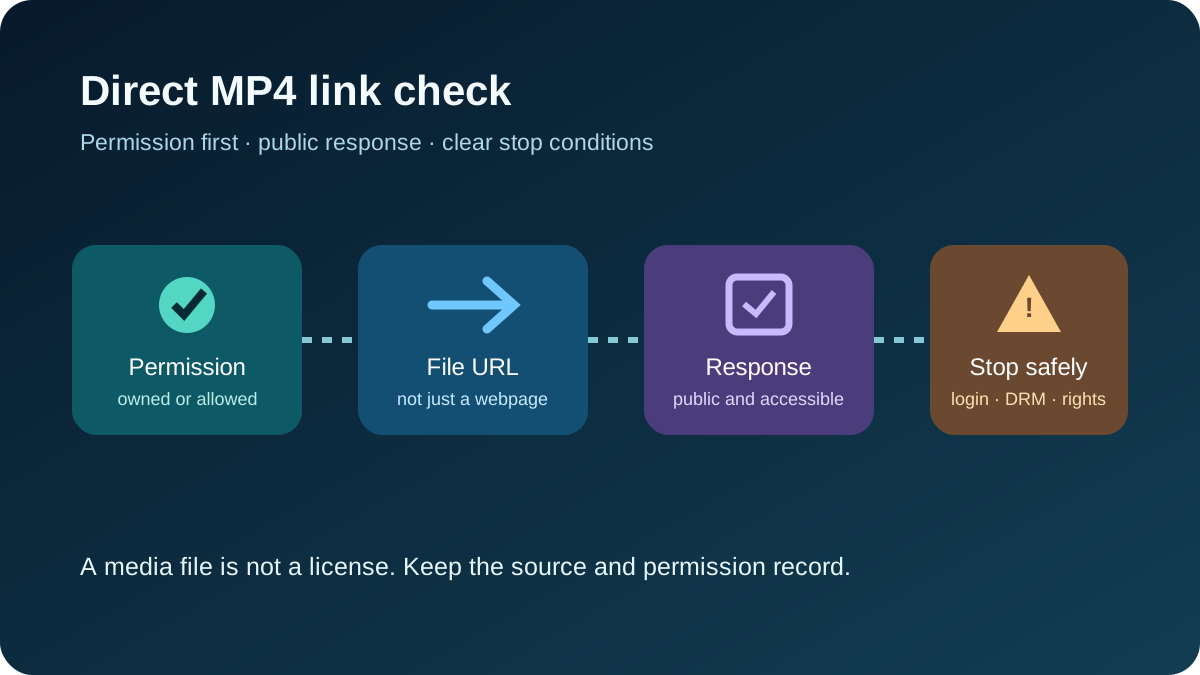
How to Check and Save a Direct MP4 Link Safely
Identify a real direct MP4 response, check what the server returns, and diagnose player, HTML, access, and saving behavior without bypassing source controls.
A real direct MP4 link returns media itself rather than a webpage. Check the response type, open the owner-supplied public source, and save only when the browser and source permit it. AnyVidDL can check one public link, but current direct-file reliability is unverified and complete saving is not guaranteed.
Why You Cannot Download an Age-Restricted Video as MP3
Separate platform access from local audio conversion, identify the failing stage, and troubleshoot authorized MP3 workflows without bypassing access controls.
An age-restricted MP3 workflow can fail before conversion because the official platform requires an eligible signed-in account or age verification. Check source access first, confirm permission and a usable local file, then convert that permitted file locally. A converter cannot bypass sign-in, age verification, private access, DRM, or other platform controls.
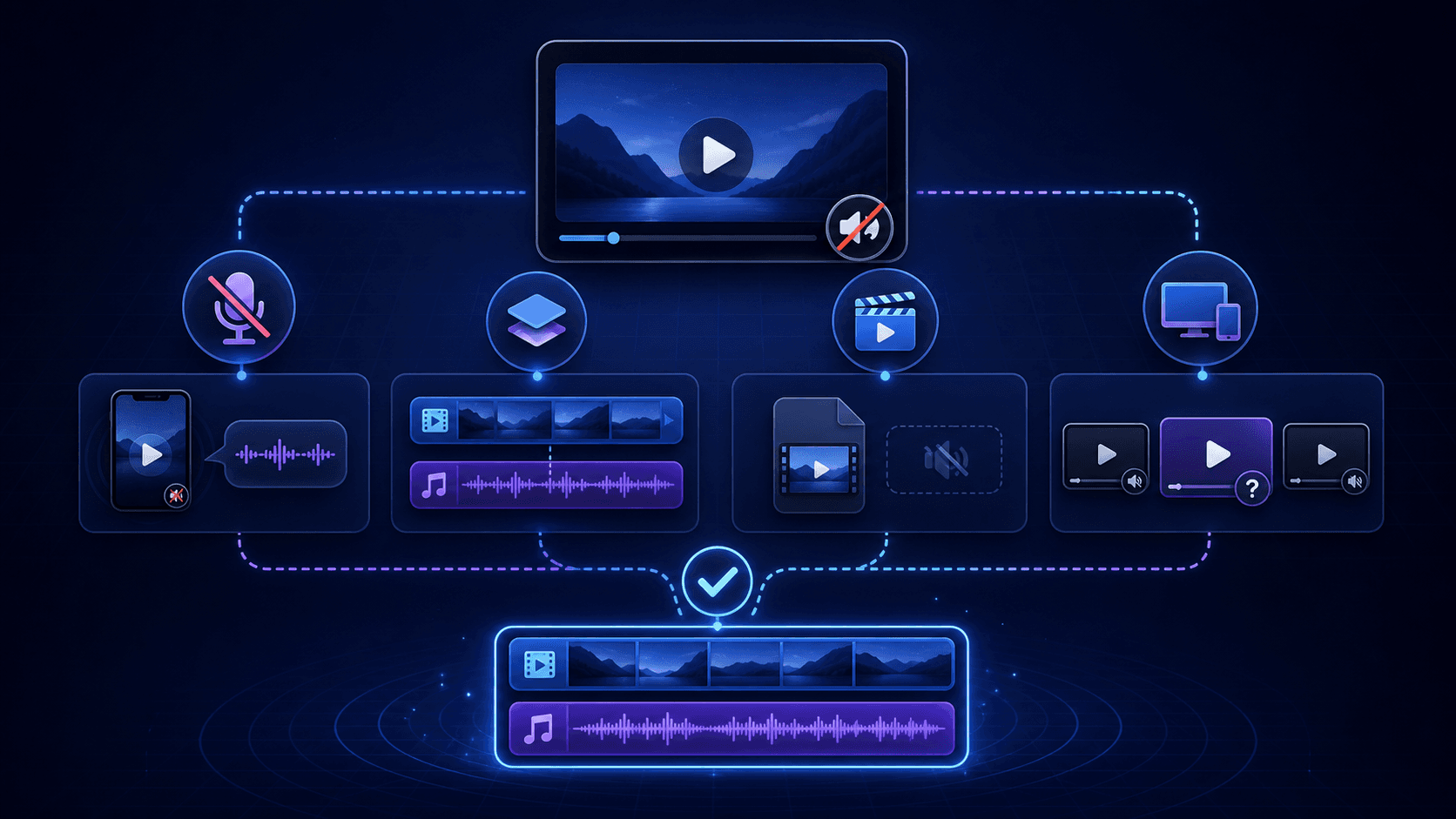
X/Twitter Video Download Has No Sound? Check and Fix Missing Audio
Fix a silent X/Twitter download: check whether the source has sound, inspect the saved audio track, and distinguish a video-only file from a player problem.
If an X/Twitter video download has no sound, check the original post first, then inspect the saved file for an audio track. No track means the audio was not saved; a listed track points to volume, player, or codec checks. Retry one supported audio-video output only if the source has sound. Conversion cannot recreate missing audio.
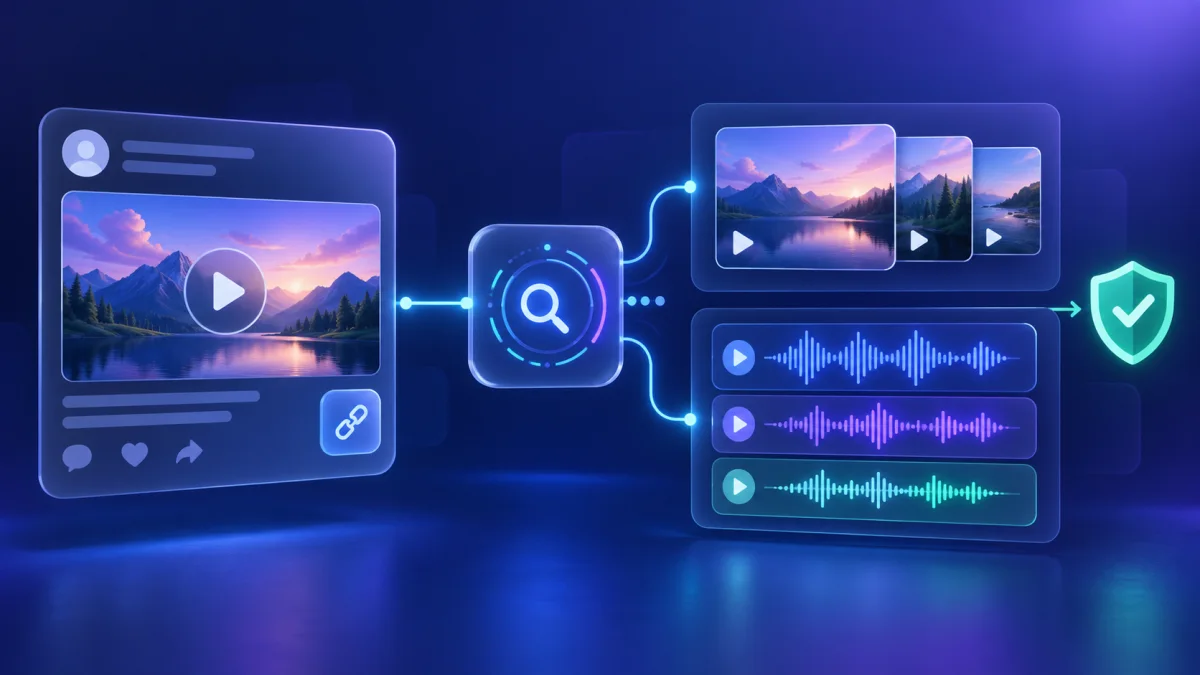
Reddit Video Download Workflow: Check the Link First
Check a public Reddit video URL, separate analysis from saving, and diagnose incomplete or silent results without overclaiming access.
Check the canonical Reddit post URL, distinguish link analysis from an actual saved file, inspect video and audio candidates separately, and record what remains unverified. A dated AnyVidDL observation returned candidates, but did not verify downloading, merging, playback, or reuse rights.
How to Save a Facebook Video You Own or Have Permission to Use
Choose Facebook's official owner export or a permitted public-link workflow, then verify audience, URL, format, audio, file integrity, and reuse rights.
For your own Facebook media, use Facebook's official Live download or account export first. For another permitted public video, verify that the exact post opens without login, copy the canonical URL, inspect the returned media, and validate the saved file. Stop at Friends-only, group-only, paid, deleted, login-required, or otherwise restricted content.
How to Test an X/Twitter Video Download Result
Use a practical checklist to test a public X/Twitter video result for the correct URL, playback, duration, audio, format, and a useful failure reason.
To test an X/Twitter video download result, start with one public, permitted canonical post URL and record the time and expected media. Check whether the workflow detects the correct post, then verify any produced file for playback, duration, seeking, picture, and audio. A pass applies only to that URL and test condition; private, login-only, paid, deleted, or protected posts are stop conditions.
Batch video download planning: a permission-first checklist
Plan a batch of public or permitted video links with a test sample, input ledger, stop conditions, output checks, and retention rules.
Before processing many video links, create a ledger that records permission, purpose, canonical source URL, required output, and a stop condition for every item. Test a small representative sample first; expand the batch only when outputs and failure reasons are clear.
Privacy and data retention for video download workflows
Minimize video URLs, files, logs, and permission records across a download workflow, with clear credential boundaries and deletion triggers.
Collect only the data needed for a permitted video task: usually the canonical URL, purpose, permission note, date, requested output, and failure reason. Never collect platform passwords, cookies, private session data, payment details, or DRM keys, and delete media and logs when their documented purpose ends.
Dailymotion Video Download Workflow for Public Links
Check public or permitted Dailymotion links, understand embed and protected-video failures, and keep a safe source record.
AnyVidDL can check public or permitted Dailymotion video and embed links when the source is accessible and saving is allowed. Dailymotion support evidence is tested_passed, but private, protected, paid, login-only, DRM-protected, credential-gated, or rights-restricted videos should be refused instead of bypassed.
Rumble Video Download Workflow for Permitted Sources
Check public or permitted Rumble links and embeds, understand availability failures, and keep source and permission context.
AnyVidDL can check public or permitted Rumble video and embed links when the source is accessible and saving is allowed. Rumble support evidence is tested_passed, but private, deleted, paid, login-only, DRM-protected, credential-gated, or rights-restricted media should be refused instead of bypassed.
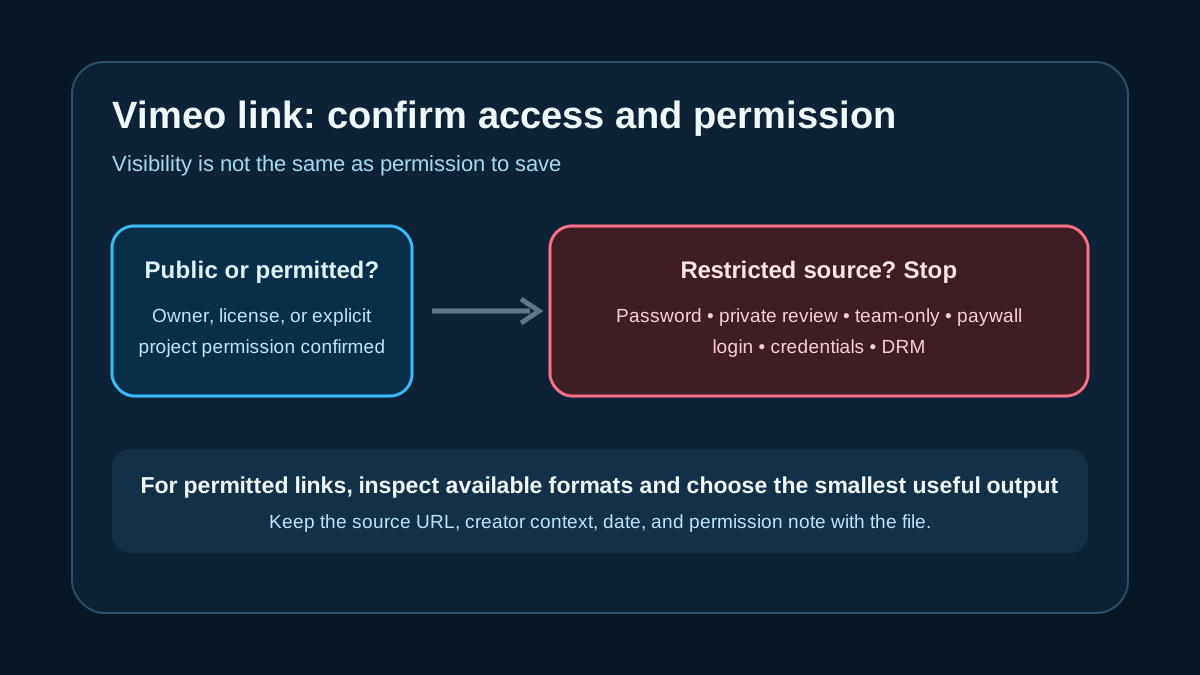
Vimeo Video Download Workflow for Permitted Links
Check public or permitted Vimeo links, understand private, password, team, paywall, and DRM limits, and choose a safe MP4 or archive workflow.
AnyVidDL can check public or permitted Vimeo links when the source is accessible and saving is allowed. Vimeo support evidence is tested passed for a public sample, but private, password-protected, team-only, paywalled, DRM-protected, or credential-gated Vimeo media should be refused instead of bypassed.
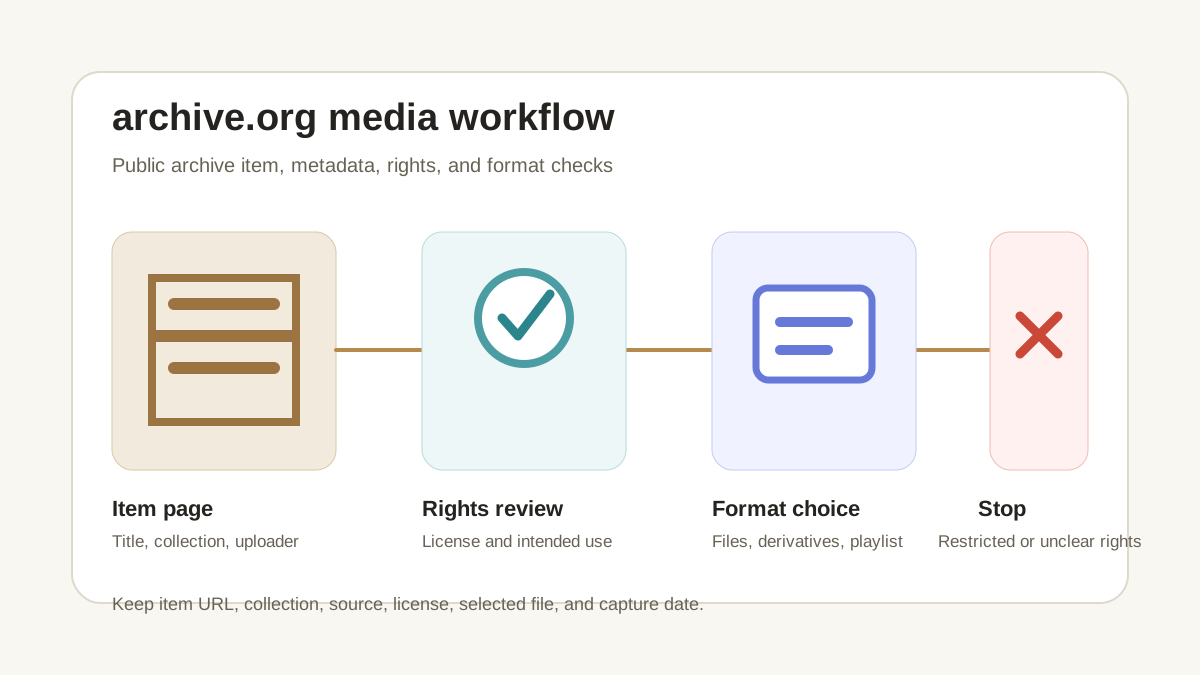
archive.org Media Download Workflow for Public Archives
Check public archive.org media links, handle playlist-style archive items, and preserve rights and source metadata before saving.
AnyVidDL can check public or permitted archive.org media links when the item is accessible and saving is allowed. archive.org support evidence is tested_passed with a production-verified public sample, but private, paid, login-only, DRM-protected, credential-gated, region-restricted, or rights-restricted material should be refused instead of bypassed.
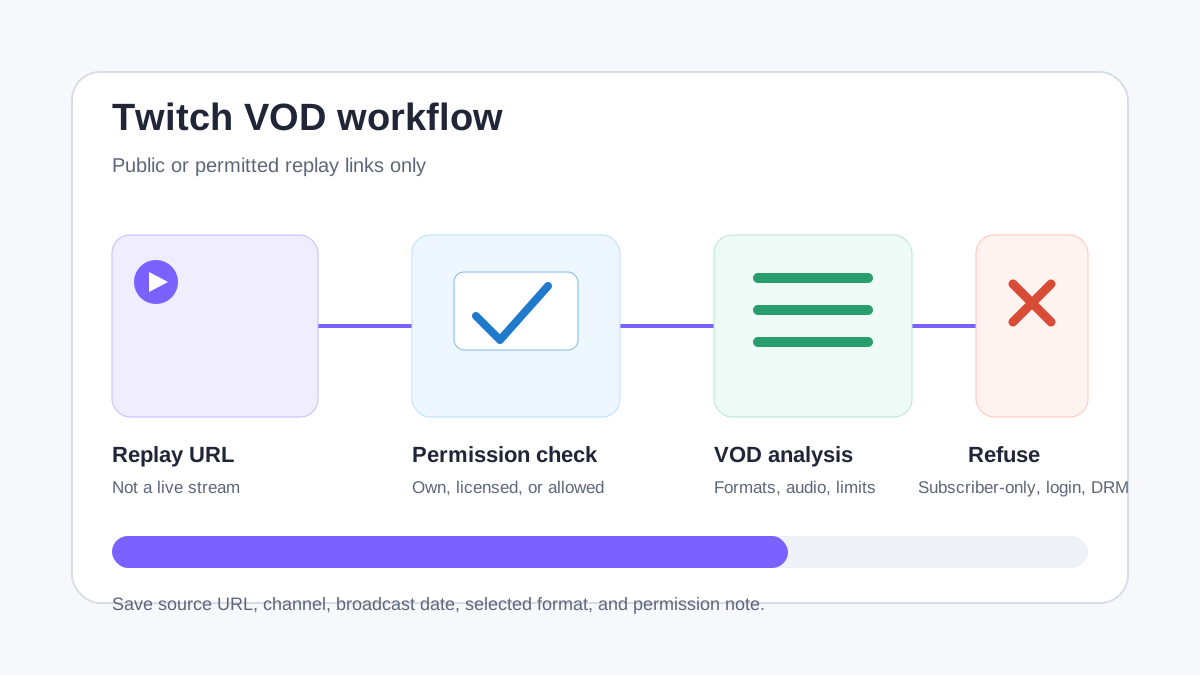
Twitch VOD Download Workflow for Public Replays
Check public or permitted Twitch VOD links, separate replay limits from live capture, and keep permission notes before saving.
AnyVidDL can check public or permitted Twitch VOD links when the replay is accessible and saving is allowed. Twitch VOD support evidence is tested_passed, but live streams, subscriber-only videos, deleted replays, login-only access, DRM-protected, credential-gated, paid, or rights-restricted content should be refused instead of bypassed.
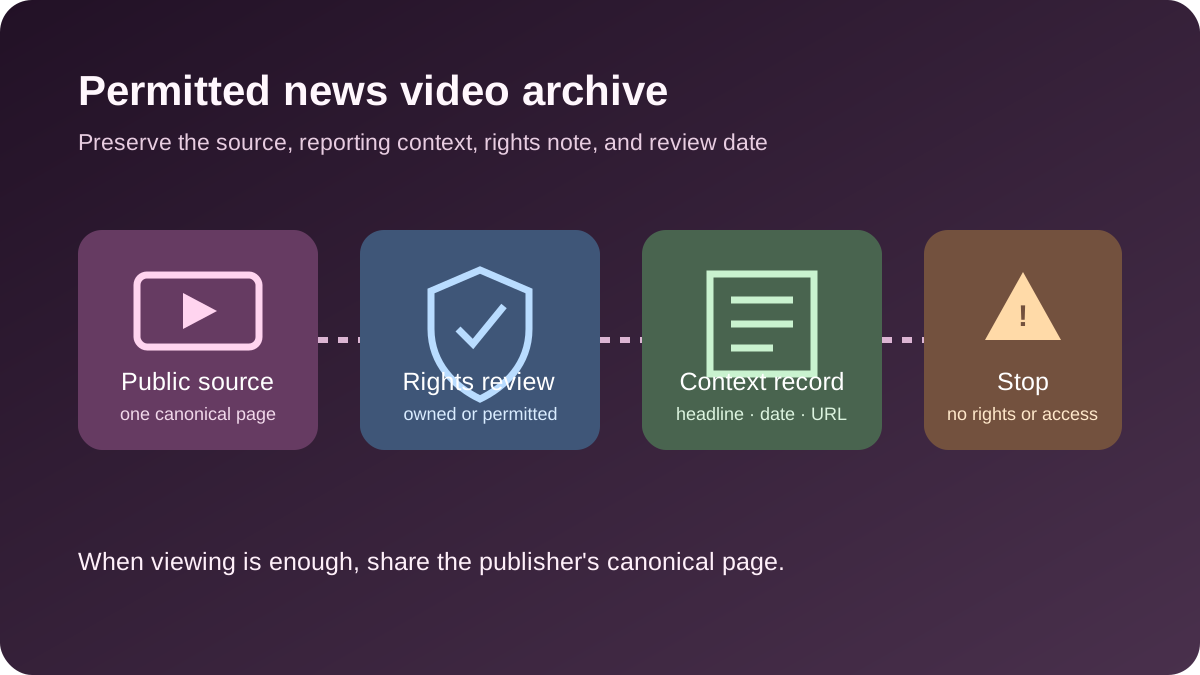
How to Archive a Permitted CNN Video Without Losing Context
Check an individual public CNN video, preserve its article and reporting context, and stop when access or reuse rights are unclear.
AnyVidDL has repository evidence for a tested public CNN media parse, but that does not grant permission to republish news footage. Use one canonical public video or article URL only for owned, licensed, permitted, or otherwise lawful archiving, and preserve the headline, publisher, date, source URL, and rights note.
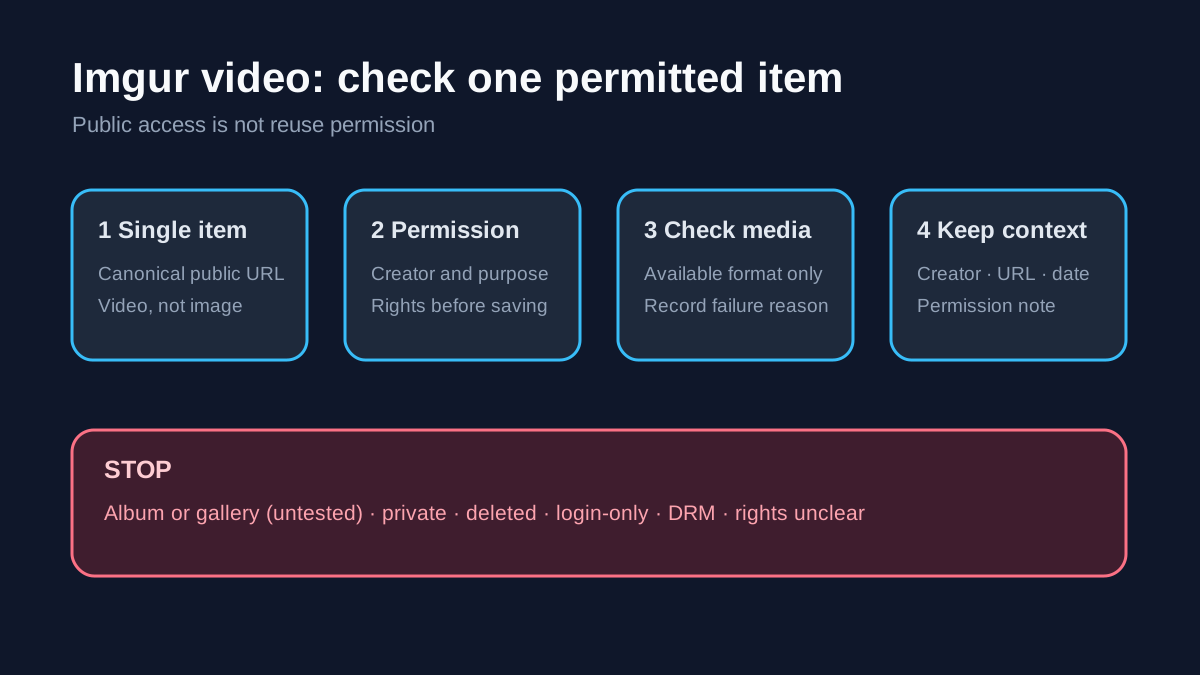
How to Save a Permitted Imgur Video
Check a public Imgur video post, distinguish a single item from an album or gallery, and preserve source and permission context.
AnyVidDL can check a public or permitted Imgur video item when its media remains accessible. Use the canonical item URL, confirm permission, and stop for private, deleted, login-only, protected, album-wide, gallery-wide, or rights-unclear material.
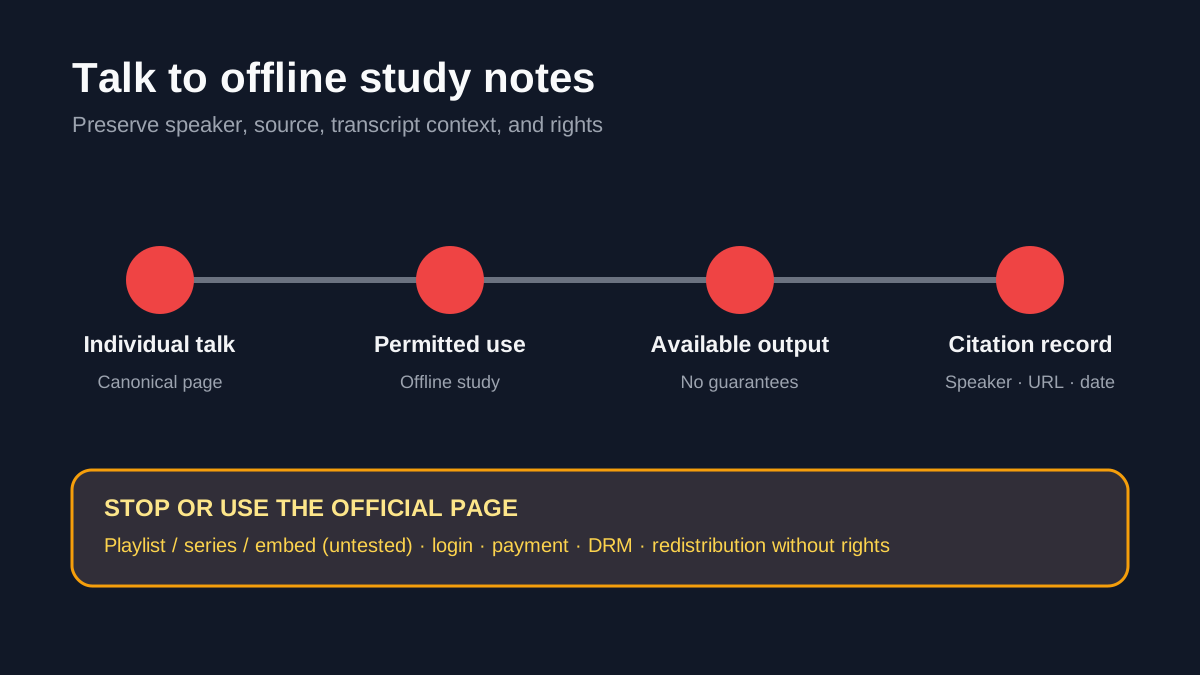
How to Save a Permitted TED Talk for Offline Study
Check a public TED Talk page, choose an available study copy, and preserve speaker, talk, transcript, and rights context.
AnyVidDL can check a public or permitted individual TED Talk page when its media is accessible. Use it for an authorized offline study copy, not playlist, series, embed, paid, login-only, DRM, or redistribution workflows.
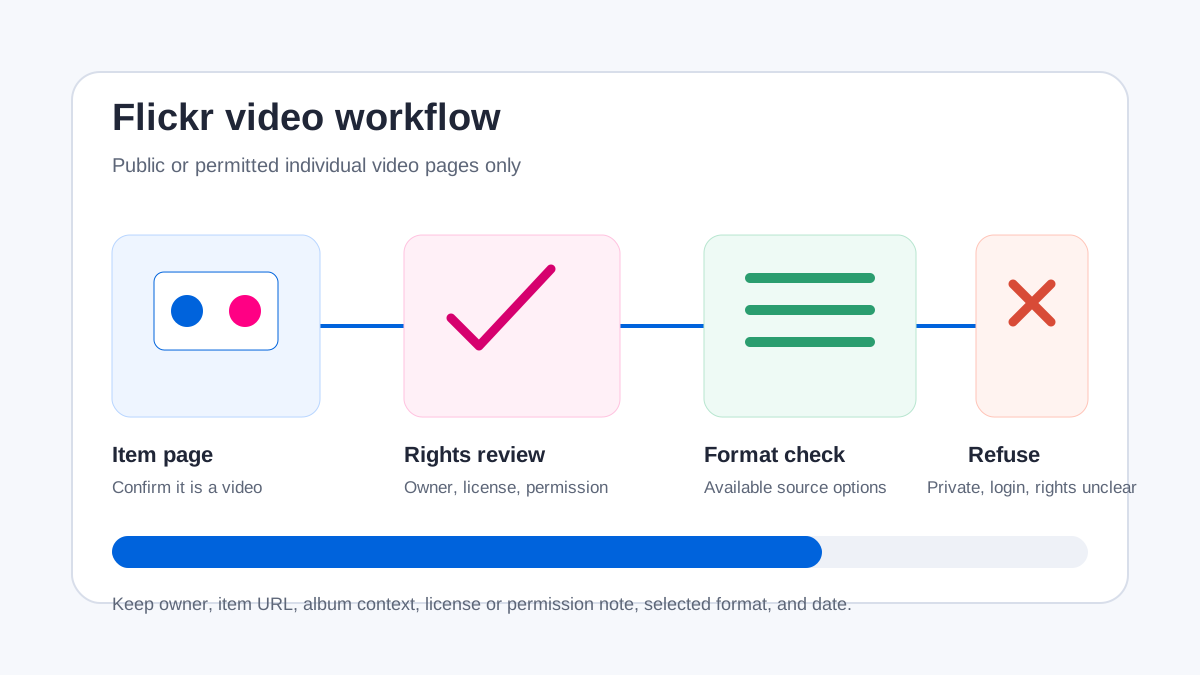
How to Save a Permitted Flickr Video Safely
Check a public Flickr video page, choose an available format, and preserve license, owner, and album context.
AnyVidDL can check public or permitted Flickr video pages. Confirm the item is a video, verify the owner's license or permission, and stop for private, login-only, deleted, restricted, or rights-unclear media.
Pinterest Video Download Workflow for Public Pins
Check public or permitted Pinterest video pins, understand board and rights limits, and keep source context before saving.
AnyVidDL can check public or permitted Pinterest video pin links when the source is accessible and saving is allowed. Pinterest support evidence is tested_passed, but private boards, login-only media, DRM-protected, credential-gated, paid, or rights-restricted pins should be refused instead of bypassed.
Streamable Video Download Workflow for Public Clips
Check public or permitted Streamable clip links, understand expired-clip failures, and keep source and permission context.
AnyVidDL can check public or permitted Streamable clip links when the source is accessible and saving is allowed. Streamable support evidence is tested_passed, but expired, deleted, private, login-only, DRM-protected, credential-gated, or rights-restricted clips should be refused instead of bypassed.
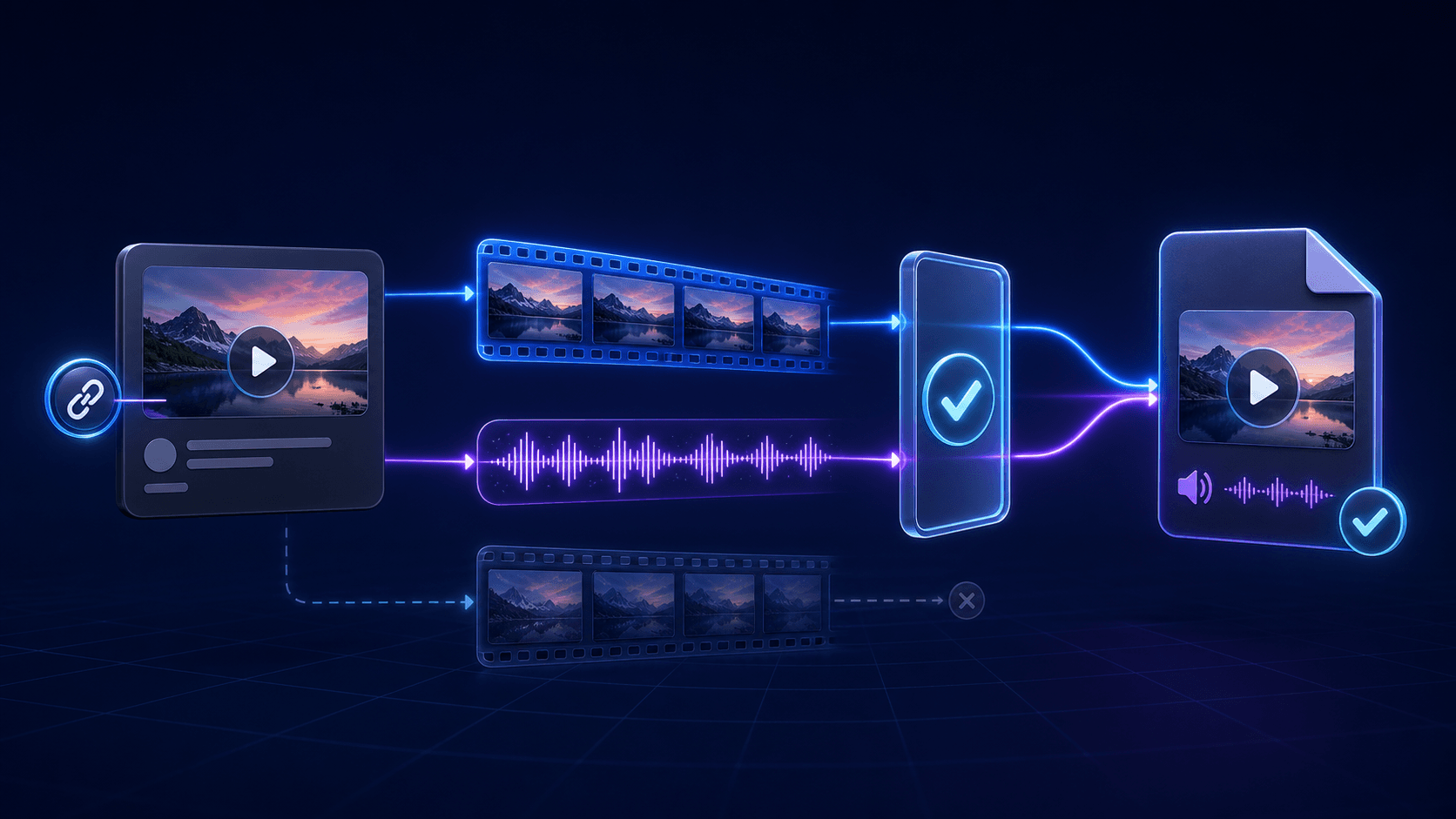
X Video Downloader With Audio: Save Twitter Video With Sound
Download an X/Twitter video with sound: confirm source audio, choose a combined audio-video output when available, and verify the saved file before keeping it.
To download an X/Twitter video with audio, play the public post to confirm sound, use its canonical post URL, and choose a supported output that includes video and audio. Verify the saved file before keeping it. An MP4 label or high resolution alone does not guarantee sound, and some sources have no combined option.
How to Save an X Video on iPhone Using Safari
Save a public, permitted X video on iPhone with Safari, then find and verify the file. Includes URL, Files, Photos, audio, and access-limit checks.
To save a public X video on iPhone, copy the canonical post URL in the X app or Safari, paste it into the X/Twitter video downloader, and download the available result. Safari usually places browser downloads in the Downloads folder in Files; moving a compatible video to Photos is a separate step. Stop if the post is private, deleted, login-only, paid, or otherwise restricted.
Twitter GIF Downloader: Save Public X GIFs as Video
Learn why X/Twitter GIFs often download as MP4 video, how to save a public GIF-style post, and when a true .gif conversion is unnecessary.
Most GIF-style posts on X/Twitter are delivered as short looping videos, so downloading the public post often produces an MP4 rather than a .gif file. Copy the canonical public post URL, use the X/Twitter video workflow, and verify the loop and duration. Convert the MP4 to a true GIF only if a site or editor specifically requires that format.
Twitter Video Formats Explained: MP4, HLS, and Audio
Understand X/Twitter video formats, MP4 containers, HLS delivery, quality renditions, separate audio tracks, GIF-style loops, and playback failures.
A downloaded X/Twitter video is commonly packaged as MP4, but the public source may be delivered through a direct file, HLS playlist, multiple quality renditions, or separate video and audio tracks. Choose a result that matches the source and includes audio when needed, then verify playback; the `.mp4` extension alone does not prove the file is complete or compatible.
Chrome M3U8 Downloader: Find the Playlist and Check the Result
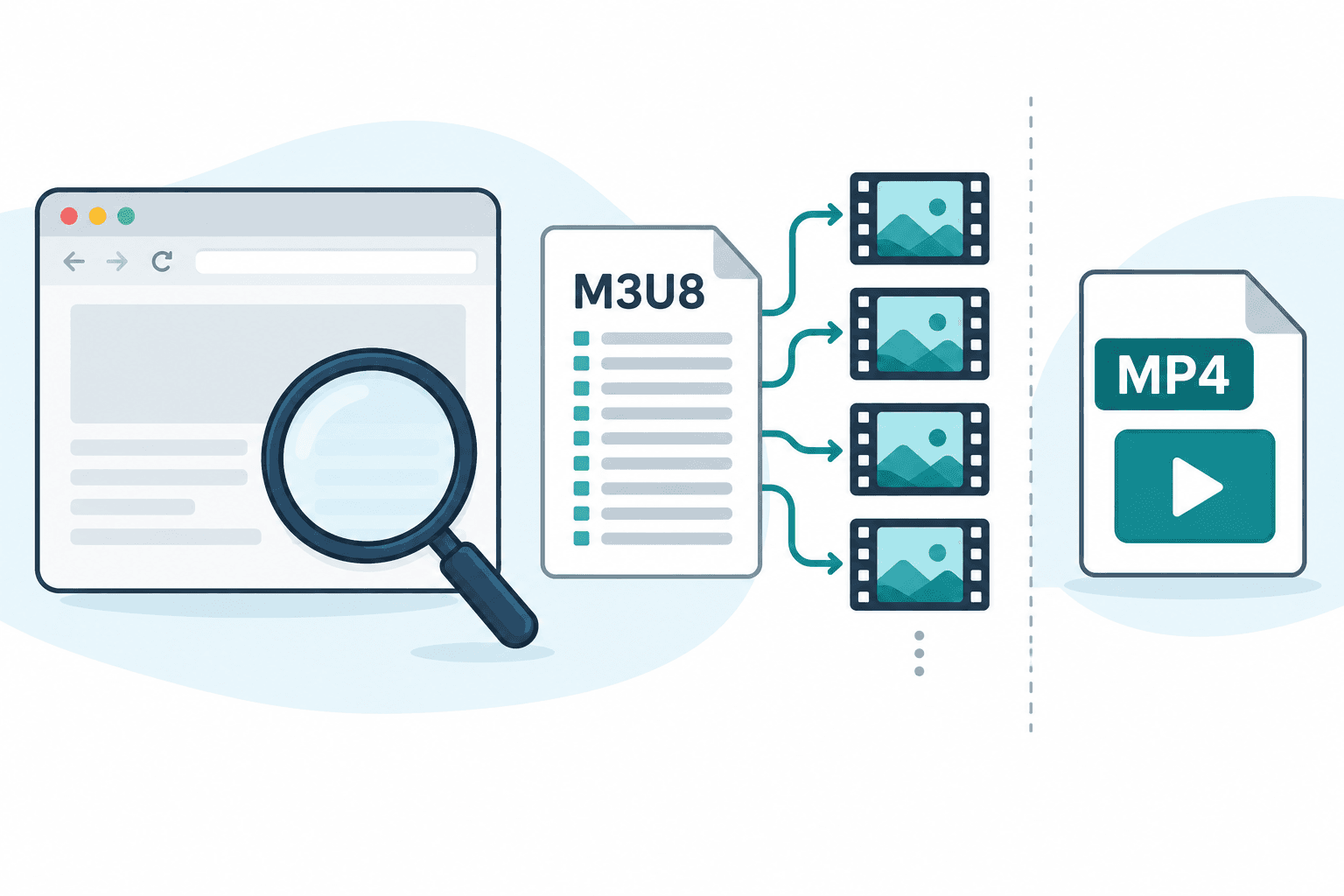
Find an HLS playlist in Chrome Network, distinguish master and media playlists, and diagnose missing audio, inaccessible resources, and incomplete downloads.
To inspect a permitted M3U8 stream in Chrome, open DevTools → Network before reloading the page, start playback, and filter for m3u8. Check the request status and response: a response beginning with #EXTM3U is playlist text, not a finished MP4. Save only through an authorized source or an available download option, then check the complete file and audio.
How to inspect a saved video with ffprobe
Use ffprobe on an authorized local video to inspect container and stream metadata without treating metadata as proof of playback.
Run ffprobe against an already saved authorized local file, inspect its container and stream records in JSON, and select audio streams when needed. The metadata describes the file but does not prove playback, downloading, or platform support.

M3U8 / HLS Download Workflow
A permission-first workflow for inspecting HLS manifests, choosing variants, handling audio and subtitles, and refusing protected streams.
Start with permission and purpose, then inspect the M3U8 manifest, confirm variants, audio and subtitle tracks, and refuse any HLS source that depends on DRM, paywalls, private sessions, credentials, or access-control bypass.
M3U8 to MP4 for AI Editing and Review
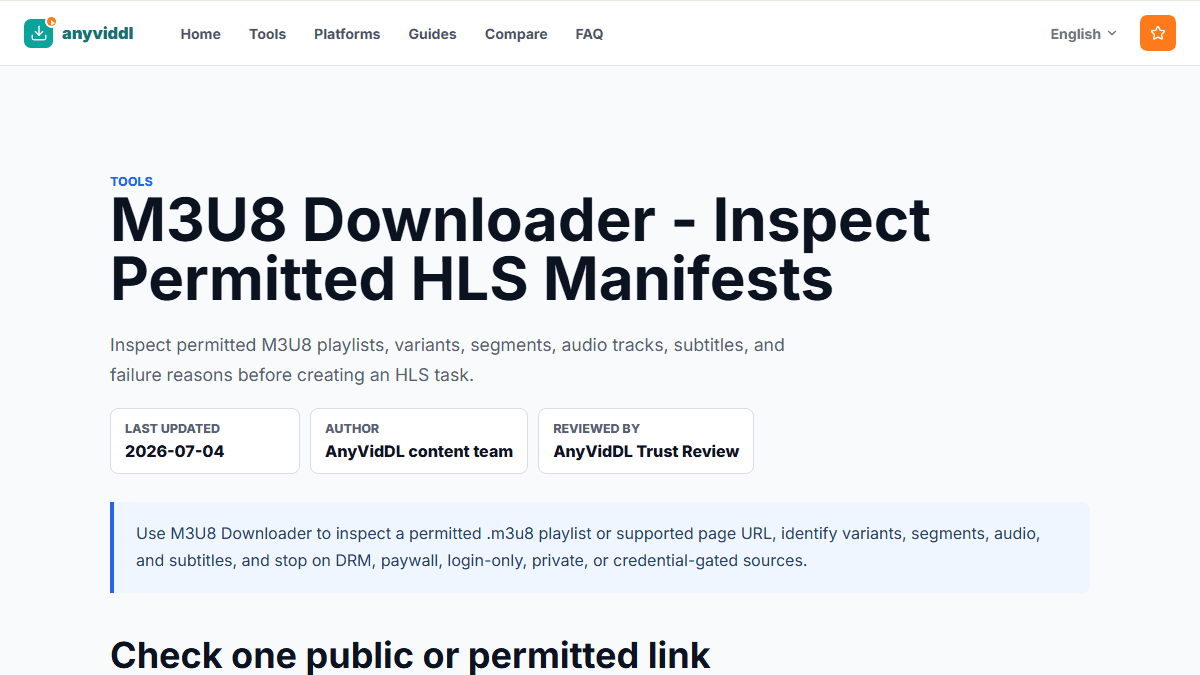
How to inspect permitted M3U8/HLS sources before preparing MP4 files for AI editing, transcription, or internal review.
For AI editing or review, convert M3U8/HLS to MP4 only when the source is public or permitted, not protected, and technically suitable. Inspect variants, audio, subtitles, expiration, and encryption first, then keep the source URL and selected rendition with the output file.
Prepare Video Downloads for AI Transcription
A safe workflow for preparing public or permitted video downloads before sending audio or files to AI transcription tools.
To prepare a video for AI transcription, confirm the source is public or permitted, save the smallest useful file or audio track, keep the source URL and permission context, then upload only the needed media to a transcription tool. Stop if the task requires private access, paywall bypass, DRM circumvention, cookies, platform passwords, or rights removal.
Summarize Online Videos with AI: Safe Preparation Workflow
How to prepare public or permitted videos for AI summaries without losing source context, rights boundaries, or review notes.
A safe AI video summary workflow starts with a public or permitted source, a saved source record, a transcript or review file, and a human check before reuse. AnyVidDL can help prepare supported video links, but it should not be positioned as a tool for private videos, paid media, DRM bypass, reposting, or AI-generated rewrites without permission.
Safe social video download workflow
How to check rights, choose a supported tool, understand failure reasons, and save social videos for personal offline use.
A safe social video download workflow starts with rights, public access, and purpose. Use the lowest-permission tool that can handle the link, record the source URL and failure reason, and stop when a task requires private access, DRM, paywall, account-password, or platform-control bypass.