Why QuickTime Player Is Not Playing MP4 Files on Mac: Codec or File Damage?
QuickTime not playing your MP4 on Mac? Learn how to diagnose codec compatibility vs file damage with read-only metadata inspection and a real player test.
QuickTime may refuse an MP4 because the file's internal codec is not supported by that player version, or because the file itself is damaged. An MP4 extension does not identify the codecs inside or guarantee QuickTime compatibility. Inspect metadata first with a read-only tool, then test playback directly in QuickTime to separate the two causes.
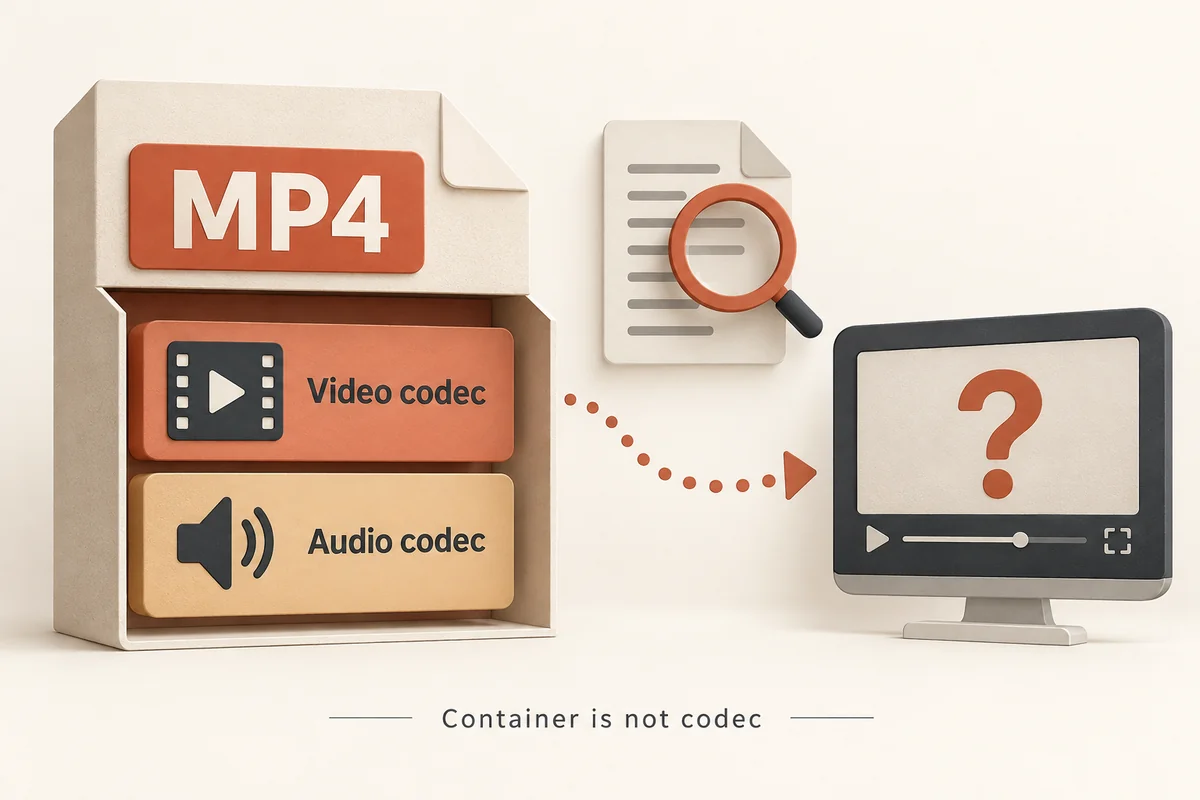
An MP4 that won't open in QuickTime on your Mac is a frustrating but diagnosable problem. Apple distinguishes two broad failure types: unsupported or specialized formats, and file damage — and the fix differs sharply depending on which you face. Before trying anything irreversible, a read-only metadata check can tell you what the file actually contains, while a direct player test tells you what QuickTime actually does with it. This guide walks you through both steps in order.
What QuickTime Actually Checks When It Opens an MP4
An MP4 container is a wrapper. What QuickTime evaluates is not the .mp4 extension but the codec identifiers, stream structure, and container metadata inside. Apple's support documentation notes that a file extension alone does not establish compatibility — QuickTime must be able to decode the specific codec used for video and audio streams within that container.
This means two files with identical names can behave differently. If QuickTime cannot decode a stream, it typically shows an error dialog or plays a blank/silent track rather than failing silently. Keeping your macOS and QuickTime installation up to date is the first recommended step, because codec support can change across versions. Try a different compatible player as a quick cross-check before drawing conclusions about whether the file itself is broken.
How to Read File Metadata Without Touching the File
Before converting or deleting anything, run a read-only metadata inspection. ffprobe, part of the FFmpeg project, reports container format and stream information without altering your file. The official ffprobe documentation (ffmpeg.org/ffprobe.html) describes it as a diagnostic utility: it reads what metadata the file declares, but successful parsing does not by itself prove QuickTime can play it.
Run this command in Terminal (replace the filename with yours):
ffprobe -v error -show_format -show_streams -of json "sample.mp4"
The output will show codec names, stream counts, and duration fields as the file declares them. Note what the codec_name fields say for video and audio streams separately — those values are your starting point for the next step.
Interpreting What You Find: A Diagnostic Checklist
Use the table below to map observations to their meaning — and importantly, to what each observation does not prove.
| Observation | Check | What It Does — and Does Not — Prove |
|---|---|---|
| ffprobe exits cleanly with stream data | Container is structurally parseable | Does not prove QuickTime can decode the codec inside |
| ffprobe reports error or truncated output | File may be incomplete or corrupted | Does not identify the precise cause of corruption |
| QuickTime shows error dialog | Player cannot open this file as-is | Does not confirm whether the problem is codec or damage |
| QuickTime plays but shows black screen | Playback pipeline started | Black screen is an observation, not proof of cause |
| A second player opens the file without errors | The second player could open this file | Does not establish full-file integrity or QuickTime compatibility |
Work through these in sequence rather than jumping to re-encoding.
What the Lab Fixture Showed in QuickTime
In a controlled test on macOS 15.8.1 (build 24H32) using QuickTime 10.5 (build 1216.2), a synthetic 12-second MP4 encoded as H.264/yuv420p video with AAC audio was opened in QuickTime. Playback was toggled on; the timeline advanced to 12 seconds and the final video frame was visually confirmed on screen. No independent recorded audio-listening test was conducted.
This observation covers one specific synthetic fixture only. It does not constitute a broad statement about what codecs QuickTime supports in general, nor does it predict behaviour for files with different codecs, resolutions, or encoding parameters. Always verify against your own file using the metadata inspection step described above and the player you actually intend to use.
Sources and Testing Scope
Sources used in this article:
- Apple Support — "If a media file doesn't open or play on your Apple device" (support.apple.com/en-us/102644): Provides general troubleshooting framing distinguishing file damage from unsupported formats. No codec-by-macOS version support matrix is derived from this source.
- FFmpeg Project — ffprobe Documentation (ffmpeg.org/ffprobe.html): Describes ffprobe as a read-only metadata reporting tool. Metadata inspection does not prove playback compatibility.
- Original synthetic fixture: one 12-second H.264/yuv420p plus AAC MP4 tested on the specific macOS and QuickTime versions described above; no other configuration was tested.
Scope boundaries: Claims in this article are limited to the sources and single fixture above. No other codec, hardware, or player version was tested here.
Key takeaways
- A file's .mp4 extension does not tell QuickTime what codec is inside — inspect stream metadata first with ffprobe before drawing conclusions.
- Apple recommends keeping software updated and trying a compatible alternate player to separate codec issues from file damage.
- The lab fixture (12-second H.264/yuv420p + AAC MP4, macOS 15.8.1, QuickTime 10.5) confirmed visual playback — this covers one synthetic file only, not a general codec support guarantee.
Conclusion
If QuickTime won't play your MP4, start with metadata inspection before taking any irreversible action. A read-only ffprobe run tells you what the file declares; a direct QuickTime test tells you what the player does with it. Those two data points together narrow the problem to codec compatibility or file condition — and from there, your next step becomes clear.
FAQ
Does ffprobe parsing successfully mean QuickTime will play my file?
No. ffprobe reads what the file declares in its metadata. Whether QuickTime can actually decode the streams inside is a separate question that only a player test can answer.
Can updating macOS fix a QuickTime MP4 playback problem?
It may help. Apple's documentation recommends updating software as a troubleshooting step, because codec support can change across versions. It does not guarantee compatibility for every file.
If another player opens the file fine, is the file definitely not damaged?
Not definitively. A second player opening the file suggests the container is structurally readable, but different players handle errors differently. It narrows the cause without fully ruling out file-level issues.
Sources
Related pages
4K Video Downloader Plus License Key: Purchase Recovery
Recover a purchased 4K Download license through the official purchase-email form, distinguish retrieval from activation, and prepare a private support record.
Is JDownloader Safe? Verify the Installer Source and Digital Signature
Check a JDownloader installer through its official source and digital signature. Understand what these checks show, their limits, and when to stop before setup.
KICK Clip Downloader Guide: Native MP4 and File Checks
Use KICK’s documented clip-page download route, keep clips distinct from full VODs, and check the MP4 file before relying on it.
Save a Permitted LinkedIn Video: Check the Link, File and Sound
A bounded workflow for checking a public LinkedIn video you have permission to save, then checking the downloaded file and its audio.