MP4 Has Picture but No Sound? Check the File and the Player
Diagnose why a saved MP4 shows video without sound. Compare playback, inspect its audio stream and decide whether you need an authorized original.
If your MP4 has picture but no sound, start with a known-good file in the same player and output device. Then check whether the MP4 contains an audio track. A listed track can still contain silence or fail to play in one app.
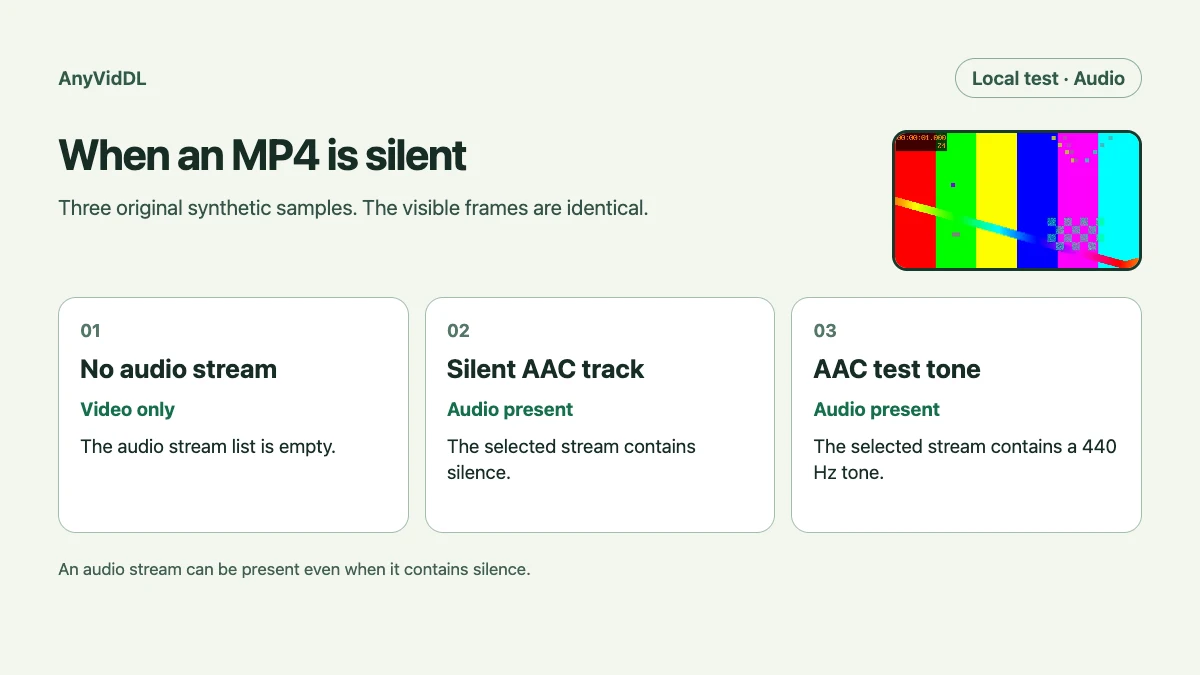
Opening an MP4 and hearing nothing while the picture plays normally points to one of three distinct situations: the file never contained an audio track, the file has an audio track that carries silence, or the file has a valid track that your player or output device is not reproducing. These three situations call for different responses, so the first step is to narrow down which one applies before you decide to do anything else with the file.
Compare two files in the same player
Play a local file you know contains sound using the same app, output device and volume. If both files are silent, start by checking mute, volume and the output selected by your system. If only the suspect MP4 is silent, keep it unchanged and continue.
In VLC, check Audio > Audio Track. Select the expected track when several are listed, and verify that none is disabled by mistake. VideoLAN’s audio guide documents track selection. Menu options can vary by system.
Check whether the MP4 has an audio stream
With ffprobe installed, open a terminal in the file’s folder. Replace the example filename with the exact name of your saved MP4. The command reads metadata and leaves the file unchanged.
ffprobe -v error -select_streams a -show_entries stream=codec_name,channels -of json "saved.mp4"
If ffprobe successfully opens the file and reports an empty streams list, it found no audio stream in that file. If the command reports an error, fix the path or verify you have a complete readable copy before drawing a conclusion. A listed codec such as AAC confirms the presence of a stream. To examine the whole file, use the saved-video ffprobe guide.
See why a listed track can still be silent
Our three original test files use the same H.264 picture. One has no audio stream, one has an AAC stream encoded from silence, and one has an AAC stream containing a 440 Hz tone. The same probe command found no stream in the first and reported AAC in both of the others.
The test shows the limit of the codec label. It describes the encoding of a track, but says nothing about whether it carries useful sound. It also says nothing about whether the playback app can decode it.
Use the result to decide what to do next
If the track is listed, try the unchanged MP4 in another trusted player or on another device. If the second setup plays sound, troubleshoot the first app, selected track or audio route. If both are silent, compare an authorized original if you have it. Silence in both players does not identify whether the cause is silent content, a decoding error or a damaged track.
If the saved MP4 has no audio track and the original does, keep the original and check which recording or export step dropped the track. Create a new copy from the authorized original when needed. If the original itself has no track, changing players or exporting again cannot recover audio from that file.
Record what changed between the tests
Keep the exact same file when you switch apps. A player, an audio device and a new copy are three different variables. If you change all of them at once, a successful playback does not tell you which change helped. Write down the app, output device, selected track and whether a known-good file played through that setup.
For example, if a reference file sounds normal in VLC, your saved MP4 is silent in VLC, and that same saved MP4 has sound in another player, you have ruled out a completely missing track in that copy. Check the first player before asking for a replacement. If the audio stream is absent from the MP4 but present in a readable original, the comparison instead points to a missing track in the saved copy.
Key takeaways
- Compare two files in the same player
- Check whether the MP4 has an audio stream
- See why a listed track can still be silent
- Use the result to decide what to do next
- Record what changed between the tests
Conclusion
Keep the saved MP4 and its original while you compare them. Start with playback and stream checks so the next action addresses the failure you actually observed.
FAQ
Why does VLC list AAC when I hear nothing?
AAC is the encoding of the track. It does not tell you whether the track contains audible content or whether VLC is decoding it correctly. Check the selected track and output, then try the same file in another player.
Will downloading the same MP4 again bring back the sound?
Only a fresh copy from a source known to contain the missing audio has a chance to help. If the problem is the player or device, or the authorized original has no audio, repeating the same download will not address that cause.
Does an empty stream list mean the original recording was muted?
It describes the copy you inspected. An authorized original might still have its own audio track, so run the same check on both before concluding what happened.
Sources
Related pages
Why 4K Video Downloader Failed to Download: A Diagnosis Checklist
Diagnose a failed 4K Video Downloader task using the exact error, app version, source availability and output folder. Keep a useful support record.
archive.org Media Download Workflow for Public Archives
Use the Internet Archive item’s Download Options to compare the actual AVI, MP4 and Ogg files on a Big Buck Bunny example.
Why You Cannot Download an Age-Restricted Video as MP3
Separate platform access from local audio conversion, identify the failing stage, and troubleshoot authorized MP3 workflows without bypassing access controls.
Dailymotion Video Download Workflow for Public Links
Find the Dailymotion watch link behind an embed and compare four real HLS renditions by dimensions, video codec and audio codec.