TikTok Videos Not Downloading: Check Creator Controls
Distinguish a missing TikTok Save video option from a failed save, check creator download controls, and preserve the actual device result without bypassing permissions.
If TikTok videos are not downloading, first distinguish a missing Save video option from a save that starts and fails. TikTok says saving depends on creator permission; its download controls are unavailable for private accounts and accounts under 16. Respect a disabled option, check your own creator settings when appropriate, and investigate only the actual transfer or device error you observe.
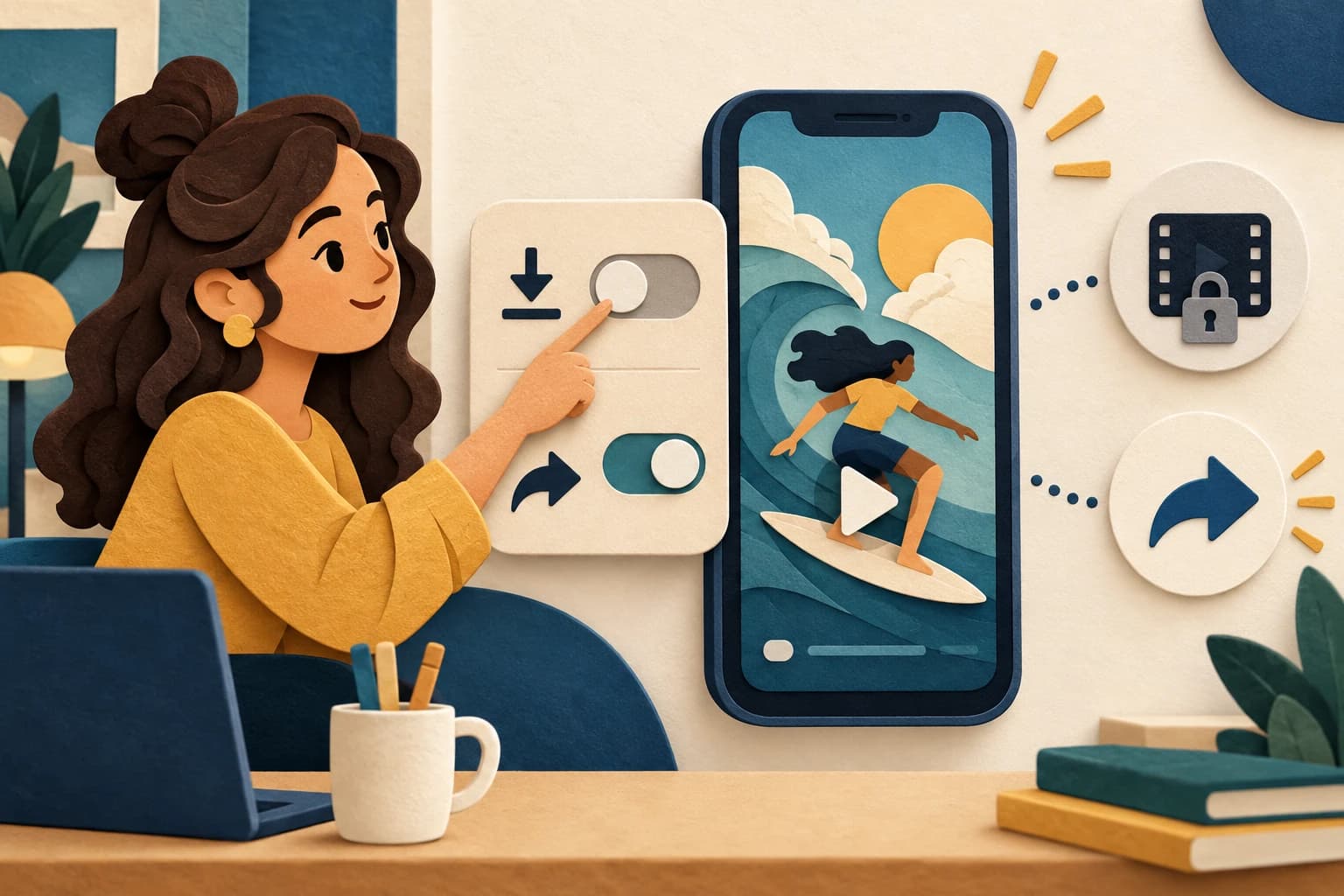
A missing button and a failed file transfer require different responses. One concerns whether saving is offered for that post; the other concerns what happened after an allowed save began. This guide follows official TikTok instructions and explains how to keep those observations separate. It does not claim that we tested your account, device, or a third-party TikTok downloader.
Identify what is missing before troubleshooting
Open the exact post through TikTok normally and review its Share options. The official save instructions describe Save video when the creator permits saving. The linked official page is Spanish; the steps here are an English explanation of those instructions.
Record one of three observations: the save option is absent, a save starts but shows an error, or a completed save cannot be found or played. Do not combine them into “downloader broken.” Also identify the post type. A photo carousel and a video use different save actions and produce different artifacts.
If the option is absent, treat creator permission as a boundary. A shareable link does not establish permission to obtain a local copy, and a public post does not prove that the creator enabled saving. Request a file from the creator or use the viewing access provided. Do not attempt to extract credentials or defeat a restriction.
Check owner controls only for an account you manage
TikTok’s download-control guidance explains how creators control whether others may download their posts. Private accounts and accounts under 16 cannot enable the relevant download setting. A control unavailable for those reasons is different from an unexplained transfer failure.
For your own eligible creator account, check the setting and the intended audience before changing it. Enabling download access is a distribution decision: people may retain copies. Disabling future saves does not remove files already saved by someone else. Keep that consequence in mind when posting material that you may later withdraw.
Your own-content saving is also separate from another viewer’s permission. Do not use the fact that you can save your own material as proof that everyone can download it. If you are diagnosing a report from a viewer, ask for the post URL and visible save option rather than their password or account session.
Investigate an allowed save with a bounded device record
When Save video is offered and you choose it, note the immediate result. If an error appears, retain its wording along with the device, operating system, app version, and time. Check the device’s actual storage and permission messages. These are recommended observations, not claims that one setting is always the cause.
Change one relevant condition at a time and repeat only a small permitted save. For example, after addressing an explicit storage warning, check the same authorized post again. Do not move directly from one failed transfer to a large batch request. A different post can help separate item-specific behavior from a broader device problem, but it still needs creator permission.
If saving appears to finish, locate the new item in the device’s normal media library and open it. Check picture, sound, and duration. Preserve a copy of the error record if playback fails. A success toast is not evidence that the complete video plays correctly.
Keep native saving separate from link-parsing results
A native TikTok save and a third-party URL result are different workflows. The TikTok link workflow describes source-specific checks; it does not guarantee a downloadable file for every post or resolve a creator-disabled native save. Choose a workflow by the authorized output you actually need.
If you are preparing your own material before publishing, TikTok’s official instructions describe saving to the device during the posting or editing process. Keep that original with your project files. It is often a clearer owner record than trying to reconstruct a file later from a public URL.
For support, report the precise stage, post type, save-option visibility, and actual device message. Redact personal account information. Leave an unresolved permission boundary or missing output visible rather than marking the download complete. This makes the next step specific: creator request, owner setting review, device error investigation, or file playback check.
Key takeaways
- Missing Save video and failed saving are separate cases.
- Review only creator settings for an account you manage.
- Verify the saved item rather than a success message alone.
Conclusion
Classify the visible stage first, respect creator controls, and verify the actual saved media when saving is allowed. A disabled save option is not an invitation to bypass access.
FAQ
Why is Save video missing?
TikTok’s official instructions say saving depends on creator permission. Check the exact post and respect the available controls.
Will disabling downloads delete copies people already saved?
No. TikTok says previously downloaded copies remain.
Does a public link guarantee a downloadable file?
No. Link sharing, native saving, and third-party source results are separate capabilities.
Related pages
4K Video Downloader Plus License Key: Purchase Recovery
Recover a purchased 4K Download license through the official purchase-email form, distinguish retrieval from activation, and prepare a private support record.
Is JDownloader Safe? Verify the Installer Source and Digital Signature
Check a JDownloader installer through its official source and digital signature. Understand what these checks show, their limits, and when to stop before setup.
KICK Clip Downloader Guide: Native MP4 and File Checks
Use KICK’s documented clip-page download route, keep clips distinct from full VODs, and check the MP4 file before relying on it.
Save a Permitted LinkedIn Video: Check the Link, File and Sound
A bounded workflow for checking a public LinkedIn video you have permission to save, then checking the downloaded file and its audio.