Snapchat Memories Video Export: Save Your Own Snaps
Save your own Snapchat Memories videos, choose an offered destination, review selected media, and check the actual saved picture, audio, and ending.
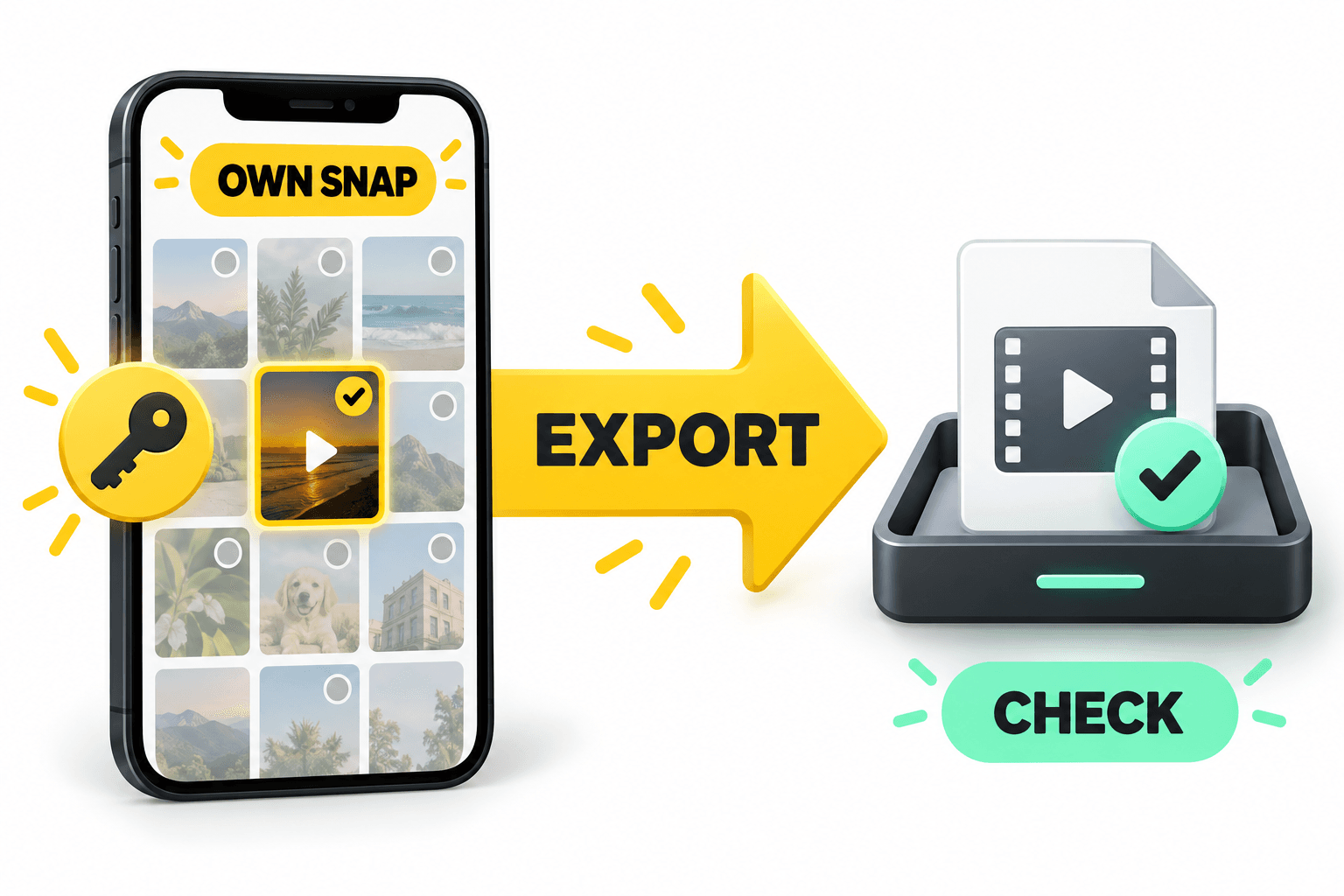
To export a video you saved in Snapchat Memories, open Memories, press and hold your own saved Snap, tap Export, and choose an offered download destination. Open the resulting saved item and check its picture, expected audio, and ending.
If you searched for snapchat video downloader, this guide covers only your own saved Snaps already present in Memories. It does not cover arbitrary Snapchat videos, ephemeral Snaps, or another person’s Snaps. These instructions are documentation-based; no live account export was performed.
Choose the Snap you control in Memories
Swipe up from Snapchat’s Camera to open Memories. Identify a Snap you created and want to keep; use its preview to distinguish it from similar items.
Before exporting, decide which scene, sound, and ending you expect. Those details help identify the saved result. Some intended items may be still photos, so keep those separate from your video list.
Export the selected Snap to a device destination
Press and hold the selected Snap, tap Export, and choose where to download it, following the official Memories export instructions. Use a destination actually offered on your device.
Choose with your next use in mind: immediate playback or finding the file again later. Note the destination’s name or location in your checklist. Export one clearly identifiable item first and locate its saved copy before making a larger selection. If several similar files appear, compare their previews and available details with your notes. Inspect the actual filename and location rather than assuming either.
If Export is missing, the item is absent from Memories, or no usable destination is offered, consult the current official support instructions linked above.
Use multi-select without exporting unrelated private media
For several items, tap the selector icon at the top of Memories, tap the intended Snaps, and use the bottom options to export your selection.
Choose a batch small enough to inspect individually. List the scenes you intend to save, then compare that list with the selected items. Include only your own intended media and exclude unrelated private items. For video-only exports, leave still photos out.
If you cannot confidently check the selection, return to the single-item method. Afterwards, match each saved item to your list. Counting files alone is insufficient: a duplicate could hide an omitted clip.
Open the actual saved video and check it
Open the chosen destination and play the actual saved item. A thumbnail or completion message alone does not demonstrate that the saved video plays correctly.
Check each intended video:
- Confirm that its content matches the selected Snap.
- Play from beginning to end, watching for movement and the expected final moment.
- Listen for expected audio at a suitable device volume; assess a deliberately silent clip accordingly.
- If details are available, inspect file type and duration without assuming a particular extension.
- Record still photos separately, and note missing, duplicate, or unplayable results.
If a result looks wrong, first confirm that you opened the correct saved item. For a still image, check whether you selected a photo. If playback stops early, compare the ending against the selected Snap before deciding the copy is usable. If expected sound is absent, compare playback with a known audible local file and check the volume. When the original sound is uncertain, mark the audio comparison unresolved.
Keep the original while resolving discrepancies. Note the failed check before consulting support. A selected export is not evidence of a complete account backup.
Key takeaways
- Start with your own saved Memories Snaps and an intentional selection.
- Use an offered destination you can find again.
- Verify each actual output; distinguish videos from still photos.
Conclusion
Finish with an identified set of checked files. Keep the source Snaps available while any missing item, playback problem, or audio question remains unresolved.
FAQ
Does this method download any Snapchat video?
No. It covers your own saved Snaps already in Memories, not arbitrary videos or someone else’s content.
Should I expect an MP4 file with sound?
Check the saved item’s file details and playback. Do not assume an extension or that expected sound survived the export.
Can this recover a deleted Snap?
This workflow provides no recovery method. If the item is absent from Memories, consult the current official support linked above.
Sources
Related pages
Download YouTube Video in 4K MKV: Codec and Player Checks
Understand vendor-documented MKV options, separate container from codec, inspect an authorized saved file, and check playback before choosing conversion.
4K Video Downloader Subtitles: Choose SRT or Embedded Output
Use documented subtitle settings in 4K Video Downloader Plus, choose separate SRT or embedded output, and diagnose missing tracks before repeating a download.
AC3 vs AAC: Audio Compatibility, Surround Sound and Passthrough
Compare AC3 and AAC for local media: check player and container support, understand passthrough, and decide whether to preserve or re-encode an audio track.
Download a Direct MP4 with AnyVidDL Desktop on Windows: A Tested Walkthrough
Follow one tested Windows desktop MP4 download with real screenshots, output settings and file checks, including this unsigned release’s limits.