Is JDownloader Safe? Verify the Installer Source and Digital Signature
Check a JDownloader installer through its official source and digital signature. Understand what these checks show, their limits, and when to stop before setup.
A digital signature cannot establish that JDownloader is completely safe. For the vendor's own alternative installers, start from the official download page, check the expected publisher against the current AppWork certificate table, and review setup choices. These checks support origin and integrity; they are not an independent evaluation of runtime behavior, optional components or future updates.
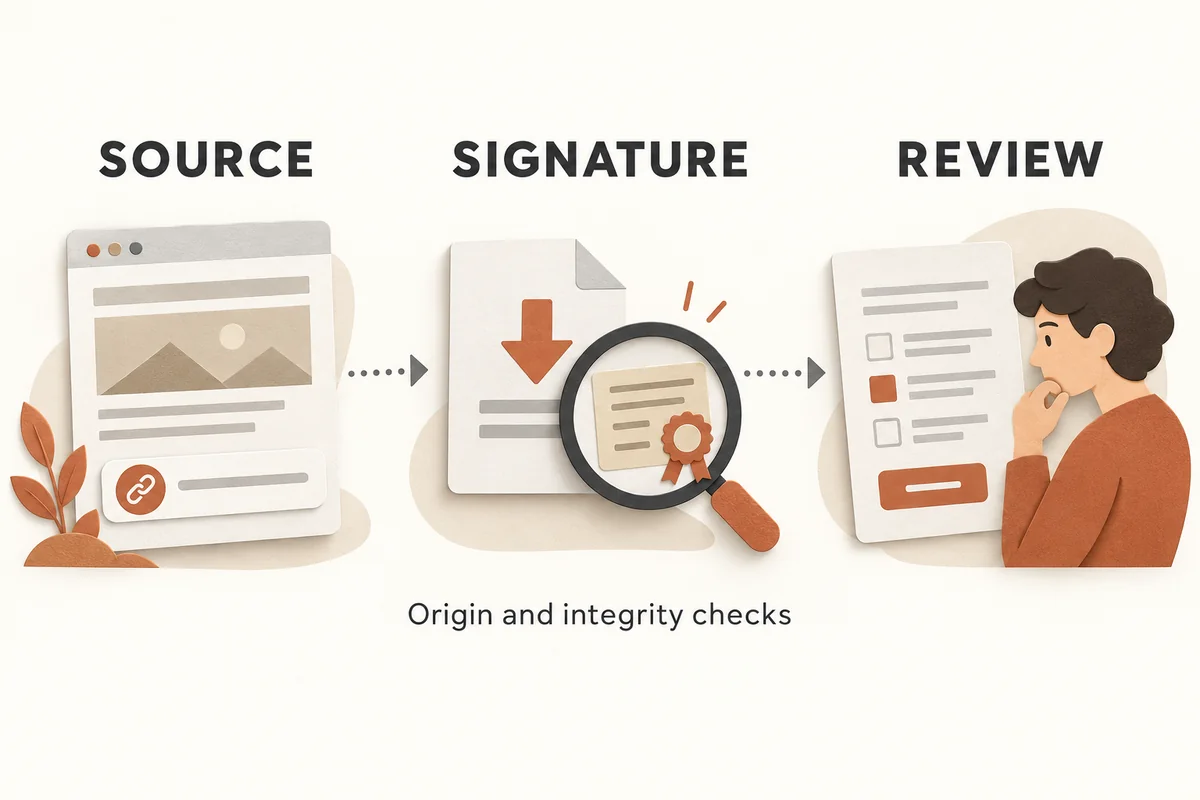
Before you double-click a desktop installer, confirm which file you have and how you obtained it. This guide walks through the source and signature checks described by JDownloader's vendor for its own alternative installers. It does not render a malware verdict on JDownloader itself: documentation review cannot supply the behavioral or sandbox testing that such a conclusion would require. No JDownloader installer was downloaded, mounted, run or scanned while preparing this guide.
Step 1 — Confirm the Download Comes from the Official Domain
Navigate directly to JDownloader own-installer page to reach the vendor’s own alternative-installer page. Before saving any file, confirm the page is served over HTTPS and that the domain in your browser's address bar is exactly jdownloader.org—not a lookalike such as jdownloader.net, jdownloader.org.mirror-site.com, or any subdomain you did not expect.
AppWork's own support documentation notes that files linked from the official site may be hosted on third-party storage including Mega.nz (AppWork support knowledgebase, updated 23 Oct 2026). That means a Mega.nz download link is not automatically suspicious if it originates from the official page—but a Mega.nz link you found on a forum, in a search result, or in a chat message carries no such assurance. The origin of the link, not just the file host, matters.
If you prefer to avoid the standard web installer entirely, AppWork's support knowledgebase describes alternative installer setups. Locate them through the official support site rather than through search results, which may surface outdated or repackaged copies.
What to record before you proceed:
- The exact URL from which you saved the file
- The filename and actual size of the saved file
- The date you downloaded it (certificate validity is time-bounded)
The linked verification guidance applies exclusively to these vendor-owned alternative setups. Do not generalize its certificate table to every installer, historical build or third-party package bearing the JDownloader name.
Step 2 — Inspect the Digital Signature Before Running Anything
A digital signature cryptographically binds a publisher's identity to a specific file. A valid signature supports integrity for the content covered by that signature; it does not assess every aspect of software behavior. Checking the signature before execution is therefore the most direct way to confirm you have an unaltered file from a known publisher.
Official signer to expect: AppWork GmbH. On macOS, the Developer ID is F9XJE9HP83. Always cross-check against the current details in AppWork's official documentation, because certificates are renewed and the specific thumbprint you find in a blog post from two years ago may no longer be current.
Windows: Authenticode via PowerShell
Open PowerShell (no administrator elevation required for reading a signature) and run:
Get-AuthenticodeSignature "C:\Downloads\JDownloader2Setup.exe" | Format-List Status,StatusMessage,SignerCertificate
The Status field must return Valid. A HashMismatch or NotSigned result means the file should not be run. If Status is Valid, read the SignerCertificate block and confirm the subject name matches AppWork GmbH. Do not proceed if the signer is an entity you do not recognize, even if the status shows valid—a valid signature from an unexpected publisher means someone else signed this file.
You can also inspect the signature without PowerShell: right-click the installer in File Explorer, choose Properties, open the Digital Signatures tab, select the signature entry, click Details, then View Certificate. The certificate dialog shows the issuer chain and validity period. Compare the signer and certificate details with the vendor’s current table; do not confuse the publisher identity with the issuing certificate authority.
macOS: codesign and Gatekeeper
For a .dmg or .app bundle, open Terminal and run:
codesign -dv --verbose=4 "/path/to/JDownloader2.dmg"
This outputs certificate metadata—team identifier, signing time, and certificate chain—but it does not render a trust verdict on its own. To get Gatekeeper's assessment, as a separate platform assessment, run:
spctl -a -vv -t install "/path/to/JDownloader2.dmg"
Look for accepted in the output and confirm the source line references a Developer ID matching AppWork GmbH with the identifier F9XJE9HP83. If Gatekeeper returns rejected or the Developer ID does not match, stop and do not mount or open the image. AppWork's own support documentation recommends the spctl path for a general platform assessment (AppWork support knowledgebase, updated 23 Oct 2026).
Step 3 — Read Every Setup Screen Before Clicking Next
A valid expected signature supports the file’s origin and integrity. It does not automatically accept every offer inside that file on your behalf. Standard web installers for many free tools present optional components during setup—additional software, changed browser defaults, or sponsored search providers. If setup offers additional software or settings changes, assess each choice separately; the presence of a signature does not approve those choices for you.
A practical discipline for any third-party installer:
| Setup screen element | What to do |
|---|---|
| License agreement | Read the parties named; unexpected third-party names indicate a bundle |
| Optional component checkboxes | Uncheck anything you did not actively choose to install |
| "Recommended" settings | Treat these as the vendor's preference, not necessarily yours |
| Browser default change prompts | Decline if you did not intend to change your default browser |
If at any point a screen references software from a publisher you do not recognize, or if a firewall prompt names a process you cannot account for, stop the installation and investigate before continuing. If the file or setup behavior does not match what you expected, stop and consult the official support page rather than accepting unfamiliar components to get past the screen.
What These Checks Establish—and What They Leave Open
Treat each observation as a separate piece of evidence. Reaching the official source page establishes where the download process began; it does not inspect the resulting file. A valid signature from the expected publisher supports origin and integrity of the signed content; it does not establish that every feature or later update is harmless. A familiar filename, file size or hosting service is not a substitute for either check.
If you calculate a local file hash for your own records, it is only an identity reference unless you have an independently trusted expected value for that exact build. This guide did not verify a vendor-published checksum and does not supply one.
Sources and Testing Scope
The sources reviewed were the official own-installer page and the vendor’s signature-verification guide, whose stated scope is its own alternative installers. The latter was updated on 23 October 2026 and provides the current certificate table and platform-specific examples.
No JDownloader installer was downloaded, mounted, run or scanned for this article. The Windows and macOS command examples are vendor-documented methods, not commands we tested against an installer. No independent malware, behavioral, update or bundled-component verdict is claimed. Review the current vendor documentation rather than relying on a fixed thumbprint copied from an older article.
Key takeaways
- Begin at the official own-installer page; a linked hosting service such as Mega is neither proof of safety nor, by itself, proof of a problem.
- For the vendor's own alternative installers, compare signature and publisher information against its current guidance; metadata display alone is not verification.
- A valid expected signature supports origin and integrity, not the harmlessness of every installer choice, runtime feature or future update.
Conclusion
Start at the official own-installer page, follow its source chain, and compare the expected signature and publisher details with the current vendor guide. Keep metadata display, platform assessment and software behavior as separate questions. Stop if the source or signer cannot be reconciled with that guidance. Even when the checks match, review setup choices independently: origin and integrity evidence is not a comprehensive safety verdict.
FAQ
Does a valid digital signature mean JDownloader is completely safe to install?
A valid signature from AppWork GmbH confirms that the specific file you have has not been modified since AppWork signed it. It does not evaluate what the installer does during setup, whether optional bundled offers are acceptable to you, or whether future auto-updates will be equally clean. Signature validity is an integrity and origin check, not a comprehensive behavioral audit. You still need to read each setup screen and decline any bundled software you did not choose.
Is it safe to download JDownloader from a Mega.nz link?
The vendor says its own alternative installer files may be hosted on Mega when linked from the official page. The relevant check is the complete source chain and the specific file’s expected signature. A Mega link obtained elsewhere remains unverified; the hosting domain alone supplies neither a safety verdict nor proof of tampering.
What should I do if the signature check returns NotSigned or HashMismatch?
Do not run the file while its source or signature is unresolved. Check that it is the vendor’s own alternative installer covered by the guidance, then consult the current certificate table and support instructions. A missing or mismatched signature is a reason to stop; this article does not independently diagnose why a particular file produced that result.
Sources
Related pages
4K Video Downloader Plus License Key: Purchase Recovery
Recover a purchased 4K Download license through the official purchase-email form, distinguish retrieval from activation, and prepare a private support record.
KICK Clip Downloader Guide: Native MP4 and File Checks
Use KICK’s documented clip-page download route, keep clips distinct from full VODs, and check the MP4 file before relying on it.
Save a Permitted LinkedIn Video: Check the Link, File and Sound
A bounded workflow for checking a public LinkedIn video you have permission to save, then checking the downloaded file and its audio.
Turn Your Own Short Video into an Animated GIF: Clip, Palette and Size Checks
Make an animated GIF from your own local video with FFmpeg. Choose a short excerpt, create a palette, and check the result before sharing.