Download Your Twitch Channel Clips: Choose the Landscape or Portrait File
Choose layouts for your own Twitch channel clips and check framing, playback, and reuse context.
To download clips of your own Twitch channel, open Creator Dashboard > Content > Clips, select the clip, and use Share to choose an offered landscape or portrait download. If portrait is missing and needed, edit and save its layout on desktop web first, wait for rendering, then recheck Share.
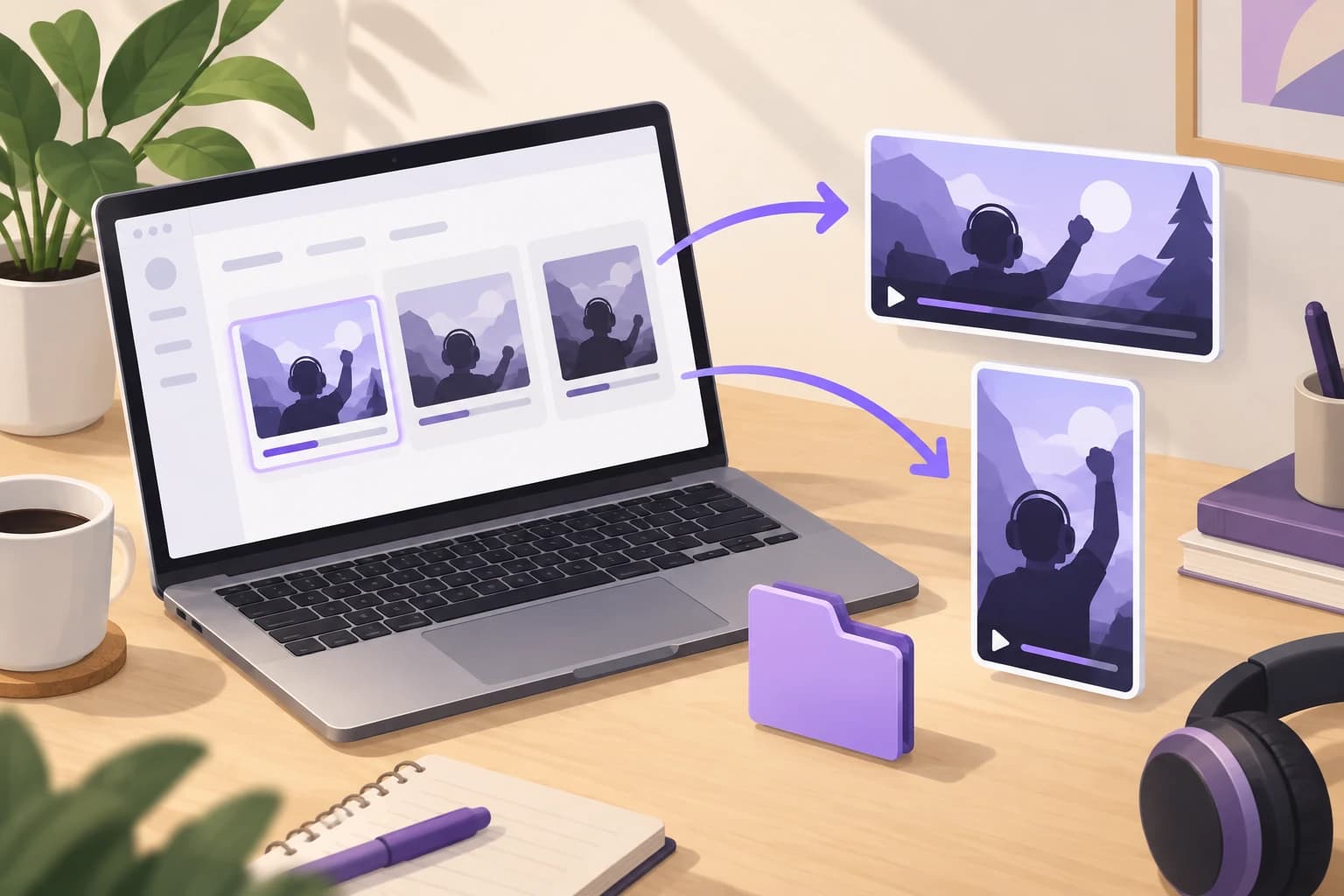
To download Twitch clips using this guide, work only with existing clips of your own channel. These instructions are documentation-based, following Twitch’s official Clips guide; no live account export was performed. Before choosing a version, identify the moment you want to keep and where you intend to use it.
Find a clip of your own channel in Clips Manager
Open Creator Dashboard → Content → Clips, also described as Clips Manager, and select a clip of your own channel.
Check the selected moment before making layout changes. Compare its opening action and ending with what you intend to keep; similar titles can make the wrong item easy to select. Note a short identifying description for your saved copy. Include a distinctive spoken or visual cue.
If you cannot find the clip, recheck which channel you are managing. Leave it unresolved if unavailable: this workflow provides no deleted-clip or VOD recovery procedure.
Use Share and check the offered download versions
Open Share and choose among the landscape or portrait downloads actually offered.
Match the composition to the content and destination. A wide scene may need room for action across the frame; a tall placement still needs enough context to make the moment understandable. List any details that must survive the crop, such as a score display or a second speaker. Choose both only if you have a distinct use for each.
If Share or all download choices are missing, recheck that you selected a clip of your own channel. Inspect the controls displayed, and leave the export pending if none offers a download. A full VOD is a different deliverable.
Create a portrait version only when you need it
If portrait is missing, use desktop web: Edit Clip → Edit Layout, adjust the layout, then Apply → Save Clip. Wait for rendering, then revisit Share. Twitch’s documentation says portrait layout editing is unavailable on mobile.
Keep the initial edit to one clip. Preview the camera view and gameplay throughout, especially where movement changes what matters. Protect meaningful captions and enough surrounding action to preserve context. Check that a close crop does not hide the reason a reaction happened.
If the portrait choice still has not appeared, keep that version pending. No precise rendering time is promised. Retain landscape when it better preserves the scene.
Inspect the downloaded clip and preserve rights context
Find the new file in your browser’s downloads list, then open the saved copy locally. Check the download time and location to help distinguish the new file from an older copy with a similar name.
- Play the beginning, a middle moment, and the ending. Check that they match the intended clip.
- Inspect the visible framing. A filename alone does not establish a wide or tall composition, encoding, or quality.
- Check any audio you expect to need; record problems before using the file.
- If you saved both, use distinct names such as topic_landscape and topic_portrait, retaining each original extension.
- Keep the source clip link, channel name, and a brief description with your files.
Public viewability and creator-account access do not clear all third-party reuse rights. Note included music, footage, or other material and the permission relevant to your intended use.
Key takeaways
- Choose the version that preserves the details your intended use needs.
- Make one portrait edit first, then inspect framing before editing more clips.
- Keep local file checks and third-party reuse context alongside each saved clip.
Conclusion
A useful clip download is the correct moment in a composition you can use. Keep the version whose framing works, retain clear file labels, and resolve playback or reuse questions before building it into another project.
FAQ
Should I download both landscape and portrait versions?
Only if you have a clear use for each. Compare the composition first, then keep separate filenames so the intended version is easy to identify.
Does a portrait filename prove that the file is suitable?
No. Open the file and inspect the framing. If useful, compare its width and height in file information, then check whether essential action and captions remain visible.
What should I record when a download control is missing?
Note the selected clip, the control that is absent, and whether rendering is still pending. These details make a later recheck more precise without implying that the download has succeeded.
Related pages
4K Video Downloader Plus License Key: Purchase Recovery
Recover a purchased 4K Download license through the official purchase-email form, distinguish retrieval from activation, and prepare a private support record.
Is JDownloader Safe? Verify the Installer Source and Digital Signature
Check a JDownloader installer through its official source and digital signature. Understand what these checks show, their limits, and when to stop before setup.
KICK Clip Downloader Guide: Native MP4 and File Checks
Use KICK’s documented clip-page download route, keep clips distinct from full VODs, and check the MP4 file before relying on it.
Save a Permitted LinkedIn Video: Check the Link, File and Sound
A bounded workflow for checking a public LinkedIn video you have permission to save, then checking the downloaded file and its audio.