How to Download a Loom Video as MP4 and Check Permissions
Check why Loom’s Download option is missing, follow the authorized MP4 export, and verify which hosted features carry over to the file.
Open the recording in your Loom Library and choose Download from the menu above the player when your plan, role and settings allow it. If Download is missing, check whether the video is still processing, then ask the owner or workspace administrator to verify your access.
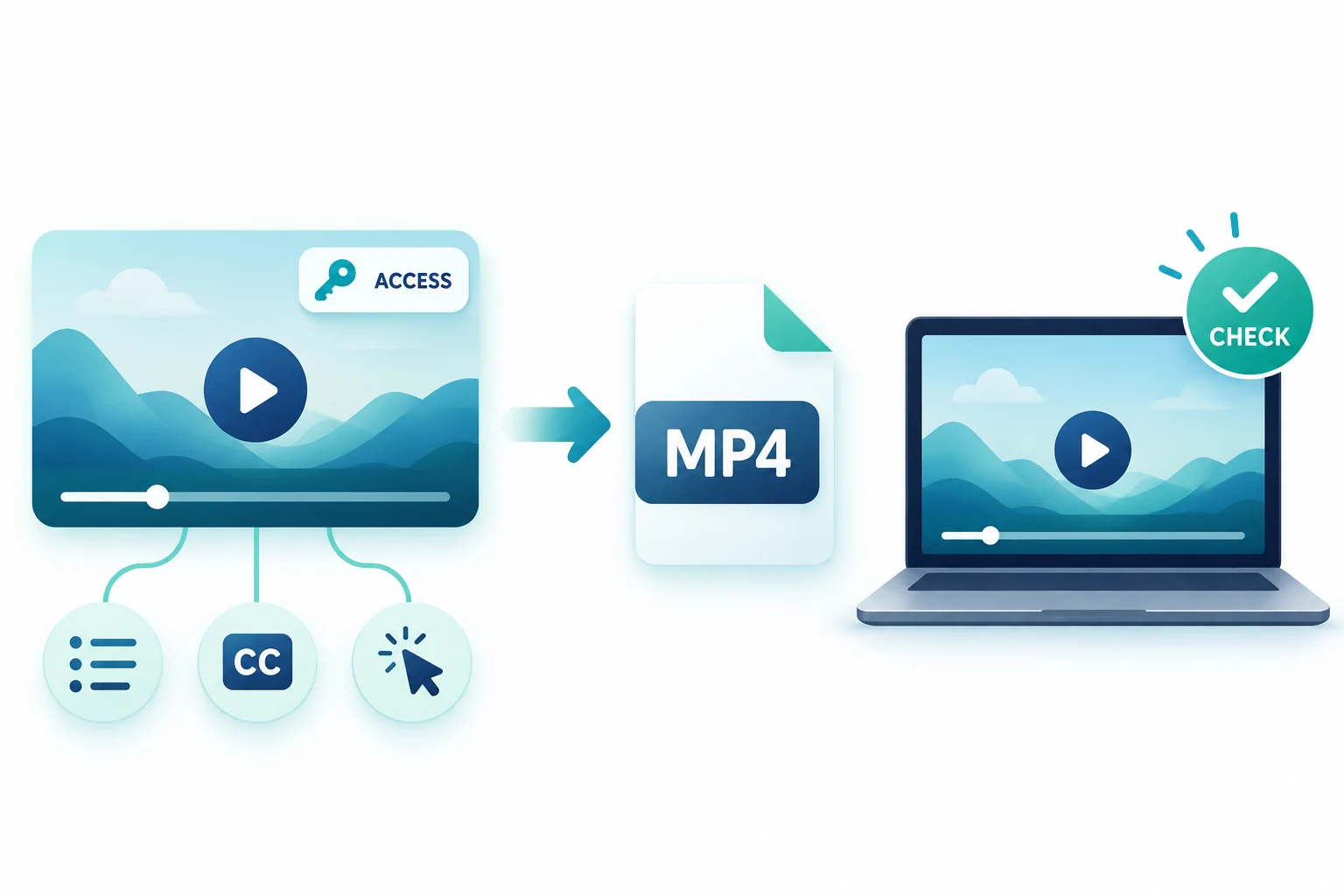
You can play a Loom recording, but the person you are handing it to needs a local MP4. Check whether Loom lets your account export this recording, then check which parts of the hosted experience your recipient will still need.
Check your workspace and video access
Start with the account that was granted access. A working share link establishes that you can open the recording. To diagnose whether you can save it, separate two cases:
- Your recording or a recording you manage. Ask the workspace admin to verify your plan, role and workspace download policy. On Enterprise, an organization-wide restriction can disable downloads.
- A recording someone shared with you. Sign in with the intended Loom account and ask the owner to check the video’s audience download setting and the workspace’s rules. Atlassian’s instructions discuss both viewer access and role restrictions, so use the recording’s actual setting and administrator confirmation before assuming you can export.
If the policy blocks export, ask the owner for an approved copy or keep using the access-controlled share link.
Download from the authorized Loom video page
For a recording you are authorized to manage, open it from your Loom Library. Use the menu above the player and choose Download to save the MP4. For a new recording that still says it is processing, let processing finish, then reopen the menu. A missing option on a finished recording calls for a permissions check with the owner or administrator.
If you need to ask for help, report the recording title, whether it has finished processing and which Loom account you used. Share the recording link only through an approved workspace channel.
Know what the MP4 export leaves behind
Atlassian’s export FAQ says the MP4 retains video trims and excludes interactive calls to action, chapters, closed captions and the effects of Loom’s filler-word and silence removal. If your audience relies on a hosted element, keep the approved hosted link available or prepare that element for the destination.
For a handoff, pair the MP4 with a note about the required captions or chapter navigation. Have the recipient test the published destination before you replace a hosted link.
Verify the local video before sharing
Open the saved file in a local player. Scrub across a trim point and check the first and last moments you meant to keep. Listen at the beginning and later in the recording to confirm that the required audio made it into the file. For captions, verify them in the destination player once any separate caption file has been attached.
If a recipient cannot open the file or a required accessibility feature is missing, keep the hosted link available while you verify the export and destination settings.
Source and verification boundary
These steps follow Atlassian’s Loom download documentation, checked on November 14, 2026. The instructions are documentation-based. We did not perform an account-level download test. Confirm actual access with the recording owner or workspace administrator.
Key takeaways
- Check the workspace plan, your signed-in role and the recording’s download settings.
- Export from the native Loom menu after processing finishes and access is confirmed.
- Verify playback and handle captions and chapters separately when the destination requires them.
Conclusion
When the native download is available, export the MP4 and verify the file in a local player. Keep an approved hosted route available if the audience needs features that the MP4 leaves behind.
FAQ
Why can I watch the Loom but cannot download it?
Playback and export have separate conditions. Sign in with the intended account, check processing, then ask the owner or administrator to verify your role and download settings.
Will the MP4 include my captions and chapters?
Atlassian says the native MP4 export excludes captions and chapters, while retaining trims. Keep the approved hosted link or add those features separately at the destination.
Can I download a recording when the workspace has disabled downloads?
Use the owner or admin’s approved sharing process. Ask for an authorized copy or keep the access-controlled link.
Sources
Related pages
4K Video Downloader Plus License Key: Purchase Recovery
Recover a purchased 4K Download license through the official purchase-email form, distinguish retrieval from activation, and prepare a private support record.
Is JDownloader Safe? Verify the Installer Source and Digital Signature
Check a JDownloader installer through its official source and digital signature. Understand what these checks show, their limits, and when to stop before setup.
KICK Clip Downloader Guide: Native MP4 and File Checks
Use KICK’s documented clip-page download route, keep clips distinct from full VODs, and check the MP4 file before relying on it.
Save a Permitted LinkedIn Video: Check the Link, File and Sound
A bounded workflow for checking a public LinkedIn video you have permission to save, then checking the downloaded file and its audio.