Download a Direct MP4 with AnyVidDL Desktop on Windows: A Tested Walkthrough
Follow one tested Windows desktop MP4 download with real screenshots, output settings and file checks, including this unsigned release’s limits.
This product-help walkthrough documents one permitted direct MP4 saved with AnyVidDL Desktop 0.1.0 on Windows 10 x64. The verified output is a 10-second 720p H.264 video without audio; it does not establish support for other sources or options.
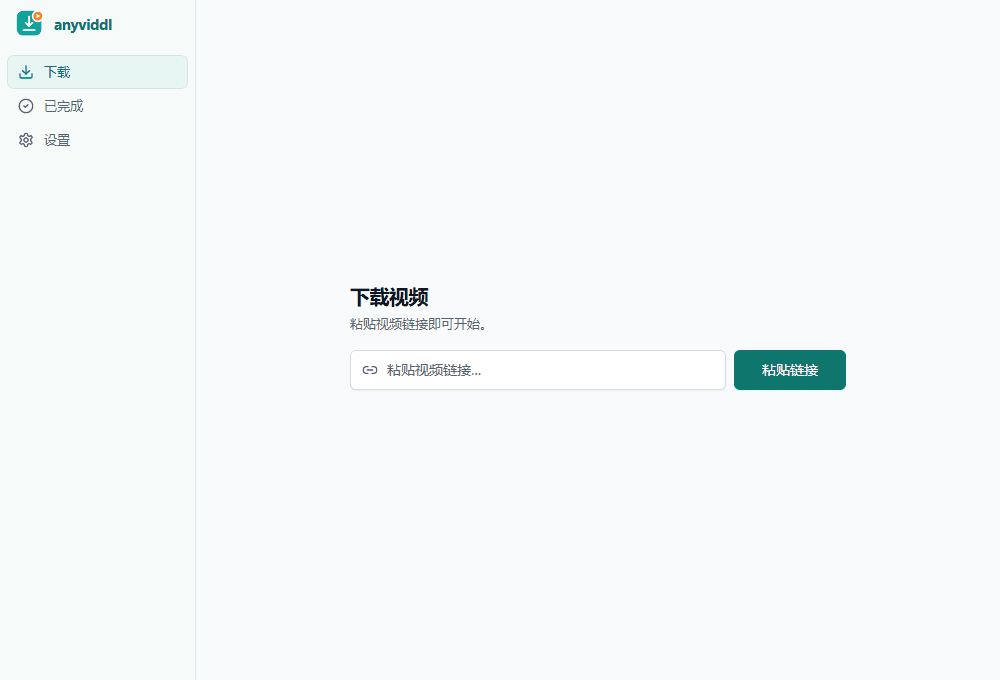
This walkthrough shows one completed download in AnyVidDL Desktop 0.1.0 on Windows 10 Home 22H2 x64. We entered a public Big Buck Bunny MP4 link, selected Video, 720p and MP4, chose a folder, and checked the resulting file. The output was a 10-second, 1280 × 720 H.264 video containing no audio track.
This is the official product-help walkthrough for the unsigned Windows x64 early release. It is not an installation guide.
Start with the AnyVidDL Desktop page for the Windows application. Our test reused an existing installation; it did not test installing or upgrading the app. Download only material you own or have permission to save.
The screenshots below show the actual Chinese-language interface. English translations identify the controls without implying that these captures show an English UI. They are arranged in instructional order: the home and link-entry screenshots were captured again after the successful download, while the options and downloading screenshots came from the original run. Re-entering the link for the screenshot did not start another download.
1. Open the download screen
Choose 下载 (Download) in the left sidebar. The central field accepts the video link. The empty-screen button reads 粘贴链接 (Paste link); in this test the link was entered into the field directly.
The overview screenshot above was captured after the completed test.
2. Enter the public MP4 link
Our test used this specific public sample:
https://test-videos.co.uk/vids/bigbuckbunny/mp4/h264/720/Big_Buck_Bunny_720_10s_1MB.mp4
Enter the complete address and select 继续 (Continue). A direct media URL and a social-site post URL are different inputs. If you are unsure which you have, see how to check a direct MP4 link.
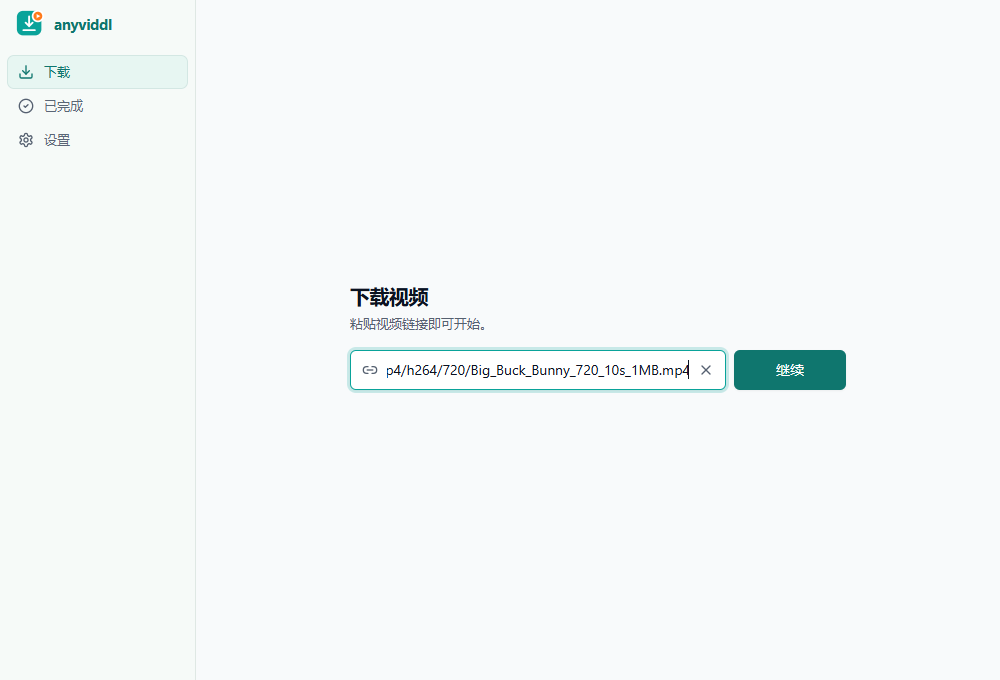
Link re-entered after completion for illustration; no second download was started.
3. Select the output preferences and destination
The parsed item displayed the sample name and test-videos.co.uk. For this run, select 视频 (Video), 720p, and MP4. Use 更改 (Change) beside the destination to choose a folder through the Windows folder picker. Check the displayed destination before proceeding.
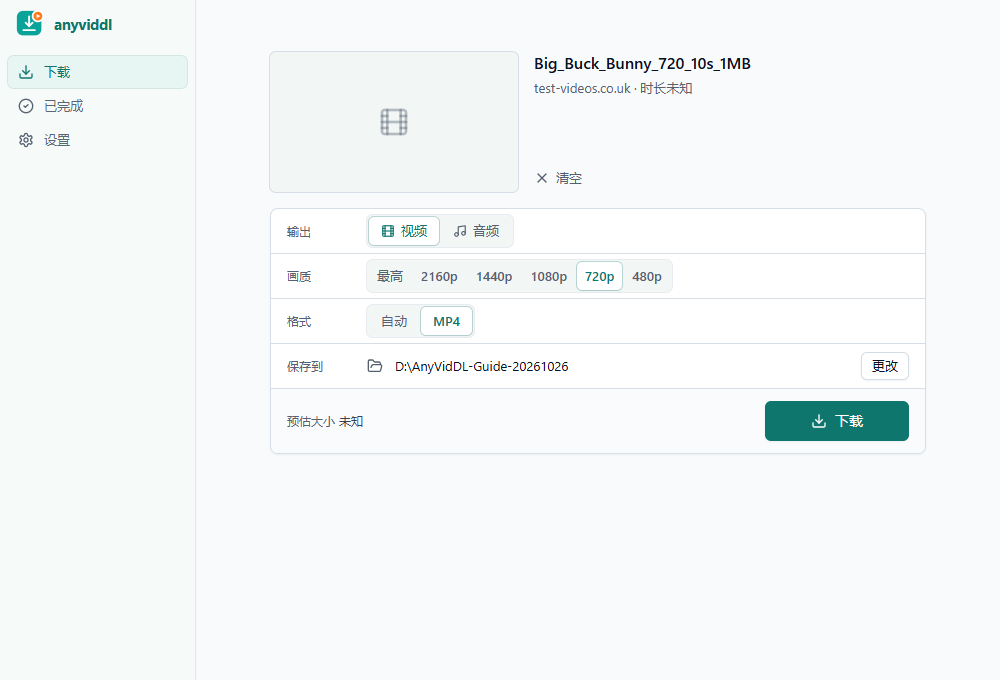
Options captured during the original download; duration and estimated size are unknown.
The resolution buttons are output preferences. Their presence does not establish that the source offers every listed resolution, or that a larger selection would improve this 720p source. We tested only the 720p MP4 selection. The options screen reported the source duration and estimated size as unknown; we established the actual duration and size from the downloaded file afterward.
4. Start the download
Select 下载 (Download). Our captured screen showed 正在下载视频 (Downloading video) at 0%, with size information still unknown.
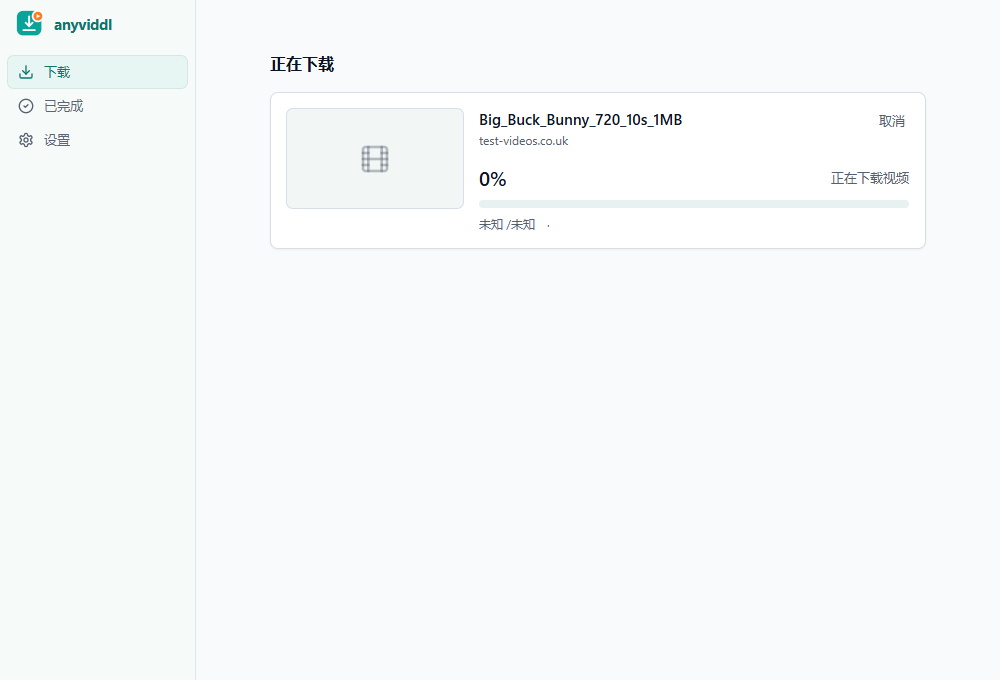
Starting-state capture at 0 percent, not a record of continuous progress or speed.
This screenshot confirms the displayed starting state. It is not a continuous progress recording and does not establish a transfer speed or elapsed download time. Completion is supported by the later completed-item record and the file checks below, rather than by extrapolating from the 0% screen.
5. Check the completed item and the file
Open 已完成 (Completed) in the sidebar. The new item's card displayed 720p · MP4 · 969.2 KB. The screenshot is a direct screen capture of that one card, excluding unrelated download history.

Direct capture of the completed item card; the visible file controls were not tested.
The card includes 打开 (Open) and 在文件夹中显示 (Show in folder). Those buttons were visible but were not exercised during this run, so this walkthrough does not claim a player-launch test.
Separate checks of the saved file returned:
| Property | Observed result |
|---|---|
| File size | 969,201 bytes |
| Dimensions | 1280 × 720 |
| Duration | 10.000 seconds |
| Video codec | H.264 |
| Audio tracks | None |
The same output file was independently read back on a Mac, where its SHA256 matched the Windows result and a complete video decode succeeded. This verifies this output file, not the reliability of every future download.
Why does the downloaded file have no sound?
The downloaded output contains no audio track. These file checks do not establish whether the source contained audio, so this test cannot determine whether audio was fully preserved. Audio extraction, audio/video merging, and audible playback were not tested.
What this walkthrough establishes
The observed sequence covers one public direct MP4: entering its address, parsing it, choosing preferences and a folder, starting the download, finding its completed record, and verifying the output file. It does not establish support for every source website, login-protected media, playlists, live streams, subtitles, or every format option.
If you are choosing between browser and installed workflows, read online vs desktop video downloaders. To try the installed workflow with your own permitted media, use the Windows desktop page and check the resulting file against your source.
Sample attribution: (c) copyright 2008, Blender Foundation / www.bigbuckbunny.org. See the Big Buck Bunny licensing information for its CC BY 3.0 terms. The test used the linked short sample hosted by test-videos.co.uk.
Related pages
Online vs Desktop Video Downloader: Which Workflow Fits Your Task?
Compare browser-based web downloaders and installed desktop applications across setup, server vs local processing, large files, and output checks.
How to Check and Save a Direct MP4 Link Safely
Tell an MP4 download from an HTML page or a partial response, then check a saved file against a small public example.
Download YouTube Video in 4K MKV: Codec and Player Checks
Understand vendor-documented MKV options, separate container from codec, inspect an authorized saved file, and check playback before choosing conversion.
4K Video Downloader Subtitles: Choose SRT or Embedded Output
Use documented subtitle settings in 4K Video Downloader Plus, choose separate SRT or embedded output, and diagnose missing tracks before repeating a download.