AC3 vs AAC: Audio Compatibility, Surround Sound and Passthrough
Compare AC3 and AAC for local media: check player and container support, understand passthrough, and decide whether to preserve or re-encode an audio track.
AC3 and AAC are different audio codecs with different container and player support profiles. Whether you should keep your existing track, re-encode it, or pass it through depends on your actual playback device, container format, and player documentation — not on a general codec ranking. Re-encoding cannot restore information that was already discarded during earlier compression.
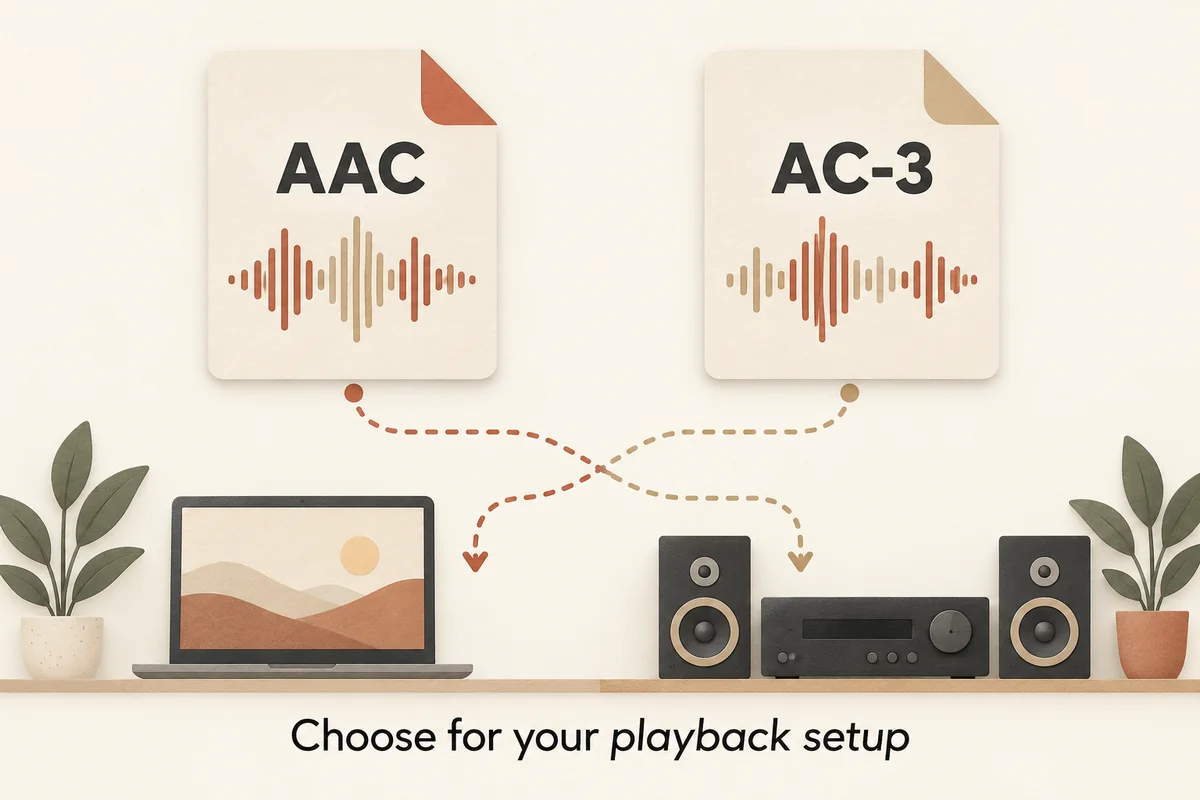
When you have a video file with an AC3 or AAC audio track, the question of what to do with it is genuinely practical: keep the original track, re-encode to something else, or use passthrough to preserve it without touching it. Each path has trade-offs, and the right answer depends on what your specific player and container actually support. This article explains the concepts and gives you a checklist for making that decision for your own file.
AC3 and AAC Are Different Codecs — Not Better or Worse
AC3 (also called Dolby Digital) and AAC (Advanced Audio Coding) are distinct audio compression standards. They were developed separately, use different encoding algorithms, and carry different container and player compatibility profiles. Treating one as universally superior to the other is not accurate — which one works for you depends on what your player, container, and output device can actually handle.
HandBrake's official audio documentation (handbrake.fr/docs/en/latest/technical/audio-codecs.html) lists both as supported encode and passthrough options and notes that container and playback-device support must be considered alongside codec choice. Start by checking your target player's and container's documented codec support before deciding.
Decoding vs Compatible Passthrough: What the Difference Means
Decoding means a player reads the compressed audio bitstream, decompresses it internally, and sends raw audio to your output device. Every player that supports a codec does this.
Passthrough is different: the player forwards the original encoded bitstream without decoding it first. This only works if the downstream device — your output stage or renderer — can decode that codec natively. If the downstream device does not support the codec, passthrough produces silence or an error rather than audio.
HandBrake documents compatible passthrough as a way to preserve an existing encoded source track instead of re-encoding it. FFmpeg similarly documents encoding and preserving an existing track as separate operations (ffmpeg.org/ffmpeg-codecs.html). Understanding which path your tool is taking is essential before processing any file.
Preserve, Transcode or Inspect: A Decision Checklist
Use the table below as a starting framework. Verify each row against your own player and container documentation before acting.
| Choice | When to consider it | What it does — and does not — do |
|---|---|---|
| Keep original track (passthrough) | Original codec is confirmed supported by your player and container | Preserves existing quality; does not fix an unsupported codec downstream |
| Re-encode to AAC | The target player or container does not support the existing AC3 track | Produces a new AAC track; does not restore information discarded in original compression |
| Re-encode to AC3 | Target device requires AC3 and source is currently AAC | Produces a new AC3 track; does not restore information discarded in original compression |
| Inspect only | You are not yet sure what you have | Read metadata without modifying; no audio quality change at all |
For any re-encode path: conversion changes the codec but cannot recover data that prior compression already removed.
Practical Steps Before You Process Any Audio Track
Before re-encoding or passing through any track, work through this checklist:
- Identify what you have. Use a read-only metadata tool to confirm the current codec name, channel layout as declared, and container format.
- Check your target player's documentation. Look up which audio codecs and containers your intended player explicitly documents as supported — not assumed.
- Check your container compatibility. Some containers handle one codec more reliably than another. Verify the combination you plan to use.
- Test before batch-processing. Process one short file first and confirm playback behaves as expected on your actual device.
- If the original track already meets your needs, passthrough is simpler than re-encoding and avoids any generation loss from re-compression.
Neither AAC nor AC3 is a guaranteed fit without checking the above. The decision is yours to make per file and per target setup.
Sources and Testing Scope
Sources used in this article:
- HandBrake Documentation — Audio Codecs (handbrake.fr/docs/en/latest/technical/audio-codecs.html): Documents AAC and AC3 encode and passthrough options; notes that container and playback-device support must be considered. No receiver or listening tests are derived from this source.
- FFmpeg Codecs Documentation (ffmpeg.org/ffmpeg-codecs.html): Documents audio encoder options including AAC and AC3 as separate operations from track preservation. No device or channel compatibility claims are derived.
Scope boundaries: No receiver protocol, channel count, bitrate comparison, or listening test was conducted for this article. No specific hardware or player coverage is claimed. All claims are limited to what the above official documentation states. Verify specific compatibility against your own player and device documentation before making any audio processing decision.
Key takeaways
- AC3 and AAC are distinct codecs with different compatibility profiles — check your specific player and container documentation rather than applying a general preference.
- Compatible passthrough preserves an existing encoded track without re-encoding; it only works if the downstream device can decode that codec natively.
- Re-encoding changes the codec but cannot recover audio information already discarded by earlier compression — keep the original track when it already meets your needs.
Conclusion
AC3 and AAC are different codecs, and no general ranking applies. Whether to keep your original track via passthrough, re-encode it, or simply inspect it depends on what your specific player, container, and output stage actually support. Check the documentation for your target setup first, test with a single file, and remember that re-encoding cannot restore what prior compression already discarded.
FAQ
Can I convert AC3 to AAC to improve audio quality?
No. Re-encoding converts the codec but cannot restore information discarded during the original AC3 compression. The result is a different codec, not higher fidelity than the source.
Does passthrough always work if my file has AC3 audio?
Not automatically. Passthrough forwards the encoded bitstream without decoding it. Your downstream device must natively support AC3 decoding, or you will get silence or an error instead of audio.
How do I know which audio codec my player supports?
Check your player's official documentation for its listed audio codec and container support. Do not assume support based on codec name alone — test with your actual file and device.
Sources
Related pages
Download YouTube Video in 4K MKV: Codec and Player Checks
Understand vendor-documented MKV options, separate container from codec, inspect an authorized saved file, and check playback before choosing conversion.
4K Video Downloader Subtitles: Choose SRT or Embedded Output
Use documented subtitle settings in 4K Video Downloader Plus, choose separate SRT or embedded output, and diagnose missing tracks before repeating a download.
Download a Direct MP4 with AnyVidDL Desktop on Windows: A Tested Walkthrough
Follow one tested Windows desktop MP4 download with real screenshots, output settings and file checks, including this unsigned release’s limits.
Bandcamp Music Download: Choose the Format and Check Your Album Files
Find your Bandcamp purchase download, choose an offered format, check the album ZIP, and verify local tracks while keeping your purchase link private.