Choosing a YouTube 4K Downloader: Owner Exports and File Checks
Compare official download options for your own YouTube uploads, then verify dimensions, audio, and playback before treating a file as a 4K copy.
Before choosing a YouTube 4K downloader, check your original master or request an authorized copy from the creator. YouTube Studio offers lower-resolution copies of your own uploads, with Google Takeout as an export alternative. Verify the saved file; a 4K playback setting does not prove a 4K download.
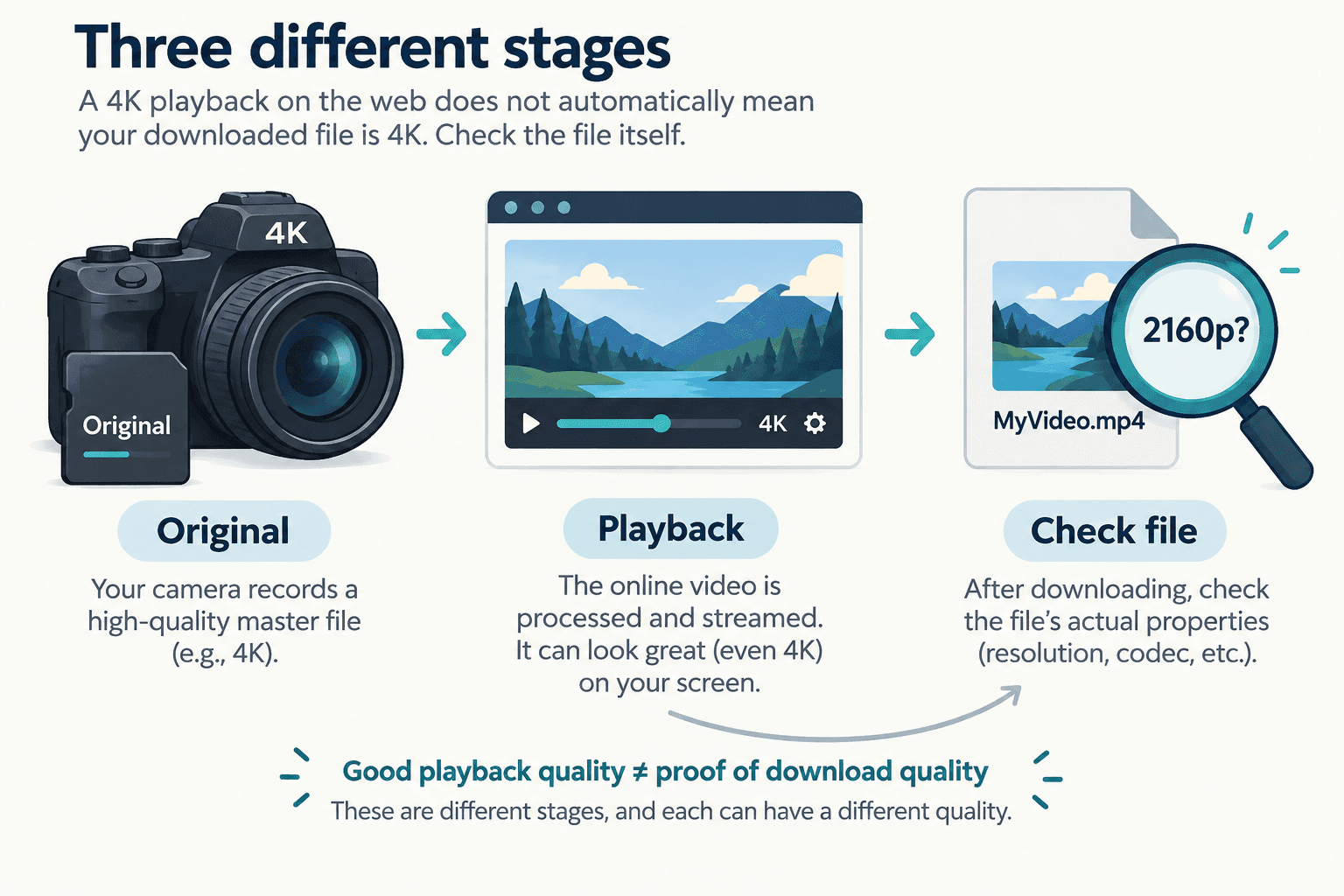
Before choosing a YouTube 4K downloader, check your original master or request an authorized copy from the creator. YouTube Studio offers lower-resolution copies of your own uploads, with Google Takeout as an export alternative. Verify the saved file; a 4K playback setting does not prove a 4K download.
If you need a YouTube clip for a project, a 4K label is only the beginning of the decision. You need to know where the file came from, whether it contains the detail and audio your task requires, and whether you have an authorized route to obtain it. This guide focuses on your own uploads and creator-provided files. It separates the official download path from the checks you perform on the result.
Choose the source that can supply your file
A search for a YouTube downloader in 4K can hide two different needs: watching a video offline and obtaining a reusable file. Decide which outcome you need before testing websites. For a file from your own channel, check your original camera or editing export first. A copy you already control avoids uncertainty about what a platform download returns. For somebody else's work, ask the creator for an authorized copy with the dimensions and audio you need.
YouTube's uploaded-video download instructions describe Studio downloads at 720p or 360p depending on the video size, and identify Google Takeout as another way to export your uploads. Neither statement is a promise that every export will be your original 4K master. Inspect the returned file before using it in a project. Keep your master separately rather than replacing it with an unverified download.
Use Studio for a copy of your own upload
Open YouTube Studio in the account that owns the channel. Go to Content, locate the exact upload, open its menu and select Download when that option is available. Keep the title or video identifier beside the resulting filename so you can reconnect it with your source record. Check that you selected the right channel if you manage several.
The download can be useful even when it is below your desired resolution. For example, a lower-resolution copy may be enough for reviewing the sequence of scenes, while an editing task that depends on small on-screen text still needs the original. Do not label the file 4K merely because the player offered a high-resolution playback setting. Those are observations about different objects.
If the Download option is unavailable, review the official account guidance and use your retained master or the documented export option when available. Do not assume every upload exposes the same menu.
Compare an export with your original master
If you need an account archive, follow the Google Takeout option linked from YouTube's official instructions. Use the account that owns the uploads and keep the export archive intact until you have checked the extracted files. Choose a private storage location appropriate to your material; an archive can contain more than the clip you wanted.
Make a small comparison record with three columns: original master, exported copy, and intended use. Record dimensions, duration, audio presence and a short visual note for each available copy. An export with larger dimensions is not automatically the better source: look at the actual detail you need. If the original is unavailable and the export does not meet your requirements, asking the owner or editor for the source file is a clearer next step than cycling through download sites.
Check dimensions, audio and complete playback
Use a trusted local player's media information panel to examine the saved file. Record the pixel dimensions rather than the filename's label. Play the beginning, middle and end; check whether the duration matches your expected clip and whether the sound is present where it should be. Test a representative portion in the actual editor or viewing device you intend to use.
Our saved-file inspection guide explains how to inspect a local file. The resolution selection guide helps you decide how much detail the task needs. Neither a successful download notification nor a large file size is a substitute for checking the content. Keep the original until the replacement has passed your own checks.
For example, suppose an interview export opens and plays normally, but the slide text you need is unreadable. That is a failed fit for your editing task even though the transfer succeeded. Write down the missing requirement and request the source with readable slides; do not represent a resized copy as restored original detail.
Understand what AnyVidDL can and cannot establish
AnyVidDL does not offer hosted merging of separate tracks or cloud HLS-to-MP4 export. This article is an owner-download and file-verification guide, not a claim that AnyVidDL has tested or can deliver a particular YouTube 4K file. No YouTube download test was performed for this article.
Treat a media option as something still requiring verification. A visible resolution label does not prove that a usable file was delivered, that audio is included, or that you may reuse the work. Keep your Google credentials, cookies and account exports inside the official account workflow. If your need is simply offline viewing, choose an official viewing option suitable for your account instead of assuming it provides a portable editing asset. When a required file is unavailable, keep that limitation visible in your project notes.
For a confirmed 4K asset, return to your original master or obtain a suitable authorized copy from the creator. This page does not establish AnyVidDL as a solution for delivering that file.
Key takeaways
- A player quality setting and a saved-file property are separate observations.
- Keep the original master until you have checked an exported copy.
- Verify dimensions, sound, duration and use in the intended application.
Conclusion
Choose the file source before choosing a downloader. Preserve the master, use an official owner-download route when appropriate, and check the file against the needs of your actual project. If it does not meet those needs, record the gap and obtain a suitable source instead of treating a playback label as proof.
FAQ
Does YouTube Studio download my upload in 4K?
YouTube documents Studio copies at 720p or 360p depending on video size. Use your master or investigate the official export option, then inspect the result rather than assuming it is 4K.
Is an exported copy automatically my original master?
Do not assume that. Compare the actual file with any master you retain and the requirements of your task. Keep a record of dimensions, duration, sound and visible detail.
Does AnyVidDL merge separate video and audio tracks?
No hosted separate-track merging is offered. This guide does not claim a successful AnyVidDL YouTube 4K download.