CBR vs VBR: Bitrate, File Size and Quality for Local Video Workflows
Compare CBR and VBR data allocation, distinguish constant quality from average bitrate, and inspect local video without guessing from one bitrate value.
CBR vs VBR describes how encoded data is allocated over time: CBR aims for a relatively consistent rate, while VBR varies allocation with content and configured limits. Neither label proves visual quality. For a local file, choose your size, appearance or delivery goal first; inspect metadata and test the actual result rather than inferring the mode from one reported average.
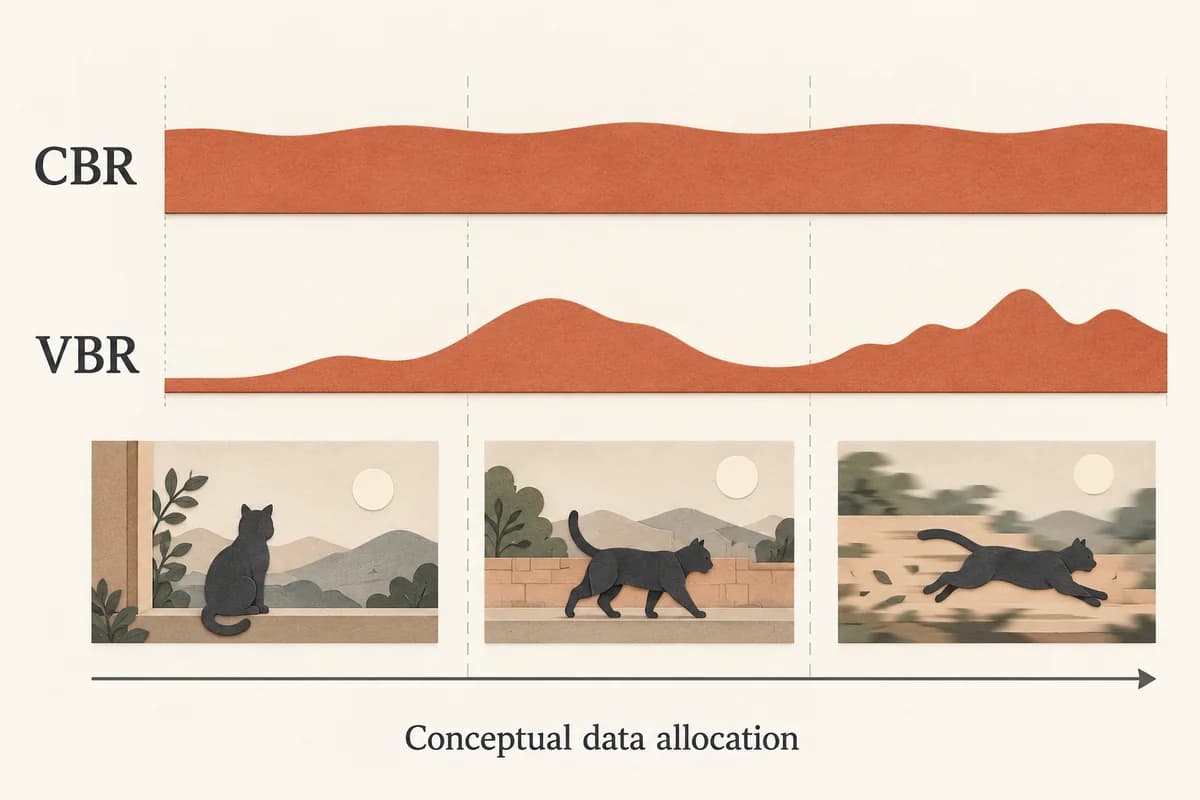
A bitrate number in a file inspector is useful, but it is not a complete description of an encoding workflow. Before changing a saved video, identify the decision you need to make. Are you planning a storage budget, checking a delivery requirement, or judging the appearance of a new export? Those questions need different evidence. This guide separates the allocation concepts from the observations you can make on your own file.
CBR and VBR describe data allocation
CBR aims for a relatively consistent data rate, whereas VBR allows allocation to change with the content and the limits selected in the encoder. Those are useful descriptions of intent, not a promise about every packet or every image. The actual behavior depends on the tool and configuration. Wowza’s comparison provides the basic distinction.
Keep a second distinction separate: a quality goal and an average-rate goal are not the same setting. HandBrake’s documentation distinguishes constant-quality encoding, which lets the resulting size vary, from average-bitrate encoding, which targets an average. Constant quality does not mean constant bitrate. A setting’s name alone does not establish how a particular output will look.
When reading a tool’s export dialog, write down the exact setting and the tool version instead of replacing it with a guessed generic label. That gives you a concrete starting point if you later need to reproduce the export.
Choose the goal before choosing settings
Start with a requirement you can check. If a saved file already meets your needs, changing its bitrate label is not a reason by itself to create another export. Preserve that original while evaluating any proposed replacement.
| Your goal | What to check | What the label cannot establish |
|---|---|---|
| A storage or transfer budget | Duration, total average rate and output size | Exact final bytes before the file exists |
| Acceptable appearance | A representative sample on the intended playback setup | Quality from CBR or VBR alone |
| A required delivery format | The recipient’s current specifications and the tool’s settings | Acceptance by every application |
Make a short acceptance note before exporting: which portion of the video will you inspect, which setup will you use, and what result would justify replacing the existing file? That note is more useful than assuming that one allocation strategy is always better. For the separate question of picture dimensions, consult the resolution and quality selection guide.
Estimate file size from a target average bitrate
A quick calculation helps with storage planning. Suppose your target total average media rate is 8 megabits per second across a 600-second video. Dividing by eight converts bits to bytes:
8 Mb/s × 600 s ÷ 8 = 600 MB
Treat this 600 MB figure as a rough decimal estimate before container overhead rather than an exact final byte count. If the 8 Mb/s target applies only to the video track, add the bitrate of your audio and any other streams before calculating.
The arithmetic also explains a limitation of averages. Two files can have the same duration and average data rate while allocating those bits differently over time. One average therefore cannot tell you how the encoder distributed data among the scenes. Check the completed file against the budget after export rather than treating the calculation as a substitute for the output.
Read saved-file metadata without guessing the encoder mode
The ffprobe documentation describes inspecting container and stream information. On a file you own or have permission to process, this command reads metadata without changing the file:
ffprobe -v error -show_format -show_streams -of json "sample.mp4"
Replace "sample.mp4" with your local file path. In the JSON output, check format.format_name, format.duration, and format.bit_rate for container-level values, and inspect each object in streams for codec_type and stream-level bit_rate. Some containers omit per-stream bitrate tags—a missing field means ffprobe did not report it, not that the bitrate is zero—and a single average bit_rate number cannot tell you whether the encoder used CBR or VBR.
Save the report alongside your own notes if you are comparing two exports. Keep observations separate: metadata describes the stored file; watching a representative sample answers a different question. If you need help reading the fields, use the saved-video ffprobe guide. FFmpeg and ffprobe are independent local tools. Their inspection or encoding options are not promises about a downloader’s cloud features.
Sources and testing scope
This guide uses the linked Wowza explanation for the general CBR/VBR distinction, HandBrake documentation for quality-versus-average-rate goals, and ffprobe documentation for metadata inspection. The size calculation is an explicitly hypothetical arithmetic example.
This guide covers rate-control concepts and local metadata inspection rather than comparative encoder benchmarks or perceptual quality scores. Because visual results and file sizes depend on your encoder, footage complexity, and rate limits, evaluate exports directly on your own media.
For a specific encoder, delivery service or playback device, consult its current documentation and test your actual output. Preserve both the original and the settings used until you have accepted the replacement.
Key takeaways
- CBR aims for a relatively consistent rate; VBR varies allocation subject to content and configured limits.
- Constant quality is distinct from constant bitrate, and a reported average does not reveal the full allocation behavior.
- Check the actual output against your size, appearance and delivery requirements; no allocation label guarantees the result.
Conclusion
Choose the requirement before the bitrate setting. Use averages for clearly qualified size estimates, current documentation for delivery constraints, and the actual output for appearance checks. Keep your original file, record the settings, and avoid treating either a mode label or a metadata number as proof of quality.
FAQ
Is constant quality the same as CBR?
No. HandBrake distinguishes a constant-quality goal from an average-rate goal. With constant quality, resulting file size can vary. The word constant in that setting does not establish a constant data rate.
Can one ffprobe bitrate field identify CBR or VBR?
No. A reported average describes an aggregate value, not the allocation across time. Missing fields are also possible. Record what the tool actually reports and avoid inferring a mode solely from one number.
Does VBR always give a smaller or better-looking local file?
No. Whether VBR produces a smaller file or better visual quality depends on the complexity of your footage, the configured bitrate limits, and the encoder implementation. Compare the exported file against your original on your target playback setup instead of relying on the rate-control label alone.
Sources
Related pages
Download YouTube Video in 4K MKV: Codec and Player Checks
Understand vendor-documented MKV options, separate container from codec, inspect an authorized saved file, and check playback before choosing conversion.
4K Video Downloader Subtitles: Choose SRT or Embedded Output
Use documented subtitle settings in 4K Video Downloader Plus, choose separate SRT or embedded output, and diagnose missing tracks before repeating a download.
AC3 vs AAC: Audio Compatibility, Surround Sound and Passthrough
Compare AC3 and AAC for local media: check player and container support, understand passthrough, and decide whether to preserve or re-encode an audio track.
Download a Direct MP4 with AnyVidDL Desktop on Windows: A Tested Walkthrough
Follow one tested Windows desktop MP4 download with real screenshots, output settings and file checks, including this unsigned release’s limits.