Wistia Video Downloader Guide: Video, Captions and Transcript Files
Choose authorized Wistia video, caption and transcript exports, check folder permissions, and verify the exact delivery files before sharing.
Use Wistia’s authorized media-management Download menu to choose the video file you need. Treat video, thumbnail and transcript as separate deliverables, and confirm folder permissions with the account owner when downloads are unavailable. A playable embedded video does not establish download permission.
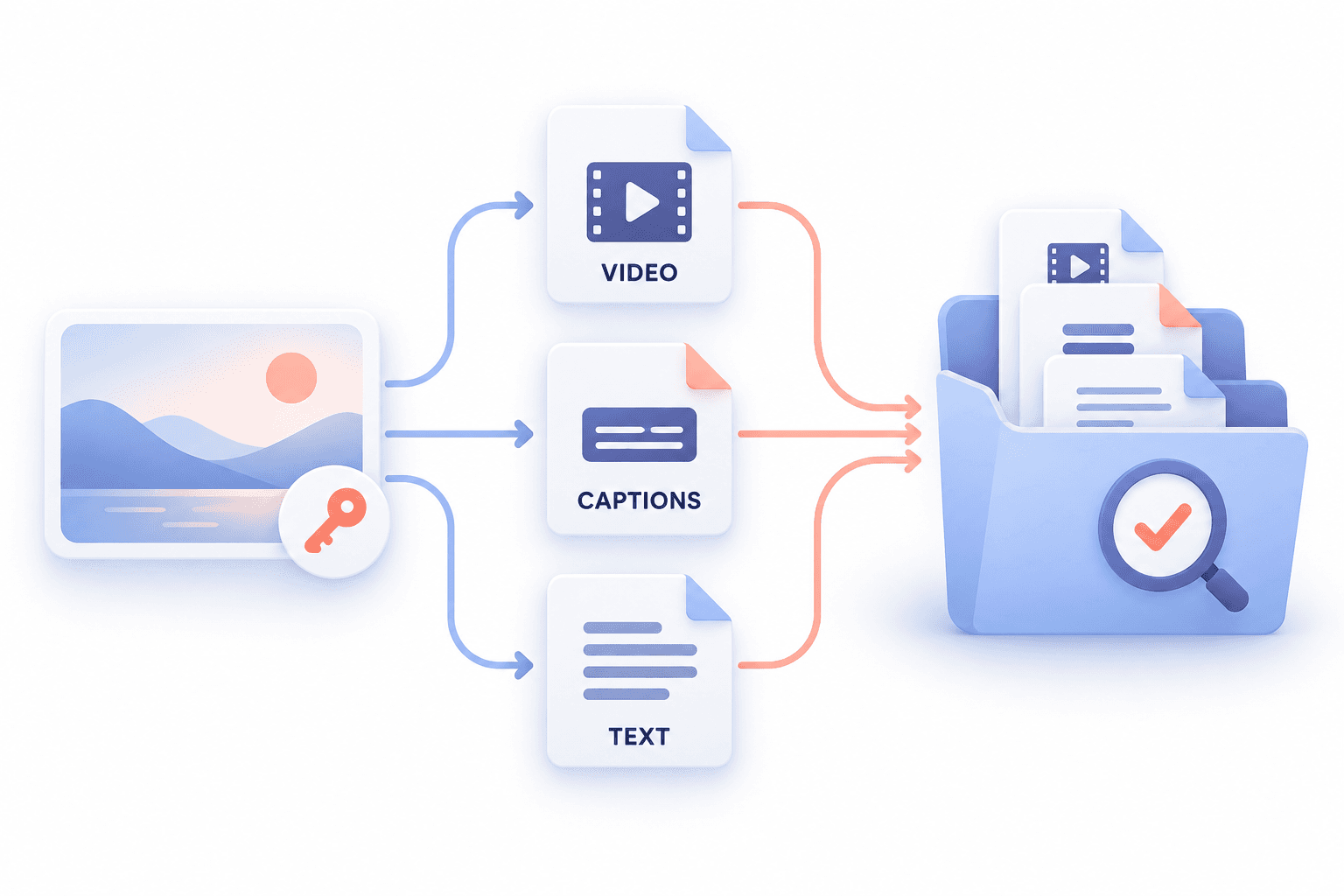
Authorized users can download Wistia media directly from the media manage page by clicking the ellipsis menu, selecting Download, and configuring the separate Video, Thumbnail, and Transcript options. Delivering professional media requires more than just saving a file; it demands assembling a precise package of the correct video resolution, appropriate caption formats, and accurate readable transcripts. This guide details how to navigate the native export options and verify your final media delivery package before distribution.
Confirm access to the managed media
Before planning a distribution workflow, verify your account privileges. According to Wistia’s official documentation, Account Owners and Managers hold default download capabilities. For other contacts, download access strictly depends on assigned folder permissions.
If the download option is absent, ask the owner or administrator to check your account and folder permissions before assuming the cause. Do not attempt to bypass embedded player restrictions or use unauthorized browser extensions. Route your request through your workspace administrator to acquire the correct folder permissions. This guide synthesizes official-documentation capabilities and does not serve as a live account test or a tool for forcing arbitrary public URL downloads. Secure proper clearance, then proceed to the authorized manage page to begin the export process.
Choose the video export you actually need
Once authorized, clicking Download opens a modal that distinctly separates Video, Thumbnail, and Transcript assets. Under the Video section, you must make a deliberate choice between an MP4 file or an uncompressed format. Your selection determines the file's utility downstream.
Ask the recipient which video format their workflow accepts. An editor’s input requirements and a review player’s requirements may differ; agree on the deliverable before choosing the export. When exporting an MP4, the interface allows you to select the specific resolution and choose whether to include available captions directly in the video file. Check the actual exported video and the destination’s caption requirements. The cited instructions do not establish whether captions in every export are permanently visible or selectable; do not assume one behavior.
Keep captions and transcripts with the right file
A complete media package separates the visual asset from its textual metadata. The Wistia download modal allows you to export transcripts in SRT, VTT, or TXT formats. This is strictly an export of existing text, distinct from generating new audio transcriptions.
Select your text format based on the destination. Use the caption format accepted by the destination and test it there. A readable TXT transcript serves a different purpose from a timed SRT or VTT caption file; confirm whether the recipient needs reading, timed display, or both. Never rename a file extension manually in an attempt to change its format; always use the platform's native export modal. Store these subtitle and transcript files in the same designated project folder as the video asset to prevent mismatched media handoffs.
Verify the delivery package before sharing
Possessing a downloaded MP4 and an SRT file does not guarantee a successful handoff. A file extension is merely a label; it does not prove the container is structurally sound or that the media plays correctly. Before clearing the asset for final distribution, run a strict local verification checklist.
First, open the MP4 in a standard desktop media player. Scrub through the beginning, middle, and end of the timeline to confirm the visual feed is intact and free of rendering glitches. Second, listen to the audio track using headphones to ensure synchronization remains locked with the on-screen subject. Third, if you exported sidecar captions (SRT or VTT), load them into your media player alongside the video. Confirm that the text timing matches the spoken dialogue and that the intended languages are present. If a check fails, preserve the original download and note the exact symptom. Confirm the selected media version and export options with the owner before replacing any file.
Source and verification boundary
This guide follows Wistia’s official Media Management documentation, checked on 27 October 2026. Caption and transcript options depend on the media available to your authorized account. We did not perform an end-to-end account export test and do not claim AnyVidDL support for Wistia links.
Key takeaways
- Confirm account and folder access before exporting media.
- Choose video and text formats for the actual destination rather than by filename alone.
- Check video playback, sound and caption alignment before sharing.
Conclusion
Agree on the destination’s video and text requirements, export only the authorized assets, then test the exact package before sending it. Keep the source version and permission notes with your delivery.
FAQ
Why is the download option missing from my media manage page?
Ask the Account Owner or Manager to check the current account and folder permissions and the media you opened. A missing control alone does not establish the exact cause.
Should I include captions in the MP4 export or download a separate file?
Confirm what the recipient needs and inspect the actual export. If the destination accepts a separate caption file, choose its supported format and test it with the video. Do not assume that the included-caption option always produces the same display behavior.
What if the downloaded transcript does not sync with the video?
Check that the text belongs to the exact video version and language you exported. Preserve the files and ask the owner to review the source timing if the mismatch persists.
Sources
Related pages
4K Video Downloader Plus License Key: Purchase Recovery
Recover a purchased 4K Download license through the official purchase-email form, distinguish retrieval from activation, and prepare a private support record.
Is JDownloader Safe? Verify the Installer Source and Digital Signature
Check a JDownloader installer through its official source and digital signature. Understand what these checks show, their limits, and when to stop before setup.
KICK Clip Downloader Guide: Native MP4 and File Checks
Use KICK’s documented clip-page download route, keep clips distinct from full VODs, and check the MP4 file before relying on it.
Save a Permitted LinkedIn Video: Check the Link, File and Sound
A bounded workflow for checking a public LinkedIn video you have permission to save, then checking the downloaded file and its audio.