Why 4K Video Downloader Failed to Download: A Diagnosis Checklist
Diagnose a failed 4K Video Downloader task using the exact error, app version, source availability and output folder. Keep a useful support record.
To find why 4K Video Downloader failed to download, first record where the task stopped: parsing the link, transferring data or opening the saved file. Check the exact application edition, its official update guidance, the source’s availability and the output location. A generic failure message does not prove one particular cause.
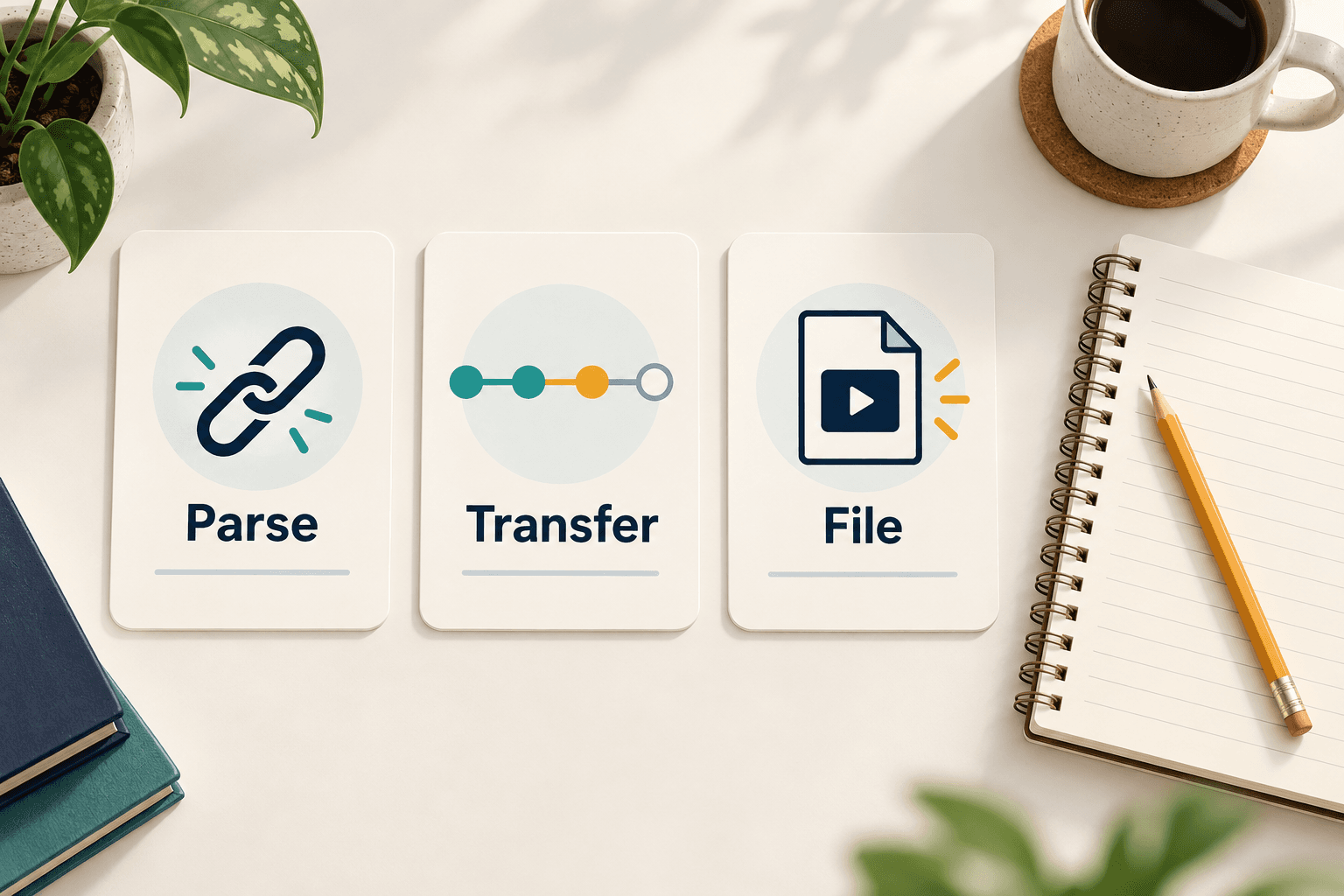
To find why 4K Video Downloader failed to download, first record where the task stopped: parsing the link, transferring data or opening the saved file. Check the exact application edition, its official update guidance, the source’s availability and the output location. A generic failure message does not prove one particular cause.
Repeatedly pasting the same link can hide the information needed to diagnose a failure. Start with a small record of what happened and change one condition at a time. This guide organizes the vendor’s documented troubleshooting categories into a practical investigation. It is not a test of the current app, a reproduction of your error, or a promise that another downloader will work.
Identify the app and preserve the first observation
Write down the full application name, version and operating system. Distinguish 4K Video Downloader Plus from another application or edition carrying a similar name. Keep the exact error text and the stage at which it appeared. If the message includes a code, preserve it rather than translating it into a guessed cause.
The vendor’s parsing and downloading troubleshooting page names website changes, access restrictions and local software or settings conflicts as possible categories. That list supports several hypotheses, not a diagnosis of your device. This article has not verified a current outage or independently reproduced those problems.
Separate the three failure stages
If the application never presents information about the video, record a parsing-stage failure. If it identifies the video but stops during retrieval, record a transfer-stage failure. If it reports completion but the resulting file is unusable, record a file or playback symptom. These are working labels for your notes, not official internal error classifications.
For a fictional example, “the app showed the title, then stopped before a file appeared” is more useful than “nothing works.” It lets you check whether later attempts fail at the same point. Do not infer that a title preview proves the file is downloadable, or that a saved filename proves a transfer finished.
Check the source and one ordinary local condition
Open the original source through its normal authorized route and check whether you can view the intended video. Confirm that the link refers to the item you want rather than a creator profile or an unrelated page. If access is unavailable, record that separately; changing an output folder cannot establish permission or restore a removed source.
For a local check, identify the output folder you expected and whether your account can write an ordinary small file there. Use a temporary test file of your own, not an existing download you might overwrite. Record available storage and whether the folder is on a disconnected drive. These observations narrow a local investigation without assuming that storage caused the original error.
Follow the matching official guidance carefully
For Plus, the vendor currently directs users to Tools > Check for Updates and discusses choosing an accessible output folder. Confirm the installed edition before applying edition-specific instructions. Obtain updates from the application’s official channel and keep a note of the version before and after any change.
Retry only a small authorized example and record the result before changing another condition. Do not immediately reinstall or delete application data just because the first attempt failed. Preserve your existing downloaded files and settings information first. If a troubleshooting step requires a significant configuration change, understand its scope and use the vendor’s support guidance. This checklist does not instruct you to disable system protections or work around an access restriction.
Turn the observations into a useful support report
A concise report should distinguish observations from guesses. Include the application edition and version, operating system, error text, failure stage, time of the attempt and changes already tried. Share only a source link you are permitted to disclose. Crop screenshots to the relevant error and remove personal account details, tokens and unrelated filenames.
Then state what remains unknown. For example: “The source plays through the normal website, but the application stops during retrieval; changing to a writable local folder did not change the result.” This is a useful observation without declaring that the website blocked your IP or that an app update will certainly fix it. Use the support route linked from the official troubleshooting page rather than posting private logs publicly.
Verify a recovered result
If an attempt later succeeds, check the actual file before closing the issue. Open it, compare its duration with the expected item, seek through several points and listen for the intended audio. If technical properties matter, use the existing local file inspection guide. Keep the original file while investigating unexpected properties.
A recovered download establishes one result under the conditions you recorded. It does not prove that every video, quality setting or future version will behave the same way. AnyVidDL is a separate product; this article does not claim that it reproduces or fixes the vendor application’s failures.
Key takeaways
- A generic error can have several causes; preserve the exact message and stage.
- Use edition-specific official update guidance and check the real output location.
- Verify the resulting file and keep private information out of support evidence.
Conclusion
A useful diagnosis starts with the exact app, source and failure stage. Preserve that record, make a small reversible check, and use the matching official guidance. Report unresolved facts clearly instead of repeatedly retrying or turning an error message into an unsupported explanation.
FAQ
Does a failed download prove my IP address was blocked?
No. That conclusion needs separate evidence. Record source availability, the application’s exact message and the point where the attempt failed before choosing a cause.
Should I reinstall immediately?
Start by preserving the error, edition and existing files. A reinstall changes several conditions at once; use the matching vendor guidance if simpler checks do not identify the problem.
Did AnyVidDL test these fixes in 4K Video Downloader?
No. This is a documentation-based diagnosis checklist with an original observation workflow, not a hands-on success claim or a comparison benchmark.