How to Merge Separate Video and Audio Files with FFmpeg: Mapping and Streamcopy
Merge separate local video and audio with FFmpeg using explicit stream maps, then check the selected tracks, timing and shorter-audio boundary.
To merge video and audio with FFmpeg, supply the video file as input 0 and the audio file as input 1, then select -map 0:v:0 and -map 1:a:0. Use -c copy only when those encoded streams fit the output container. Preserve the originals and check the resulting tracks and timing. Add -shortest only when you intentionally want the shorter-stream ending.
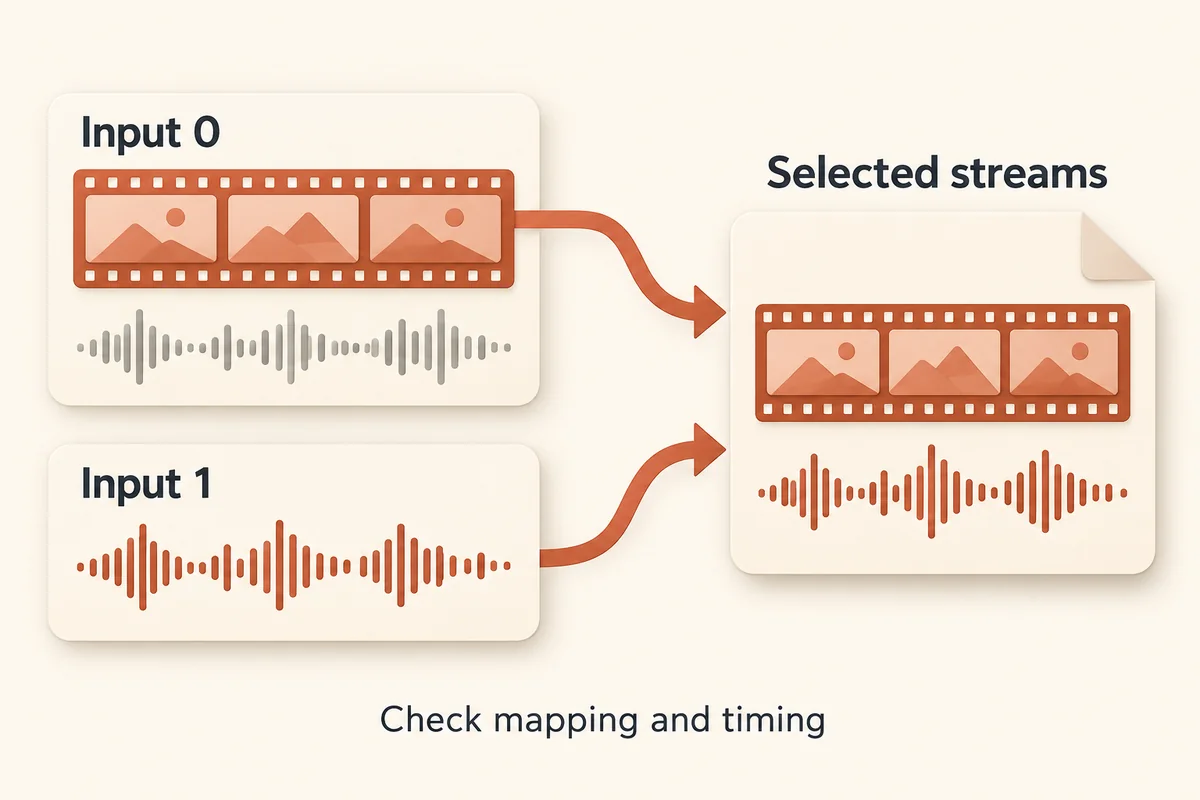
Two local files can belong to the same recording yet still require a deliberate choice of streams. A video file may already contain an unwanted audio track; a replacement audio file may end earlier or start at a different point. This guide covers explicit selection and an actual controlled streamcopy test. It does not treat merging as automatic synchronization repair or as concatenating separate clips in sequence.
Confirm the two inputs and the intended result
Start with media you own or have permission to process. Keep the original files and identify which one supplies the picture and which one supplies the wanted audio. Note whether the first input already contains sound. Your goal is to choose tracks deliberately, not merely combine every stream found in both files.
| Question before merging | What to record | Why it matters |
|---|---|---|
| Which input supplies the picture? | Filename and wanted video stream | Sets the video selection |
| Which input supplies the sound? | Filename and wanted audio stream | Avoids retaining the wrong audio |
| Should both last for the same interval? | Actual duration and start observations | Exposes a mismatch before accepting the result |
If you are separating sound from a single file, that is a different operation covered in the audio extraction guide. Here, both files already exist locally. FFmpeg is an independent local tool; these commands do not describe a web downloader’s cloud capabilities.
Map video from the first file and audio from the second
The FFmpeg documentation describes explicit stream selection with -map. Input numbering begins at zero. In the following command, 0:v:0 selects the first video stream from input 0, and 1:a:0 selects the first audio stream from input 1:
ffmpeg -n -i "video.mp4" -i "audio.m4a" -map 0:v:0 -map 1:a:0 -c copy "merged.mp4"
Replace the example filenames with your local paths. Before running the command, verify that input 0 contains a video stream and input 1 contains an audio stream rather than relying on file extensions alone. The -n flag prevents FFmpeg from overwriting an existing output file.
Because the maps explicitly select one video and one audio stream, an old audio track in the first input is not selected by this command. It also does not preserve every subtitle, alternate track or attachment. Decide which streams you actually need before treating the result as a replacement for the source.
Check whether streamcopy fits the output container
-c copy requests copying selected encoded streams rather than decoding and re-encoding them. It is not a promise that every codec combination fits the named output format. The output container must accept the selected streams, and the application that will play the result has its own requirements.
If FFmpeg rejects the mux, read the error output to see which codec the target container refused. Simply changing the file extension will not fix an incompatible stream; you must either write to a container that supports both existing codecs or re-encode the incompatible track for your target player.
The local MKV-to-MP4 checks explain the separate container-versus-stream question. Use that guide when a container change is the actual requirement. Preserve both original inputs while evaluating any alternative. A muxed file is a new artifact with selected tracks; it is not evidence that the underlying sources have been repaired or improved.
Treat timing and the shorter stream as separate decisions
After merging, inspect the output track list and durations, then play the result in the intended application. Check the opening, a middle point and the ending. Listen as well as watch. A file with two expected tracks and a plausible duration can still fail your practical synchronization requirement.
Placing -shortest before the output filename tells FFmpeg to end the file when the shortest selected stream finishes. In our mismatch test with a 12-second video and a 7.018-second audio track, the default merge kept the full 12-second video duration after the audio ended, whereas adding -shortest truncated the output at 7.018 seconds in the container duration report. Because -shortest only cuts the longer track and cannot pad missing audio or fix sync offsets, include it only when you want the output stopped at the shorter stream boundary.
If the material is not aligned, first establish what differs in the source timing. This guide does not prescribe a guessed delay, timestamp rewrite or offset value. Keep the inputs and the unmodified trial output so the observations remain traceable.
Sources and testing scope
The command behaviors described here follow the official FFmpeg documentation and were verified on a local 12-second H.264/AAC test fixture (color bars and sine tone) split into separate video and audio inputs.
When re-merged with explicit stream mapping and -c copy, all 360 video packets and 564 audio packets matched the source payload hashes, presentation and decoding timestamps, and durations. Those results confirm lossless packet preservation for compatible streams from the same recording, though you must still play back real-world files to verify perceptual synchronization and player compatibility.
Key takeaways
- The two explicit maps select video from input 0 and audio from input 1, excluding unselected old audio.
- Streamcopy requires suitable streams and container support; creating a file does not establish target-player compatibility.
- Check actual timing and the ending; -shortest can truncate output and does not repair synchronization.
Conclusion
Choose the picture and sound explicitly, preserve both source files and write a distinct output. Use streamcopy only when the selected streams fit the output, and make shorter-stream termination a conscious choice. Confirm the actual playback and ending before accepting the merged file for your workflow.
FAQ
Does this merge command concatenate clips?
No. It selects picture from one input and sound from another into one output. Joining clips in a sequence is a different task and is not covered by these maps.
Will the existing audio in video.mp4 remain?
The shown command explicitly selects only the first video from input 0 and the first audio from input 1. An old audio stream in input 0 is unselected. Inspect your actual inputs to confirm that those selections are the ones you want.
Do identical packet timestamps prove that the result sounds synchronized?
No. In the controlled fixture they establish technical packet identity and timing preservation. They do not substitute for watching and listening to the actual result, especially with independently sourced or differently timed inputs.
Sources
Related pages
Download YouTube Video in 4K MKV: Codec and Player Checks
Understand vendor-documented MKV options, separate container from codec, inspect an authorized saved file, and check playback before choosing conversion.
4K Video Downloader Subtitles: Choose SRT or Embedded Output
Use documented subtitle settings in 4K Video Downloader Plus, choose separate SRT or embedded output, and diagnose missing tracks before repeating a download.
AC3 vs AAC: Audio Compatibility, Surround Sound and Passthrough
Compare AC3 and AAC for local media: check player and container support, understand passthrough, and decide whether to preserve or re-encode an audio track.
Download a Direct MP4 with AnyVidDL Desktop on Windows: A Tested Walkthrough
Follow one tested Windows desktop MP4 download with real screenshots, output settings and file checks, including this unsigned release’s limits.