How to Convert MKV to MP4: Local Streamcopy Checks
Remux a local video you own with FFmpeg, deliberately select video and audio streams, understand codec limits, and inspect the new MP4 without overwriting the original.
To convert a local MKV to MP4 without re-encoding, use FFmpeg streamcopy when the selected streams are compatible with MP4. For a deliberate first-video and optional-first-audio copy, use ffmpeg -i input.mkv -map 0:v:0 -map 0:a:0? -c copy output.mp4. Keep the original and verify the result; this example does not retain every track or guarantee compatibility.
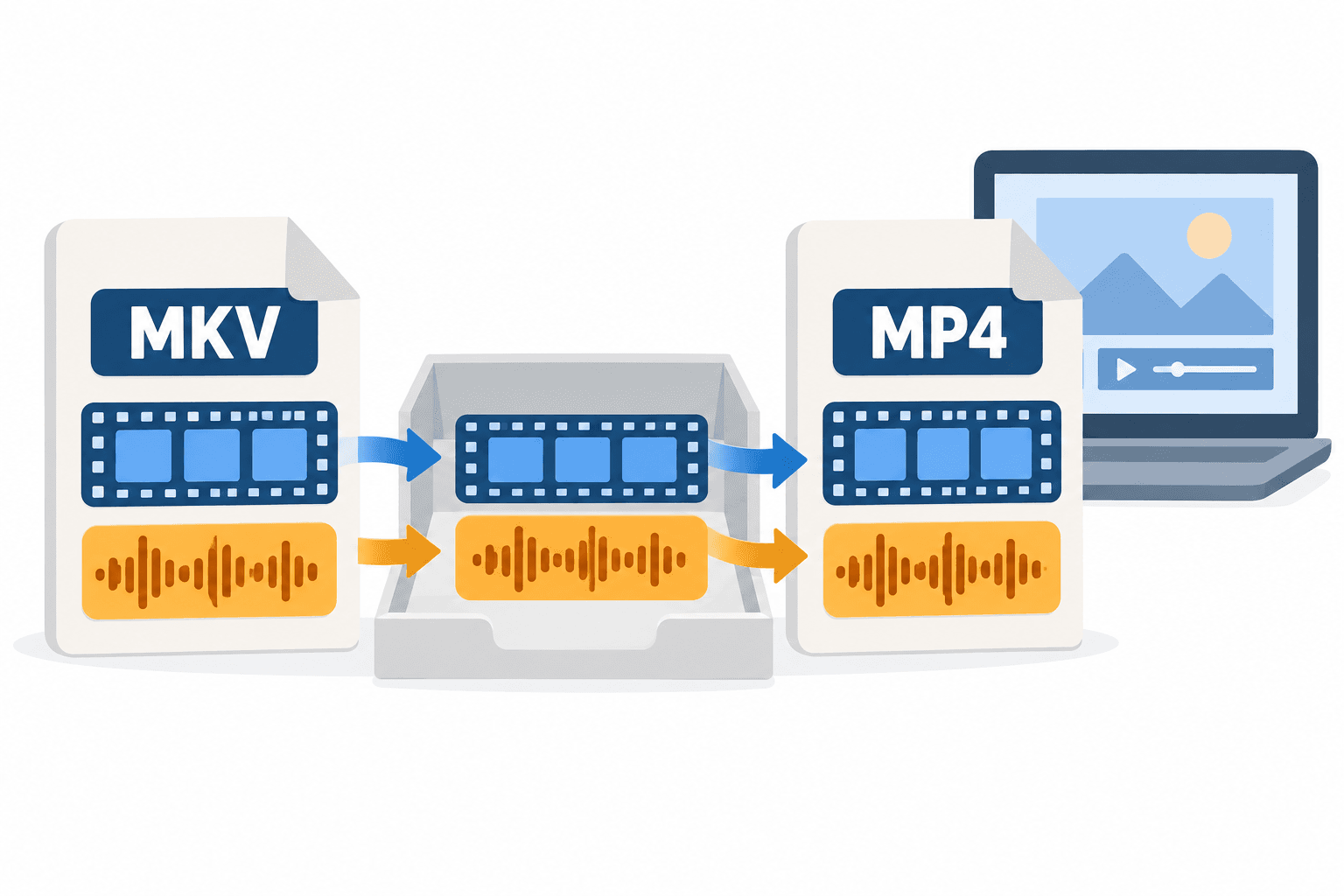
A container change and a codec change are different operations. Before converting, decide whether you need a different package for the same encoded streams or a new encoding for a receiving application. This guide concerns local video files you own or are authorized to process. It does not claim that AnyVidDL converts arbitrary MKV files, captures restricted streams, or increases source quality.
Inspect the input and define the desired output
Start with a completed local file and keep an untouched original. Check the video codec, audio codec, dimensions, duration, and number of streams. The ffprobe file inspection guide explains how to obtain a useful record. Do not assume that the .mkv extension identifies one codec or that all streams can be packaged into MP4.
Write down what the receiving task needs: a video with one audio track, multiple languages, subtitles, or an editing format. The command below deliberately selects only the first video and an optional first audio stream. Additional audio, subtitles, attachments, and other streams are outside that selection. If those are required, plan and verify them separately.
Choose a new output path with enough storage and avoid overwriting the source. A copy of the original is valuable when the chosen map omits a track or a receiving application rejects the output. Renaming the filename extension is not a container conversion.
Try streamcopy for a compatible first video and audio
The official FFmpeg streamcopy documentation explains copying encoded packets without decoding or encoding. It documents -map for stream selection and -c copy for this operation. Streamcopy can change the container without re-encoding, but the target’s requirements may prevent a successful result.
For the limited selection described above, run:
ffmpeg -i input.mkv -map 0:v:0 -map '0:a:0?' -c copy output.mp4
Replace the input and output paths with your own authorized local files and quote paths containing spaces. The first map selects the first video stream. The second map requests the first audio stream if present; its question mark makes that audio selection optional. This is not an all-tracks archive command.
Read the actual command result and keep any error. If it reports that a stream is unsupported by the target container, repeated attempts with the same inputs and options will not establish compatibility. Do not report success until an output exists and passes the receiving-task checks.
Choose encoding only when the task requires a codec change
Streamcopy does not apply visual or audio filters because it does not decode the frames first. FFmpeg’s documentation distinguishes that operation from transcoding, which decodes and encodes. If the receiving application cannot decode the original stream, a codec change may be necessary even when a different container opens successfully.
Select an encoding recipe from the receiving application’s actual requirements, your installed FFmpeg encoders, and the quality you need. This page does not prescribe one universal preset for every video, player, or editing application. Save the chosen settings with a separate output filename and compare the result with the original.
Re-encoding can affect quality, size, and processing time. It cannot restore detail absent from the source. If you only needed a compatible package for streams already supported, introducing an unnecessary encode adds another condition to verify. If you need filtering, a resolution change, or an incompatible codec replaced, treat that as a deliberate new processing task.
Verify streams, playback, and omitted material
Inspect the output with ffprobe and compare it with the intended selection. Check that the first video and expected audio are present, that duration is sensible, and that dimensions match the intended task. Open the MP4 in the actual receiving application, listen to its sound, and check seeking and content through the recording. Review the whole output for an important delivery.
Keep an explicit list of anything the command did not select. A playable MP4 with one audio stream can be a valid delivery while still being an incomplete copy of a multi-track MKV. Do not delete the original because the new file opens once. Retain the input record, command, output properties, and any exception notes.
The source-to-MP4 page explains source-provided file checking in AnyVidDL, which is a different capability. Local FFmpeg processing described here should not be presented as a website conversion result. Finish with a verified local output for the intended application, or a precise compatibility error that tells you which requirement remains unresolved.
Key takeaways
- A container change does not necessarily change the codec.
- This example selects one video and optional one audio, not every stream.
- Keep the original and verify the receiving application.
Conclusion
Use streamcopy for a deliberate compatible selection, preserve the original, and inspect the new output. When codec support or required tracks differ, make that an explicit processing decision instead of assuming every MKV can become an equivalent MP4.
FAQ
Does streamcopy reduce quality?
It copies encoded packets without re-encoding. That does not guarantee a playable MP4 or preserve streams you did not select.
Will the example keep subtitles and all audio languages?
No. Its mapping deliberately selects only the first video and optional first audio stream.
Can I just rename .mkv to .mp4?
No. A filename change does not repackage the streams into a new container.
Related pages
Download YouTube Video in 4K MKV: Codec and Player Checks
Understand vendor-documented MKV options, separate container from codec, inspect an authorized saved file, and check playback before choosing conversion.
4K Video Downloader Subtitles: Choose SRT or Embedded Output
Use documented subtitle settings in 4K Video Downloader Plus, choose separate SRT or embedded output, and diagnose missing tracks before repeating a download.
AC3 vs AAC: Audio Compatibility, Surround Sound and Passthrough
Compare AC3 and AAC for local media: check player and container support, understand passthrough, and decide whether to preserve or re-encode an audio track.
Download a Direct MP4 with AnyVidDL Desktop on Windows: A Tested Walkthrough
Follow one tested Windows desktop MP4 download with real screenshots, output settings and file checks, including this unsigned release’s limits.