How to Play MKV Files on Mac: Play First, Remux Only When Needed
Open an MKV file in VLC on your Mac, check the sound and subtitles, and find out when inspecting the file or changing its container will help.
Open VLC on your Mac and drag the MKV file from Finder into the player window. Press Play if playback does not start. If the picture, sound, and any subtitles you want work, you can keep watching the original file without converting it.
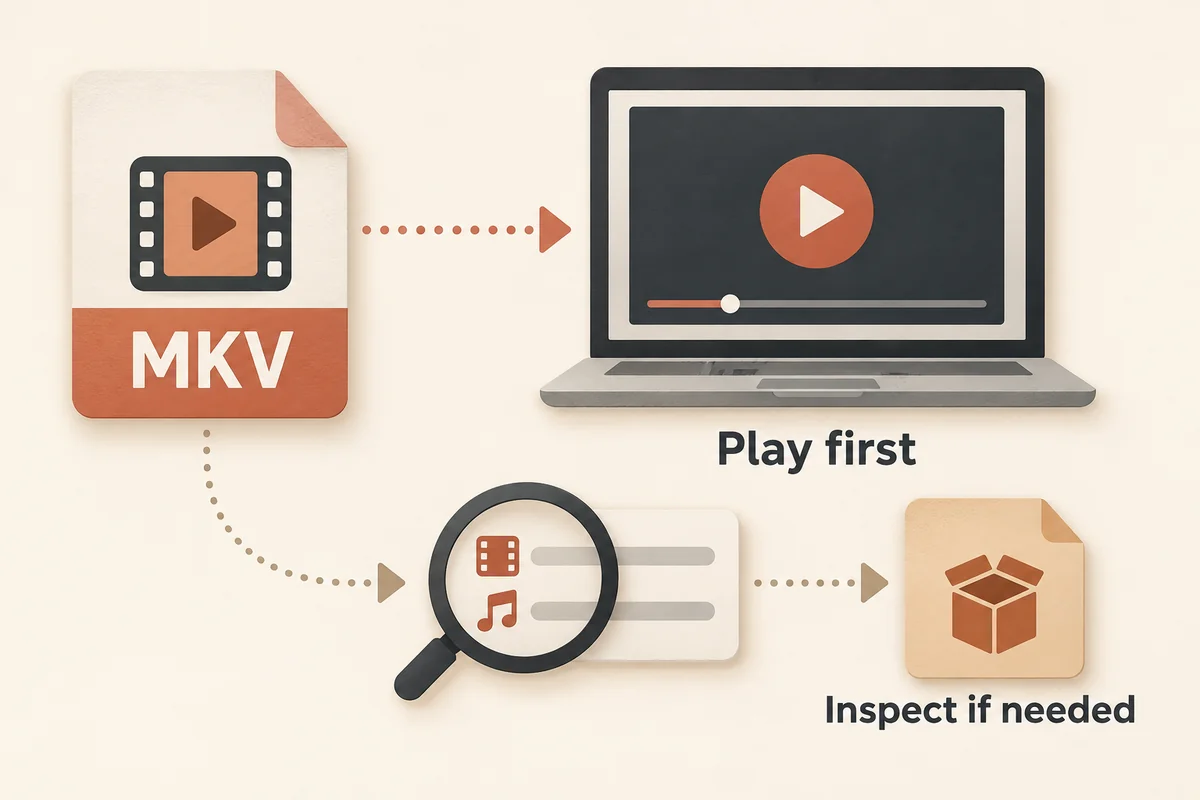
Open the file in VLC
- If VLC is not installed, get VLC for macOS from VideoLAN, then launch it.
- Find your MKV in Finder and drag it onto the VLC player window. You can also use VLC’s file-open dialog to select it.
- Start playback. Listen to a few seconds, seek forward, and turn on a subtitle track if you need one.
Playing the file leaves the original MKV untouched. If something is missing, use the checks below to narrow down what to inspect.
Check playback in your own session
Once the file is open, observe each of the following and record what you see. Your notes reflect what happened in your specific session, with your installed player version, on your hardware.
| Observation | What to look for | Record the result |
|---|---|---|
| Picture | Visible image or motion on screen | Present / Absent / Partial |
| Audio | Audible sound when not muted | Present / Absent |
| Seeking | Moving to a different position in the file | Works / Fails / Partial |
Also note whether any subtitle tracks appear as selectable options and whether the one you wanted was available.
Preserve the original file throughout. Do not draw conclusions about the cause of any problem from these observations alone—what you see does not establish whether a different player, version, or configuration would produce a different result.
If picture, audio, seeking, and your desired subtitles all work to your satisfaction, you have a working playback setup and no further steps are required.
Inspect the stored streams without changing the file
If your session raised questions about what the file actually contains, you can read the stored metadata without modifying the file.
The ffprobe tool, documented at ffmpeg.org/ffprobe.html, reports the actual container and streams inside a media file. The filename extension alone does not establish what is stored or whether a specific player will handle it.
Skip this optional step if your file already plays. In Terminal, run ffprobe -version first. If Terminal reports command not found, install a distribution of FFmpeg that includes ffprobe and check the version again.
To inspect a file, type the command below up to and including json, add a space, drag your MKV from Finder into Terminal to insert its path, and press Return. The quoted filename here is an example:
ffprobe -v error -show_format -show_streams -of json "sample.mkv"
The output lists the stored container name and each stream's codec parameters. This is a metadata report only—what the file contains and whether your player renders it correctly in a full session are separate questions.
For a complete guide to reading and acting on ffprobe output, see the stream inspection guide.
Decide whether another workflow needs a different container
Use your recorded observations from section 2 to work through the following:
- No further steps needed if picture, audio, seeking, and your desired subtitle tracks all worked in your session and no other application needs to open the file.
- Investigate further if a specific application rejects the file, or if your session showed absent or partial results for any observation.
- Before changing the container, check the documentation for the application that is not accepting the file—confirm it actually requires a different container. A container change only makes sense when the streams already encoded inside the file are compatible with the requested target container and application.
Note that what a separate application requires is a question for that application's current documentation, not an assumption to make from the MKV extension alone.
If a container change is appropriate after those checks, the MKV-to-MP4 remux guide covers the preparation and stream-copy process. No conversion commands appear on this page.
Sources and testing scope
VLC Desktop User Documentation 3.0 — docs.videolan.me/vlc-user/desktop/3.0/en/basic/media.html — Describes opening local media files and network streams in VLC. Interface details and version-specific behavior are outside the scope of this page.
ffprobe Documentation — ffmpeg.org/ffprobe.html — Describes reporting stored container and stream metadata. Inspection is read-only and does not confirm successful playback.
Internal lab observation (original synthetic fixture) — An original synthetic H.264/AAC MKV was decoded headlessly in VLC 3.0.24 arm64 with dummy audio and video output, reaching end of file with exit 0. This covers one synthetic case only. It does not represent GUI playback, audible output, subtitle rendering, seeking behavior, or support for codec configurations other than those in that fixture.
Key takeaways
- The .mkv extension alone does not establish what streams are stored inside or how any specific player will handle them in your session.
- Record your own observations of picture, audio, seeking, and subtitle availability before drawing conclusions or taking further action.
- A container change is only worth pursuing when a specific downstream workflow requires it and the existing encoded streams are compatible with the target container—check that application's documentation first.
Conclusion
Open the owned MKV in a suitable local player such as VLC, observe the actual results in your own session, and record them. Use those observations—not the file extension—to decide whether any additional step is worth taking. Existing guides cover stream inspection and container changes if those steps become relevant.
FAQ
Does VLC on Mac support opening MKV files?
The VLC documentation describes opening local files and network streams. Whether your installed version handles the specific streams inside your MKV is something to verify in your own session. Acquire VLC through the official entry at videolan.org/vlc/ and consult its documentation for the version you have installed.
What does running ffprobe on an MKV file tell me?
Running ffprobe with the -show_format and -show_streams flags outputs the stored container name and each stream's codec parameters. This tells you what is inside the file. It does not tell you whether your player will render those streams correctly in a full playback session—those are separate questions.
When should I consider remuxing or converting the MKV file?
Only when a specific application or workflow requires a different container and your playback observations suggest the current setup does not meet that need. Check the target application's current documentation to confirm what it requires, then verify the stored streams are compatible with that container before making any change.
Sources
Related pages
Download YouTube Video in 4K MKV: Codec and Player Checks
Understand vendor-documented MKV options, separate container from codec, inspect an authorized saved file, and check playback before choosing conversion.
4K Video Downloader Subtitles: Choose SRT or Embedded Output
Use documented subtitle settings in 4K Video Downloader Plus, choose separate SRT or embedded output, and diagnose missing tracks before repeating a download.
AC3 vs AAC: Audio Compatibility, Surround Sound and Passthrough
Compare AC3 and AAC for local media: check player and container support, understand passthrough, and decide whether to preserve or re-encode an audio track.
Download a Direct MP4 with AnyVidDL Desktop on Windows: A Tested Walkthrough
Follow one tested Windows desktop MP4 download with real screenshots, output settings and file checks, including this unsigned release’s limits.