Why You Cannot Download an Age-Restricted Video as MP3
Separate platform access from local audio conversion, identify the failing stage, and troubleshoot authorized MP3 workflows without bypassing access controls.
An age-restricted MP3 workflow can fail before conversion because the official platform requires an eligible signed-in account or age verification. Check source access first, confirm permission and a usable local file, then convert that permitted file locally. A converter cannot bypass sign-in, age verification, private access, DRM, or other platform controls.
Direct answer
An age-restricted MP3 workflow can fail before conversion because the official platform requires an eligible signed-in account or age verification. Check source access first, confirm permission and a usable local file, then convert that permitted file locally. A converter cannot bypass sign-in, age verification, private access, DRM, or other platform controls.
The first question is not which MP3 setting to change, but where the workflow stopped. Separate access to the original video from conversion of an available local file, then proceed only when you can legally access, save, and convert that media.
Match the symptom to the failing stage
Use the symptom to identify the stage that needs attention. Do not change MP3 settings while the source is still inaccessible or while no usable local media file exists. The table distinguishes official-platform access, public-link inspection, local input, and output problems so that each next step addresses the relevant condition.
| What you observe | Likely stage to investigate | Safe next action |
|---|---|---|
| The original page will not play | Official-platform access | Open the page on the official platform and check whether sign-in or age verification is required. |
| A public-link checker cannot read the link | Source access or source availability | Resolve access through the official service before investigating conversion. |
| The link is readable but no usable media file is available | Source or permitted-download stage | Confirm that an officially supplied or otherwise permitted local file actually exists. |
| A local file plays but has no audible content | Local input | Check whether the file contains an audio stream before changing output settings. |
| The local file is incomplete, protected, or only a playlist reference | Local input | Obtain a complete, permitted input rather than treating the issue as an MP3 encoding problem. |
| A permitted local file has audio but conversion fails | Local conversion or output | Preserve the exact error and classify it as an input, codec, path, storage, or permission problem. |
| An MP3 is created but does not play correctly | Output verification | Check the MP3 duration and audible content against the permitted source. |
Check official access before any download attempt
Open the original page on its official platform before using any download or conversion workflow. Complete sign-in or age verification only through that official service and only with an eligible account. YouTube says age-restricted videos are not viewable to users who are signed out or under 18, and some viewers may be asked to verify their age. When an age-restricted video is embedded on another website, viewers may be redirected to YouTube rather than receiving an independent playback path.
These conditions explain why a public-link tool may be unable to inspect the source even when the URL itself is valid. A link does not establish that the requesting tool has the same access as an eligible viewer. If the official page cannot be accessed, stop the download workflow and use an official access or download option where one is available.
Keep the boundary clear: do not copy cookies, tokens, or account sessions into an unknown downloader, and do not attempt to bypass age verification, sign-in, private access, DRM, or another platform restriction. The appropriate next step is to resolve access through the platform or stop when the requested file cannot be obtained through a permitted route.
Follow a safe troubleshooting flow
Follow these steps in order. Each step produces an observation that determines whether you can move forward. If a warning or access boundary stops the process, do not skip ahead to conversion settings.
-
Identify the failing stage. Record whether the original platform page will not play, a public-link checker cannot read the source, no usable media file is available, or a local file exists but audio conversion fails. Do not troubleshoot conversion until source access is resolved.
-
Verify access on the official platform. Open the original page on its official platform. If the platform requires sign-in or age verification, complete that process only through the official service with an eligible account. Do not copy cookies, tokens, or account sessions into an unknown downloader, and do not attempt to bypass an access restriction.
-
Confirm permission and source availability. Make sure you own the video or have permission to save and convert it. Confirm that a permitted local media file or an officially supplied download is actually available before choosing an audio tool.
-
Test the local input before converting. Play the local file and confirm that it contains an audio stream. If it is incomplete, protected, silent, or only a playlist reference, fix the input problem instead of changing MP3 settings.
-
Extract audio from the permitted local file. Use a trusted local tool. With FFmpeg, a typical pattern is
ffmpeg -i input.mp4 -vn -c:a libmp3lame output.mp3. Treat this as local format conversion, not a way to gain access to a restricted source. -
Verify the MP3 result. Open the MP3, check its duration and audible content, and compare it with the permitted source. If conversion fails, preserve the exact error and classify it as an input, codec, path, storage, or permission problem.
Convert an authorized local file to MP3
FFmpeg belongs at the conversion stage, after access and permission checks have passed. Start with a local file that you are permitted to convert. Play it first and confirm that it is complete and contains an audio stream. A file that is silent, protected, incomplete, or merely a playlist reference is not a sound basis for changing MP3 options.
FFmpeg documents transcoding as reading an input and writing encoded output. In the supplied pattern, -vn excludes video streams from the output file, while the audio encoder writes the selected audio as MP3:
ffmpeg -i input.mp4 -vn -c:a libmp3lame output.mp3
Replace the example input and output names with paths for the local files you are authorized to use. A successful command still needs verification: open the resulting MP3, check that its duration is plausible, and listen for audible content. If the command fails, retain the exact error rather than repeatedly changing unrelated settings. The error should guide whether you inspect the input, codec availability, path, storage, or file permissions.
This command reads a file you already have; it does not retrieve a restricted video. It cannot perform sign-in, age verification, private-access authorization, DRM removal, or any other access-control workaround.
What AnyVidDL can and cannot do
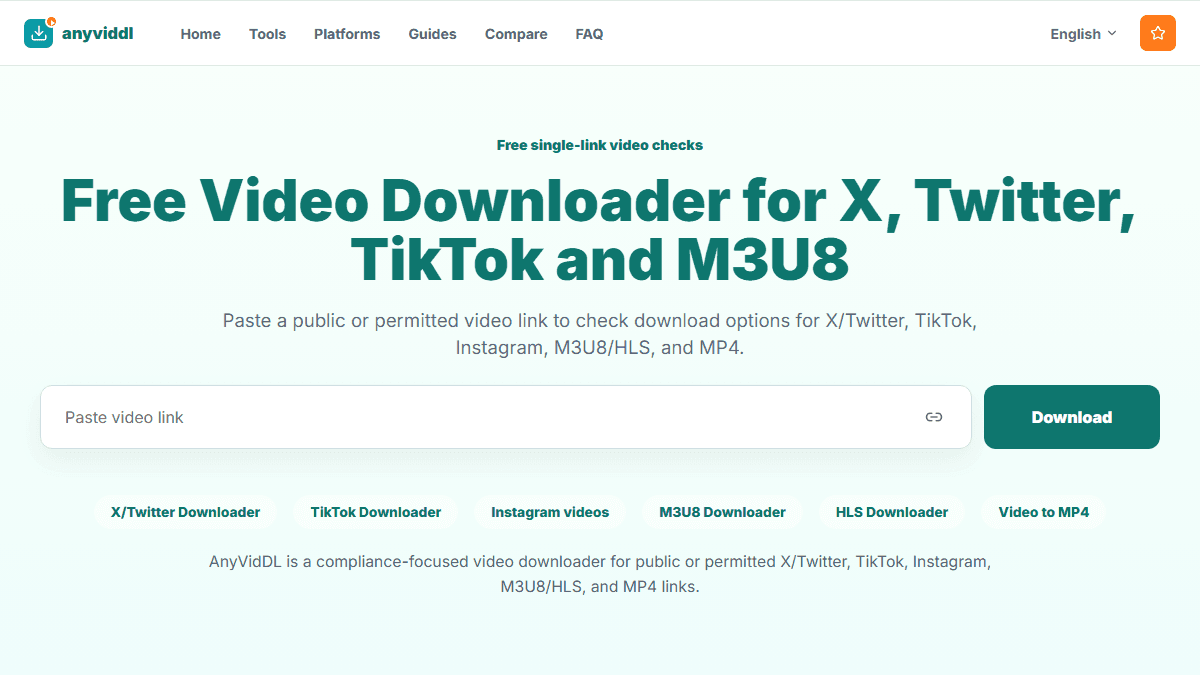
AnyVidDL can inspect one public link and open the media options returned by its source. The results depend on current source access, so a public URL does not guarantee that options will be returned for an age-restricted video. Use this inspection step only after confirming that you may legally access, save, and convert the media.
AnyVidDL cannot resolve platform age verification, sign-in, private access, DRM, or other access controls. It also does not offer hosted media merging or a verified cloud MP3 conversion capability. That means it should not be treated as a way to turn an inaccessible source into an MP3. If the official platform requires an eligible account or an access check that the public-link workflow cannot satisfy, return to the official service or stop the process.
When you do have a permitted local file, use a trusted local conversion tool for the separate audio-extraction stage. Keep source access and local conversion as two different diagnoses so that an access failure is not mistaken for an encoding failure.
Handle persistent access and conversion failures
A persistent restriction needs a different next action from a transient-looking tool error. Do not assume that retrying fixes an age, sign-in, private-access, DRM, or platform restriction. Repeated attempts cannot substitute for an eligible official-platform session or permission to save the media.
- The official page remains inaccessible: Stop the download workflow. Use the platform's official access or download option where available, or leave the source untouched when access cannot be established.
- No permitted local file exists: Do not begin MP3 troubleshooting. Confirm that an officially supplied download or another permitted local media file is actually available.
- The local file lacks audio: Treat the input as the problem. Check the file itself and obtain a usable, permitted input instead of changing MP3 settings.
- The file is incomplete, protected, or only a playlist reference: Do not claim that conversion failed because of the MP3 format. Resolve the input problem through a permitted source.
- Conversion returns an error: Preserve the exact message and classify it as an input, codec, path, storage, or permission problem. Investigate that category with the smallest reversible change.
- An output file is produced: Do not assume success from file creation alone. Open it, check its duration and audible content, and compare it with the permitted source.
If the next proposed action would require copying account sessions, bypassing age verification, defeating DRM, or evading private access, stop. The safe next step is official access, an authorized download, or no conversion.
Key takeaways
- Separate platform access from local audio conversion.
- Use the official service for sign-in and age verification with an eligible account.
- Confirm permission and a complete local file with an audio stream before converting.
- Treat FFmpeg as a local input-to-output converter, not an access workaround.
- Preserve exact errors and verify the resulting MP3 instead of assuming success.
Conclusion
Resolve official-platform access before investigating conversion, and confirm both permission and a usable local file before extracting audio. Convert only that authorized local input, verify the MP3 afterward, and stop when obtaining the source would require bypassing an access control.
FAQ
Why will an age-restricted video not download?
The official platform may require sign-in or age verification with an eligible account before the source can be viewed or inspected. A public link does not remove that access requirement.
Can an MP3 converter bypass an age restriction?
No. An MP3 converter works on media that is already available as an input. It cannot bypass sign-in, age verification, private access, DRM, or other platform controls.
How can I convert an authorized local video to MP3?
Play the authorized local file first and confirm that it contains audio. Then use a trusted local tool such as ffmpeg -i input.mp4 -vn -c:a libmp3lame output.mp3, and verify the resulting MP3.
Why can MP3 conversion fail after a permitted download?
The local input may be incomplete, protected, silent, or only a playlist reference, or the error may involve the input, codec, path, storage, or file permissions. Preserve the exact error and diagnose that category.
Can AnyVidDL create a cloud MP3 from an age-restricted link?
AnyVidDL can inspect one public link and show media options returned by its source, but it cannot resolve age verification or other access controls and does not offer a verified cloud MP3 conversion capability.
Sources
- YouTube Help: Age-restricted content — youtube-age-access-requires-eligible-account
- YouTube Help: Age-restricted content policy — youtube-age-restricted-embedding-limit
- FFmpeg Documentation — ffmpeg-operates-on-input-output