How to Preserve Facebook Reels Timestamps When Archiving on Windows
Check whether your archived Facebook Reels carry the original post timestamp or just the download date, and verify each file in UTC with a PowerShell command.
To preserve Facebook Reels timestamps when archiving, record the publication time for each Reel ID, then compare it with the saved file’s LastWriteTimeUtc. On one Windows machine the locally installed AnyVidDL build matched both sample post times to the second.
A file dated today can contain a Reel posted months ago. A download can carry a new modification time even when the source post date is known. To verify an archive, you need to match each file to its Facebook Reel ID and compare the post's publication time with the file's LastWriteTimeUtc. This guide walks through a tested procedure on Windows: downloading two public Reels, running a read-only PowerShell check, and reading the results in UTC so time-zone display differences do not mislead you.
Which tool preserved post timestamps in this test
In a test of two public Facebook Reels on one Windows machine, a locally installed, unsigned x64 build of AnyVidDL Desktop 0.1.0 set each file's LastWriteTimeUtc to the post's publication time with zero seconds of difference.
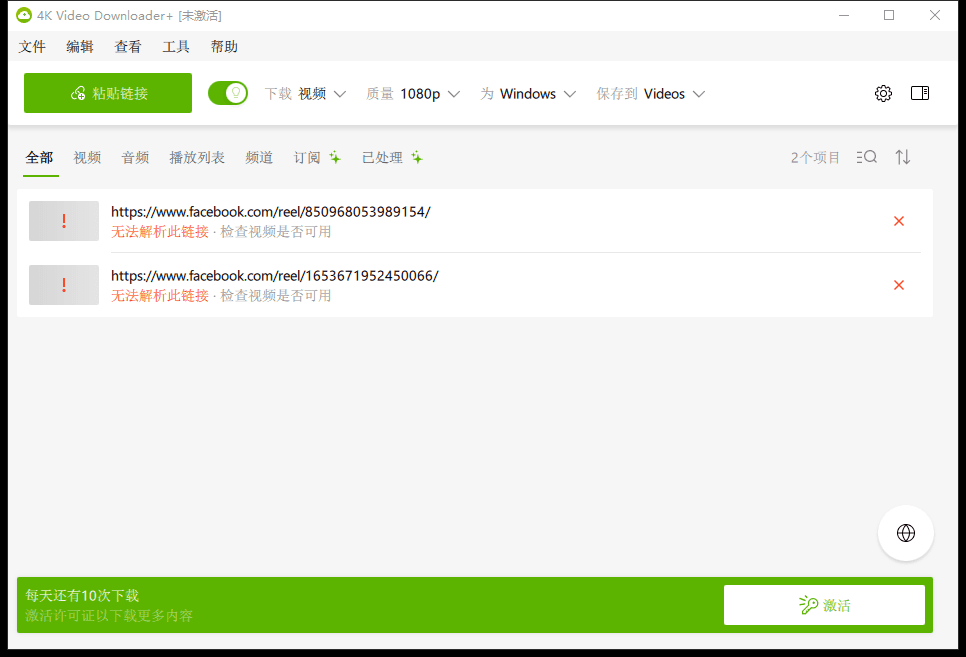
By contrast, standalone yt-dlp 2026.10.21, using its default timestamp behavior in this run, stamped both files with the download date. 4K Video Downloader+ 26.3 reported a parsing failure for each link and produced no file at all, so there was no modification time to compare.
These observations come from two links on a single machine. They do not constitute a general guarantee for other Reels, Facebook pages, tool versions, or operating systems.
Download the Reels as a batch in AnyVidDL Desktop
Follow these steps using the locally installed desktop app. The test used the Windows desktop installation and individually supplied links. For current Windows download information, visit AnyVidDL Desktop. The web app and automatic discovery of an entire Facebook page were outside this test.
- Prepare your links. Collect the individual public Reel URLs you have permission to save. Keep the full URL and numeric Reel ID for each. This test started with individual links supplied by the operator.
- Paste and select quality. In the installed desktop app, open Download and paste one link per line. The test used Best as the quality setting.
- Download and record paths. Click Download links and wait for each entry to complete. In Finished, open each output and identify its file path. Record that path alongside the corresponding Reel ID before renaming or moving any files.
Recording the Reel ID next to the file path is important. Once you rename or relocate a file, you lose the link between the download tool's output and the specific post unless you wrote it down first.
Compare post time and file time in UTC with PowerShell
For this test, the source records supplied Unix publication times. Run the following read-only PowerShell check once per file. When prompted, paste the full file path from Finished without surrounding quotes. For the first Reel enter 1770388796 as the epoch value; for the second enter 1765472086.
$path = Read-Host 'Full path of the file for this Reel ID'
$file = Get-Item -LiteralPath $path -ErrorAction Stop
[long]$epoch = Read-Host 'Source post publication time (Unix seconds)'
$post = [DateTimeOffset]::FromUnixTimeSeconds($epoch).UtcDateTime
[pscustomobject]@{
    File = $file.FullName
    PostUtc = $post.ToString('u')
    LastWriteTimeUtc = $file.LastWriteTimeUtc.ToString('u')
    CreationTimeUtc = $file.CreationTimeUtc.ToString('u')
    DifferenceSeconds = ($file.LastWriteTimeUtc - $post).TotalSeconds
}
The script reads the file's metadata and does not modify it. Here is what each output field tells you:
- PostUtc — the publication time you provided, converted from Unix seconds to a UTC datetime.
- LastWriteTimeUtc — the file's last modification time in UTC. This is the value you are comparing against the post time.
- CreationTimeUtc — when this file was created on the filesystem, which can change when you copy a file and does not identify the post date.
- DifferenceSeconds — the gap between LastWriteTimeUtc and PostUtc. Zero means an exact match.
Windows Explorer usually displays the modified time in the computer's local time zone. Compare both values in UTC before treating an hour difference as an error. An embedded media creation date, if present, is a separate field and may describe recording or encoding. Neither CreationTimeUtc nor an embedded date establishes when the Facebook post was published.
Test results: AnyVidDL Desktop vs yt-dlp vs 4K Video Downloader+
The table below shows the results for both Reels. All times are UTC.
| Facebook Reel ID | Post time (UTC) | AnyVidDL LastWriteTimeUtc | Difference | Standalone yt-dlp LastWriteTimeUtc (UTC, whole seconds) |
|---|---|---|---|---|
| 1653671952450066 | 2026-02-06 14:39:56 | 2026-02-06 14:39:56 | 0 s | 2026-11-03 14:26:20 |
| 850968053989154 | 2025-12-11 16:54:46 | 2025-12-11 16:54:46 | 0 s | 2026-11-03 14:26:22 |
Standalone yt-dlp 2026.10.21, using its default timestamp behavior in this run, produced both files with modification times on the download date rather than the post date. 4K Video Downloader+ 26.3 reported a parsing failure for each of these two links and produced no file, so there was no modification time to compare.
These observations cover two links on one machine with the stated tool versions. The sample posts were Reel 1653671952450066 and Reel 850968053989154. The publisher also provides a separate download page for the work: NASA Goddard — Sea Ice and Land Ice.
What to record when the post time is unknown
Not every Reel comes with a reliable publication time. If the source supplies no verifiable epoch, do not guess. Instead, record the following for each file:
- Reel ID and source URL — so a later reviewer can relocate the post.
- Retrieval time — the date and time you ran the download.
- File path — the location on disk at the time of download.
- Post time status — mark it explicitly as unknown.
Keep the observed file modification time as a separate value. That way a later reader can distinguish a verified match from a missing source date. If the publication time becomes available later, you can run the same PowerShell check against the already-saved file without needing to re-download it.
Key takeaways
- Downloaded Reels often carry the download date, not the original post date, so verification is necessary.
- In a two-Reel test, AnyVidDL Desktop 0.1.0 matched post times with zero seconds difference; standalone yt-dlp wrote the download date.
- Compare LastWriteTimeUtc and the post time in UTC to avoid time-zone display errors.
- CreationTimeUtc reflects when the file was created on your filesystem, not when the post was published.
- Record Reel ID, source URL, retrieval time, and file path for every download, especially when the post time is unknown.
- These observations cover two links on one machine and do not constitute a general guarantee.
Conclusion
Always compare timestamps in UTC before concluding that a file carries the correct post date. Record each Reel ID alongside its file path at download time, and run the read-only PowerShell check per file rather than assuming the modification date equals the publication date. These results come from a narrow two-file test on one Windows machine with specific tool versions and do not extend to other configurations, the web app, or page-wide discovery.
FAQ
Does Windows Explorer show the same time as PowerShell's LastWriteTimeUtc?
Not exactly. Windows Explorer displays the modified time in your computer's local time zone, while the PowerShell script outputs LastWriteTimeUtc in UTC. If your local offset is nonzero, the two values will differ by that offset. Always compare in UTC before treating an hour difference as an error.
Can this method verify timestamps for an entire Facebook page at once?
The tested procedure used individual links supplied by the operator. There is no evidence in this test for automatic discovery of all Reels on a Facebook page. You would need to collect each public Reel URL individually and run the PowerShell check per file.
What does CreationTimeUtc tell you compared to LastWriteTimeUtc?
CreationTimeUtc records when the file was first created on your filesystem, which typically reflects the download moment. LastWriteTimeUtc records the last time the file's content was modified. A tool that preserves post timestamps sets LastWriteTimeUtc to the publication time, while CreationTimeUtc still shows when you downloaded it. Neither field on its own proves when the Facebook post was published without an independent source time to compare against.
Sources
Related pages
4K Video Downloader Plus License Key: Purchase Recovery
Recover a purchased 4K Download license through the official purchase-email form, distinguish retrieval from activation, and prepare a private support record.
Is JDownloader Safe? Verify the Installer Source and Digital Signature
Check a JDownloader installer through its official source and digital signature. Understand what these checks show, their limits, and when to stop before setup.
KICK Clip Downloader Guide: Native MP4 and File Checks
Use KICK’s documented clip-page download route, keep clips distinct from full VODs, and check the MP4 file before relying on it.
Save a Permitted LinkedIn Video: Check the Link, File and Sound
A bounded workflow for checking a public LinkedIn video you have permission to save, then checking the downloaded file and its audio.