Zoom Video Downloader Guide: Recording Access, Permissions and File Checks
Download an authorized Zoom recording, check owner and viewer permissions, and verify the saved video without sharing private meeting links.
Use Zoom’s recording page for a processed cloud recording you are authorized to access. Owners and permitted users can use the documented Download control; a viewer’s ability to watch does not establish download permission. Ask the recording owner when the option is unavailable instead of sending a private recording link to a third-party downloader.
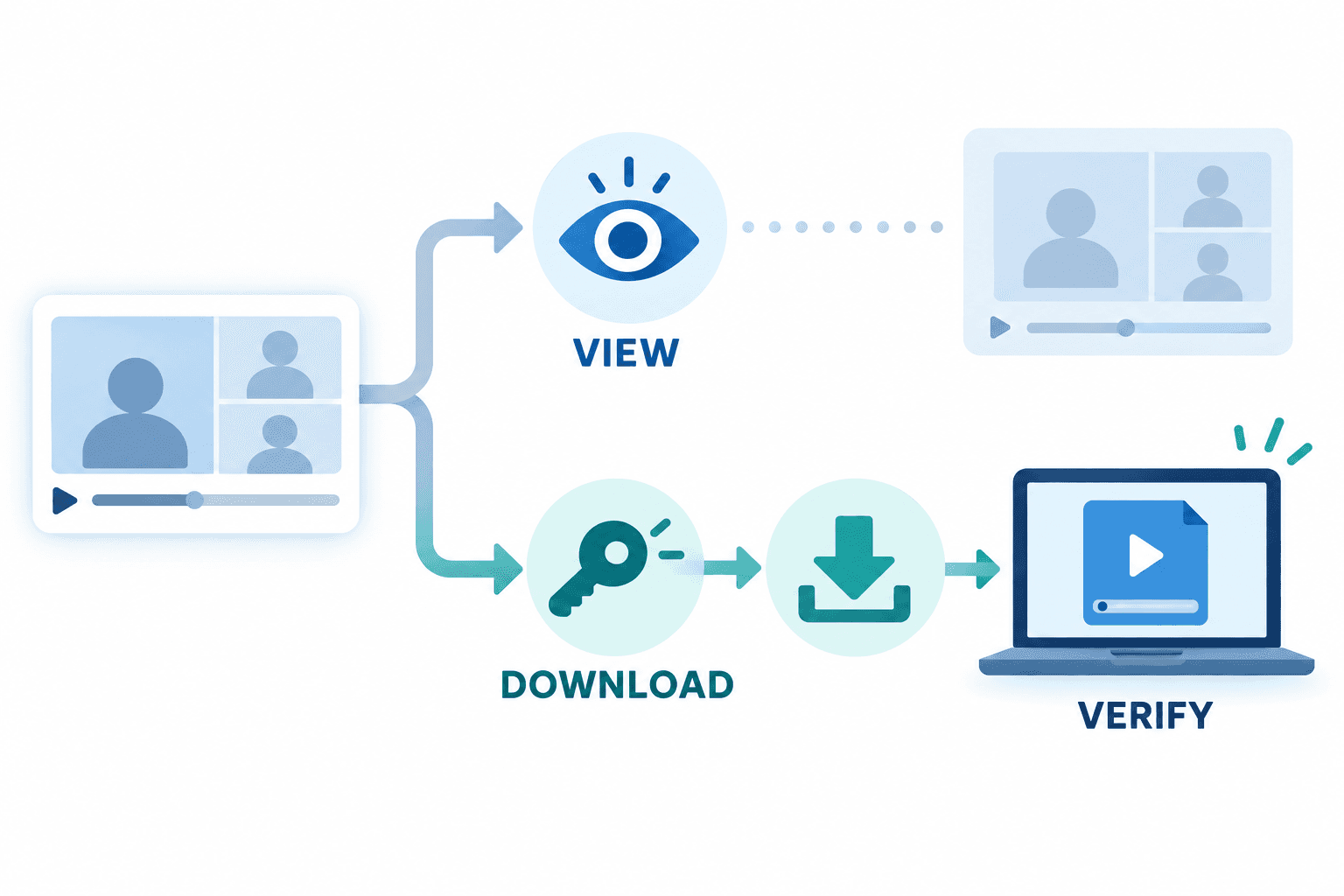
Use Zoom’s recording page for a processed cloud recording you are authorized to access. Owners and permitted users can use the documented Download control; a viewer’s ability to watch does not establish download permission. Ask the recording owner when the option is unavailable instead of sending a private recording link to a third-party downloader.
Identify your role and the recording
Start by identifying whether you manage the recording or received a shared link. Also establish whether the file was recorded locally on a computer or stored in Zoom’s cloud. A shared meeting invitation is not a recording file, and a participant’s attendance is not evidence of download permission.
Confirm the meeting topic and date with the host before copying or distributing anything. Meeting recordings can contain information that was meant for a limited audience; keep your handling consistent with the owner’s instructions.
Download from the recording page
Zoom’s official documentation says cloud recordings must finish processing before they appear in the relevant portal view. For your own recordings, it describes Recordings & Transcripts, then Cloud recordings. Open the recording, choose Download, and confirm the prompt. Follow any browser save-location or additional download prompts.
Use the page associated with your authorized account or the link supplied by the owner. This is an official-documentation workflow, not a claim that we tested your account or that AnyVidDL handles private Zoom links.
When watching works but downloading does not
Viewing access and download permission are distinct. Zoom documents a viewer-download setting in its sharing controls, and administrators may hide or restrict options. If the control is absent, ask the owner to confirm whether downloading is allowed and whether you have the intended link.
Give the owner the meeting topic, date and the exact message you see. Do not share meeting passcodes, private URLs or screenshots containing participant details in public support posts. Do not change someone else’s sharing settings or attempt to work around an administrator restriction.
Verify what reached your device
After the transfer completes, identify the file you need rather than assuming every downloaded item is the video. Open the recording locally and confirm the meeting, duration and relevant audio. Check that the part you need is present before deleting or reorganizing anything.
If you received several files, label them according to their actual contents and keep the originals together. Do not mistake a transcript or audio-only file for a video simply because it came from the same recording page. For technical metadata questions, use the ffprobe inspection guide, then check playback separately.
Keep a permission note and use the approved storage destination for your team. If the recording is incomplete or unavailable, return to the owner; this guide does not promise recovery of deleted recordings.
Source and verification boundary
This guide uses the platform’s official documentation, checked on 26 October 2026. Interface availability can depend on your account and permissions. We have not performed an end-to-end download test for this platform in this article. The local-file checks above are a practical checklist, not a measured success claim.
Key takeaways
- Use Zoom’s recording page for a processed cloud recording you are authorized to access.
- Keep permission and source information separate from the file itself.
- Verify the saved file in your intended player before relying on it.
Conclusion
Use the official route that matches your permissions, then verify the actual file. Keep its source and usage permission with your project notes.
FAQ
Why can I watch a recording but not download it?
Viewing and downloading have separate controls. Ask the owner to confirm download permission and any account restrictions rather than assuming a visible recording permits file export.
Should I paste a private Zoom link into AnyVidDL?
No. This guide uses Zoom’s own authorized download route and does not establish AnyVidDL support for private meeting links. Keep passcodes and restricted URLs within the intended audience.
What should I send the owner when a download fails?
Provide the meeting topic, date and exact error through an approved private channel. Describe whether the page opens and whether the download started; avoid posting passcodes or participant details publicly.
Related pages
4K Video Downloader Plus License Key: Purchase Recovery
Recover a purchased 4K Download license through the official purchase-email form, distinguish retrieval from activation, and prepare a private support record.
Is JDownloader Safe? Verify the Installer Source and Digital Signature
Check a JDownloader installer through its official source and digital signature. Understand what these checks show, their limits, and when to stop before setup.
KICK Clip Downloader Guide: Native MP4 and File Checks
Use KICK’s documented clip-page download route, keep clips distinct from full VODs, and check the MP4 file before relying on it.
Save a Permitted LinkedIn Video: Check the Link, File and Sound
A bounded workflow for checking a public LinkedIn video you have permission to save, then checking the downloaded file and its audio.