YouTube MP3 Downloader Searches: An Owner-File Audio Workflow
Start with your own or a creator-authorized video file, select the right audio track, and check the MP3 before using it.
For a YouTube MP3 downloader workflow you can verify, first obtain your own upload or a creator-authorized video file, then convert its audio locally and check the output. This guide uses a local-file example; it does not claim that AnyVidDL offers a YouTube-to-MP3 service.
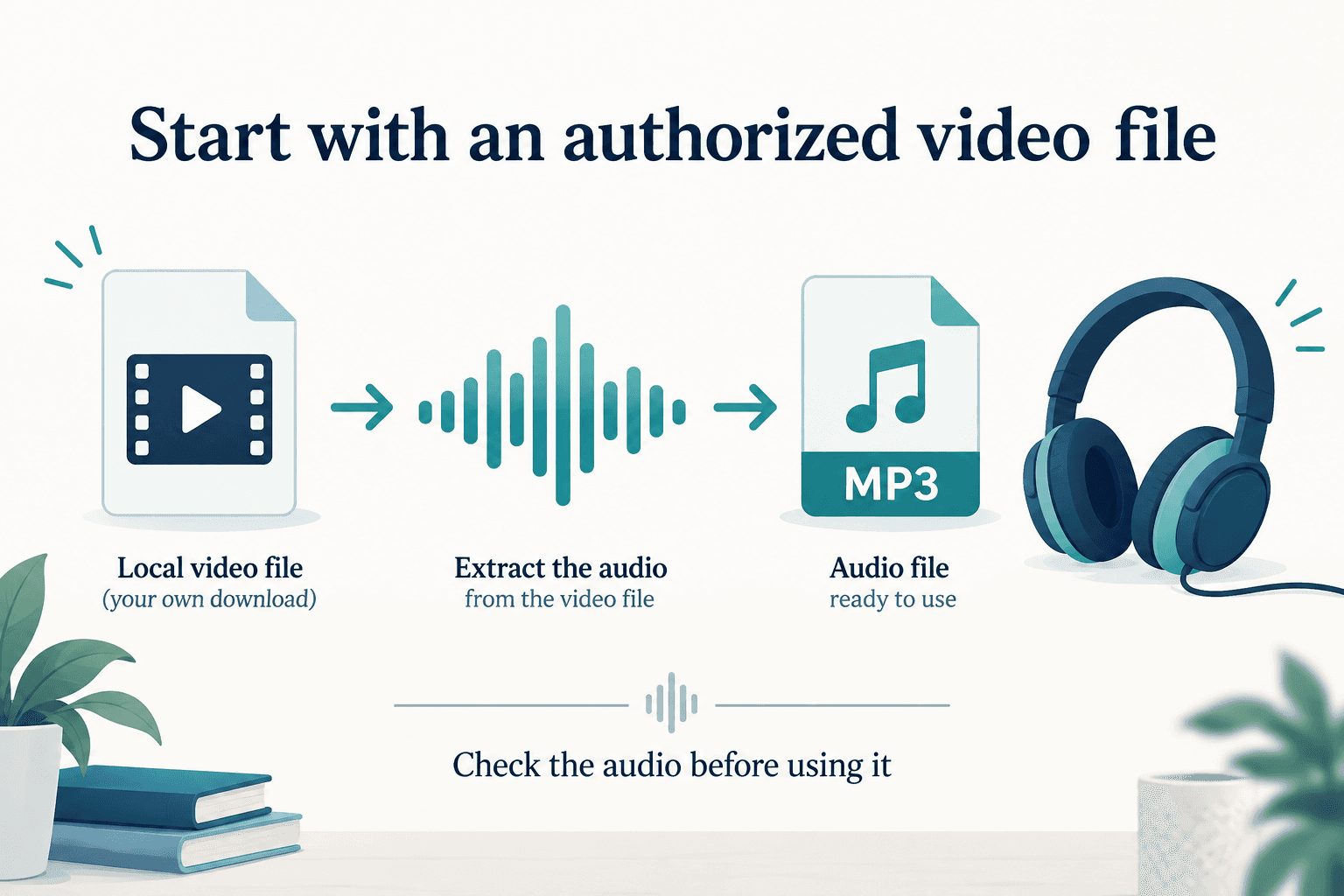
For a YouTube MP3 downloader workflow you can verify, first obtain your own upload or a creator-authorized video file, then convert its audio locally and check the output. This guide uses a local-file example; it does not claim that AnyVidDL offers a YouTube-to-MP3 service.
You may want a listening copy of a recording you uploaded, an interview supplied by its creator, or spoken audio for your own editing project. Searching for a YouTube MP3 downloader does not settle where that audio comes from or whether the result is usable. Work through the source, conversion and listening checks separately. This guide gives a local-file path and makes the limits of that path explicit.
Start with an authorized source you can actually save
If the video is yours, begin with its original recording or editing export. That keeps the audio task independent of a download website. If the file is no longer available locally, YouTube's owner-download instructions explain how to obtain a copy of an upload through Studio and point to Google Takeout for exporting uploaded videos. These are owner-account workflows, not a promise of downloadable files for every public video.
For another person's recording, request an authorized file from the creator. Explain whether you need the complete soundtrack, a spoken segment, or an editable original. A file you can play is still different from permission for its intended reuse. Keep the supplied file and the creator's instructions together so that conversion does not detach the audio from its context.
Check the video before extracting its audio
Open the local video in a trusted player and listen at the beginning, middle and end. Confirm that it is the right recording, that the relevant speech or music is actually present, and that playback reaches the expected ending. If the source is silent or the desired track is absent, stop and obtain a better source; conversion is not a repair for missing audio.
Keep a separate working copy. Give the output a new filename and store it somewhere you can find again. For example, keep interview-source.mp4 and interview-listening-copy.mp3 together without deleting the source. The names describe their roles; they do not certify audio quality. Our audio extraction guide explains the local-file step in more detail.
Convert a local file with explicit stream selection
If you already have FFmpeg installed from a trusted source, the following example selects the first audio stream of a local file and writes an MP3. It does not accept a YouTube page URL or fetch a private video.
ffmpeg -n -i "owned-video.mp4" -map 0:a:0 -vn "listening-copy.mp3"
Replace the input filename with your actual authorized local file. Choose an output filename that does not already exist; -n tells FFmpeg not to overwrite an existing output. The FFmpeg documentation explains manual stream selection with -map and excluding video with -vn. This example is a documented command pattern, not a download or conversion test performed for this article.
A file may contain several audio tracks. First audio does not necessarily mean your desired language or commentary. Inspect and listen to the selected track; if it is wrong, identify the intended stream before changing the command. If your FFmpeg installation lacks a suitable MP3 encoder, use its error message and installation documentation instead of repeatedly running the same command.
Decide whether the resulting MP3 meets your task
Listen to the beginning, a passage with speech, and the ending of the MP3. Check that the output is complete and contains the intended track. Then open it in the actual application or device where you plan to use it. A successful command is only one check; it does not establish that the result is suitable for a transcript, edit or listening archive.
Keep your source file if you may need another output later. Avoid repeatedly converting an already converted listening copy when the source remains available. Record what you used and where the source came from. For a spoken interview, an example acceptance check is whether every speaker is audible through the required passage; for a presentation, check that any needed narration is not replaced by a separate commentary track.
Separate this workflow from a hosted MP3 downloader
AnyVidDL does not offer hosted separate-track merging. This guide does not establish an AnyVidDL YouTube-to-MP3 service or a successful YouTube download test. The conversion example runs on a local file with a separate local tool. Do not enter account passwords or browser cookies into a converter to make an unavailable source work.
When the input cannot be obtained through an appropriate account or creator route, keep the task incomplete and ask for the source. If your purpose is simply listening within a platform's own offline feature, that is a different outcome from a portable MP3 file. Choose the workflow that matches the actual deliverable, and retain the restrictions that came with the recording.
Key takeaways
- Obtain the local source before choosing a conversion workflow.
- Select and listen to the intended audio track.
- Keep the original and use a new output filename.
Conclusion
A useful MP3 workflow begins with an appropriate source and ends with a listening check. Keep the original, choose the intended track, and verify the output in the application you actually need. If the source or necessary permission is missing, resolve that gap before treating conversion as a completed task.
FAQ
Can I put a YouTube URL into the example command?
No. The example expects an authorized local video file, such as owned-video.mp4. It does not perform a YouTube download.
What if the source video has no sound?
Check the source and obtain the intended recording or track. Converting a silent source does not provide the missing audio.
Will the command overwrite an existing MP3?
The example uses -n, which tells FFmpeg not to overwrite an existing output. Choose a fresh output filename and retain the source.