TikTok Photo Save: Choose Images from a Permitted Carousel
Save creator-permitted TikTok photo posts, select the intended carousel images, verify the saved photo set, and distinguish still-image output from video.
For a TikTok photo save, open a photo post whose creator allows saving, choose Share and Save photo, then select all images or the specific images you need and save them. Check the resulting photos on your device. If the option is unavailable, respect the creator’s choice; a video download workflow does not establish photo-carousel support.
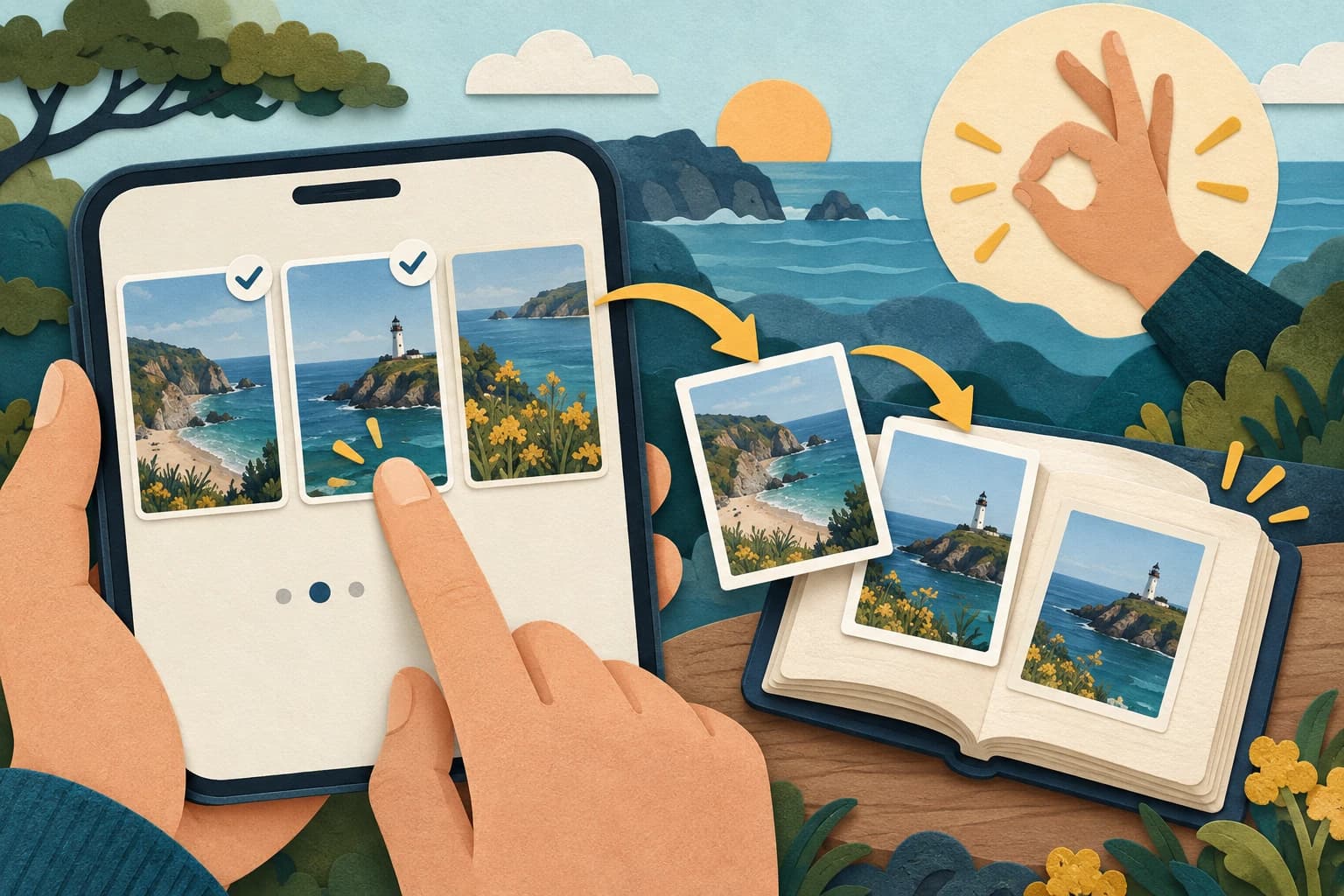
A carousel is an ordered set of still pictures. Saving one picture, recording the screen, and exporting a video are different outputs. Before touching a save control, decide which images you need and whether the creator allows saving. This guide explains the official photo steps and an original verification checklist. It does not report an in-app test or claim that AnyVidDL downloads photo carousels.
Confirm a photo post and an available save option
TikTok’s official video and photo save instructions describe Share followed by Save photo for eligible photo posts. This linked official page is Spanish; the instructions here are explained in English. Saving is conditional on creator permission.
Check the exact post and media type. A cover image for a video is not the same thing as a photo carousel, and a slideshow-like viewing experience does not prove that a tool will deliver separate photo files. Use the save action offered by the platform for that post.
If Save photo is missing, do not reinterpret a generic downloader button as permission. Ask the creator for the images or use the authorized viewing access. When you have permission for a particular use, keep that record separate from the device save; obtaining a local copy does not settle reuse rights.
Choose all images or a deliberate subset
Follow the photo save flow and choose either all images or the individual images you need. Before confirming, review the selection. For a subset, make a small note of the intended positions or visual descriptions: first landscape, detail close-up, closing image, for example. Those descriptions are a planning example, not a carousel tested for this article.
A selection checklist is useful because similar pictures can be hard to distinguish later in a media library. Do not assume that a file count alone proves the correct subset. If you need the whole sequence, preserve an order note as well as the image set. The device’s eventual listing order should be checked rather than assumed.
Keep the scope small for an initial permitted save. Review its result before repeating the process for other posts. A successful save from one creator does not establish availability for all accounts or every future carousel.
Verify the actual photos and sequence
After saving, locate the new pictures in your device’s normal media library. Open each intended image. Check that it is the correct picture, that the image opens without an error, and that no selected position is missing. Compare the result with the selection note you made before saving.
If the collection will be used in a project you are authorized to create, copy the verified set into a named folder and retain the original files. Add a simple manifest with source-post URL, save date, selected image descriptions, and any known reuse permission. Do not claim original camera quality or a particular resolution without inspecting the actual files.
If a save appears complete but an image is missing, preserve what was selected and what is actually present. Recheck only the affected permitted selection. Avoid claiming that the platform lost a particular image until you have ruled out a different selection or a wrong local folder.
Keep owner originals and video workflows separate
For your own post, the official instructions also describe Save to device before publishing and a save action while editing. Keep your original pictures in the source project, especially when later editing, print use, or a complete personal archive matters. A social-post copy should not silently replace the original.
TikTok’s creator download controls apply to whether others can save eligible posts. Review the setting deliberately for your own account; disabling future downloads does not recall previously saved copies.
The TikTok video workflow concerns a different output and should not be presented as evidence of photo support. Finish this workflow with the intended still-image set and an explicit record of any missing selection. If you instead need a reusable video montage, use your own images and an authorized editor as a separate project; this page does not promise that conversion.
Key takeaways
- Photo saving and video downloading produce different artifacts.
- Verify the exact subset rather than only a file count.
- Retain owner originals and the source-post record.
Conclusion
Use the official photo action when the creator permits it, select the intended images, and inspect the saved set individually. Keep the selection, order, and permission records alongside the pictures.
FAQ
Can I save only a few pictures from a carousel?
The official instructions describe selecting all or individual images in the photo-save flow when saving is allowed.
Does this remove watermarks or guarantee original resolution?
No. Neither capability is established here. Inspect the actual saved images and respect reuse permission.
What if Save photo is missing?
Respect the creator’s available controls and request an authorized image copy if needed.
Related pages
4K Video Downloader Plus License Key: Purchase Recovery
Recover a purchased 4K Download license through the official purchase-email form, distinguish retrieval from activation, and prepare a private support record.
Is JDownloader Safe? Verify the Installer Source and Digital Signature
Check a JDownloader installer through its official source and digital signature. Understand what these checks show, their limits, and when to stop before setup.
KICK Clip Downloader Guide: Native MP4 and File Checks
Use KICK’s documented clip-page download route, keep clips distinct from full VODs, and check the MP4 file before relying on it.
Save a Permitted LinkedIn Video: Check the Link, File and Sound
A bounded workflow for checking a public LinkedIn video you have permission to save, then checking the downloaded file and its audio.