Save a Permitted LinkedIn Video: Check the Link, File and Sound
A bounded workflow for checking a public LinkedIn video you have permission to save, then checking the downloaded file and its audio.
Start with a specific public LinkedIn video you own or have permission to save. Check the link in AnyVidDL, choose an available result, then open the saved file and check playback and sound. Availability depends on the individual source; a public page alone is not permission to reuse its video.
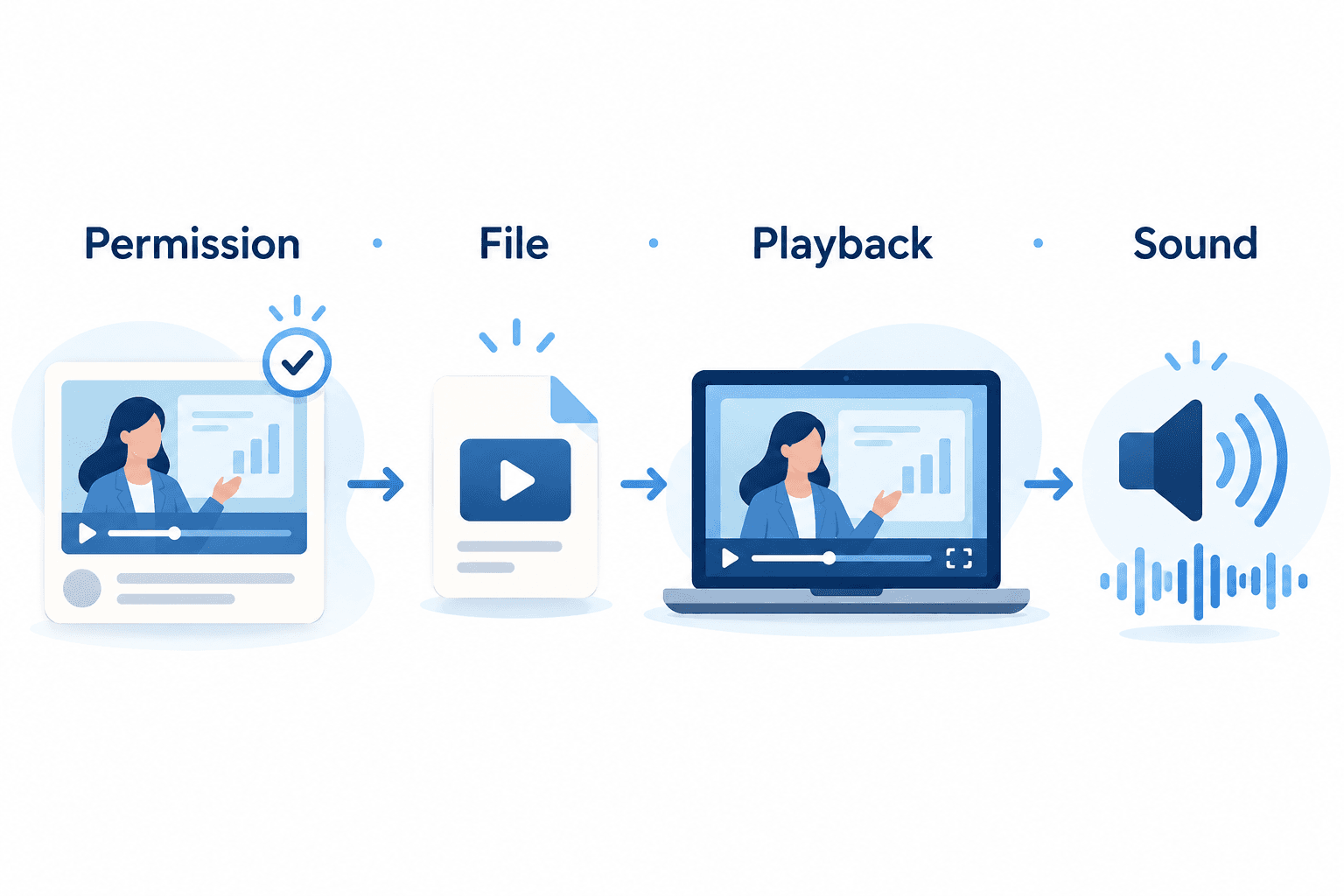
A LinkedIn page that plays a video and a video file saved on your device are two different things. Start with a specific public video you own or have permission to save. Check the link in AnyVidDL, choose an available result, and verify the resulting file before relying on it offline.
A successful check for one video does not establish that every LinkedIn address works. Login-only material, private posts and LinkedIn Learning are outside the tested workflow described here.
Start with the video, not a collection
Open the particular video and confirm that it is the intended item. Keep its source address and creator attribution with your notes. A company profile, a search page or a collection does not identify a single file to download.
Our verified example used a public LinkedIn address with a /videos/ path. It does not establish equivalent behavior for every feed-post address, shortened link or embedded video. If your link cannot be checked, keep the error and ask the owner for an authorized file instead of repeatedly trying unrelated URLs.
Public visibility does not grant permission to republish, edit or use a video commercially. Confirm your permission separately from whether a tool can retrieve the file.
Check and save the permitted link
- Copy the address of the specific video, after checking its identity and your permission to save it.
- Open the AnyVidDL website and submit that address to check for available video options.
- Read the returned result. If no usable option is available, do not treat that as a completed download.
- Choose a returned option that fits your purpose. Do not infer quality or audio availability from a filename alone.
- If the interface offers a download action, start it and follow any browser save prompt. Browser behavior can vary; our test verified the API transfer, not a completed browser save. Locate the saved file only after the transfer finishes.
- Open the file in a media player and check the beginning, a point in the middle and the ending. Listen where the original has sound. If the source shows a duration, compare it with the saved file; a different file size alone does not prove an error because formats can differ.
Keep the source address alongside the file so that you can identify the video later. A browser bookmark or a page saved as HTML is not the video itself.
When the result is incomplete
| What you observe | What to check |
|---|---|
| A login or access requirement | Use the source’s authorized access route or ask the owner for a file; this workflow does not bypass the requirement |
| No available result | Recheck that the address identifies one permitted public video and retain the error for support |
| Transfer fails or the file will not open | Confirm that the transfer completed; renaming a file extension does not repair missing media |
| Video opens without sound | Compare with the source, check player mute settings and confirm whether the chosen result includes audio |
| File plays but is the wrong video | Recheck the source identity before saving another result |
A returned list of formats is useful evidence that the source was recognized. It is not proof that a complete playable file reached your device.
What was actually verified
On 25 October 2026, a single authorized public /videos/ sample completed the production format-check, ticket and file-transfer flow. The received file was 8,218,942 bytes (about 8.2 MB), lasted approximately 130.2 seconds, contained video and audio, and passed a complete decode check. This is evidence for that sample under those conditions. It is not a platform-wide success rate, a guarantee for another link, or proof of a download completing in your browser.
No private source address is published here. LinkedIn Learning, login-only videos and arbitrary feed URLs were not validated by that sample. If the tested route does not fit your source, an owner-provided file remains the clearest alternative.
Key takeaways
- Confirm permission separately from public visibility.
- One tested videos-path sample is not universal LinkedIn support.
- Check the completed file, its identity, playback and expected sound.
Conclusion
Check that the file is the right video, that playback finishes and that expected sound is present. Keep attribution and any permission conditions with it. Saving a copy and having permission to share that copy are separate checks.
FAQ
Does a public LinkedIn video automatically permit reuse?
No. Public visibility and permission are separate checks. Confirm the owner’s permission and any conditions before saving or sharing a copy. The file-transfer result cannot establish those rights.
Does this test cover LinkedIn Learning or login-only videos?
No. The evidence covers one authorized public videos-path sample. It does not validate LinkedIn Learning, private or login-only material, arbitrary feed links, or every video on the platform.
What should I check if the file has no sound?
First compare with the permitted source. Check player mute settings and whether the chosen result contains audio. Do not assume a filename proves an audio track exists. If sound remains missing, retain the error and ask the owner for an authorized original file.
Related pages
4K Video Downloader Plus License Key: Purchase Recovery
Recover a purchased 4K Download license through the official purchase-email form, distinguish retrieval from activation, and prepare a private support record.
Is JDownloader Safe? Verify the Installer Source and Digital Signature
Check a JDownloader installer through its official source and digital signature. Understand what these checks show, their limits, and when to stop before setup.
KICK Clip Downloader Guide: Native MP4 and File Checks
Use KICK’s documented clip-page download route, keep clips distinct from full VODs, and check the MP4 file before relying on it.
Turn Your Own Short Video into an Animated GIF: Clip, Palette and Size Checks
Make an animated GIF from your own local video with FFmpeg. Choose a short excerpt, create a palette, and check the result before sharing.