Tumblr Video Downloader Guide: Export Your Own Blog Backup
Back up a Tumblr blog you control, locate included video files in the ZIP, and check them without sharing private posts or messages.
For a blog you control, use Tumblr’s web Settings export and download the completed ZIP. Look in the Media folder for included video files, and inspect the archive privately because it may also contain private posts or messages. This is an own-blog backup route, not a downloader for arbitrary public posts or liked videos.
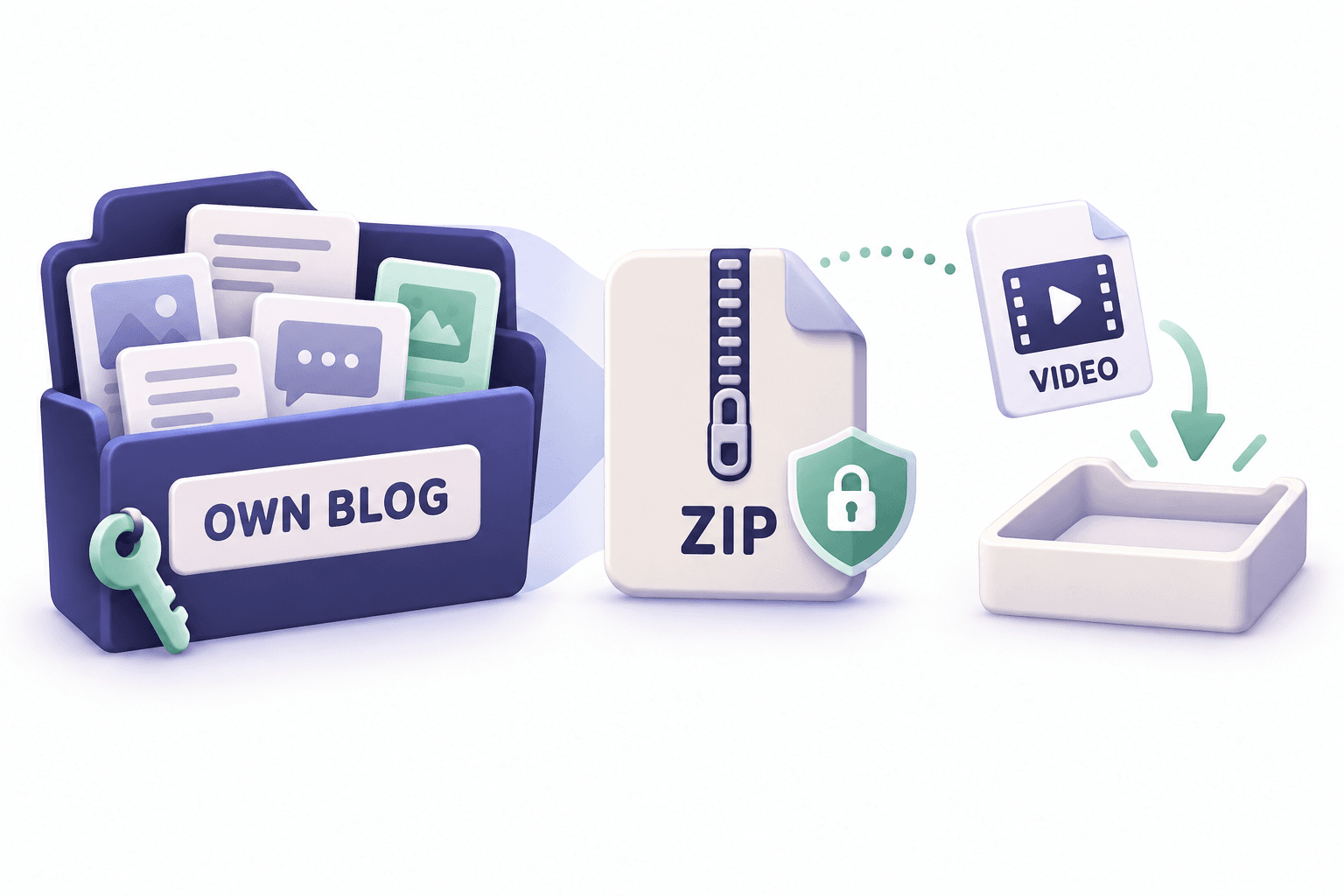
Use Tumblr’s web settings to request a complete blog export, wait for the processing to finish, and download the resulting ZIP, which may include a Media folder. While people often search for a "tumblr video downloader" to capture arbitrary public clips or content they merely liked, that keyword refers to other tasks which this owner-backup guide does not claim to solve. This guide specifically outlines the official method for blog owners to back up their own uploaded media using the platform’s own export route.
Confirm that you control the blog
Before starting, verify that you are logged into the account that actually owns the blog containing the videos. Tumblr requires you to export each blog separately, meaning you cannot bundle multiple blogs into a single request. This process is strictly for administrators backing up their own content; it does not grant you the ability to export someone else’s blog, download arbitrary public posts, or secure copyright permission for distribution. Navigate to the web version of the platform on a desktop browser, as the export feature is currently unavailable within the mobile applications.
Request the web export and save the ZIP
According to Tumblr's official export documentation, you initiate this process by opening your web Settings, selecting the specific blog, and clicking Export [blog name]. The system requires processing time to compile the archive. Once finished, a Download backup button appears, providing a ZIP file. Backups are retained for three days, and you are limited to a maximum of four exports per blog per month.
This official-documentation workflow does not guarantee an exact processing time, nor does it serve as an AnyVidDL platform support claim or a live account test. Save the original ZIP file securely to your local drive before attempting to extract anything.
Find the video files without exposing private records
The downloaded ZIP is a comprehensive archive, not just a folder of videos. It may include your Posts (including private entries and drafts), messaging conversations, and a Media folder containing your uploaded-format video and other media files. Liked posts are not included in this export.
Because this archive may contain private account history and messages, never upload, share, or send the entire unzipped folder to a client, colleague, or public cloud platform. Instead, extract the ZIP locally on your own machine. Navigate directly to the Media folder and isolate only the specific video files you intend to distribute. Do not assume the archive includes every video you remember, third-party embedded media, or deleted content. The documented export is not a completeness or recovery guarantee; keep a separate note of missing items.
Check and store the backup before sharing any clip
Once you have located the target videos, verify them in a standard desktop media player before relying on them for your project. Play the clip from beginning to end to confirm the picture is intact and any expected sound is present and synchronized.
The platform exports media in the format it was originally uploaded, so do not expect an automatic MP4 conversion. If the file requires a different format for your downstream workflow, you will need to handle that conversion locally using dedicated video software. Document exactly which videos successfully exported and move those specific files into a dedicated, secure project folder that is entirely separate from the master ZIP archive.
Source and verification boundary
This guide follows Tumblr’s official blog-export instructions, checked on 27 October 2026. It describes a blog you control, not arbitrary public-post downloads. We did not perform an account export test and do not claim AnyVidDL compatibility. Confirm current export limits on the official page before relying on them.
Key takeaways
- Use the web export for a blog you control; liked posts and arbitrary public downloads are separate tasks.
- The archive may include private records, so select files locally instead of distributing the whole ZIP.
- Verify each intended video and keep a note of what was actually included.
Conclusion
Keep the original ZIP private, test the specific video files you actually found, and share only the authorized files needed for your project. Record missing items without treating the backup as proof of complete recovery.
FAQ
Can I use this method to download videos I liked on other blogs?
No. The documented blog export does not include liked posts. This guide is limited to a blog you control and does not provide an arbitrary-post download workflow.
Why is a video I remember missing from the backup?
Confirm the correct blog and inspect the completed archive. The documentation does not establish that every remembered, embedded or deleted item will be included. Record the missing item and ask Tumblr support rather than assuming recovery is possible.
Why can’t I find the export button in the mobile app?
Tumblr documents initiating and downloading blog exports on the web, rather than in its apps. Open the relevant blog’s settings in a browser and follow the documented export route.
Sources
Related pages
4K Video Downloader Plus License Key: Purchase Recovery
Recover a purchased 4K Download license through the official purchase-email form, distinguish retrieval from activation, and prepare a private support record.
Is JDownloader Safe? Verify the Installer Source and Digital Signature
Check a JDownloader installer through its official source and digital signature. Understand what these checks show, their limits, and when to stop before setup.
KICK Clip Downloader Guide: Native MP4 and File Checks
Use KICK’s documented clip-page download route, keep clips distinct from full VODs, and check the MP4 file before relying on it.
Save a Permitted LinkedIn Video: Check the Link, File and Sound
A bounded workflow for checking a public LinkedIn video you have permission to save, then checking the downloaded file and its audio.